How to open a workspace
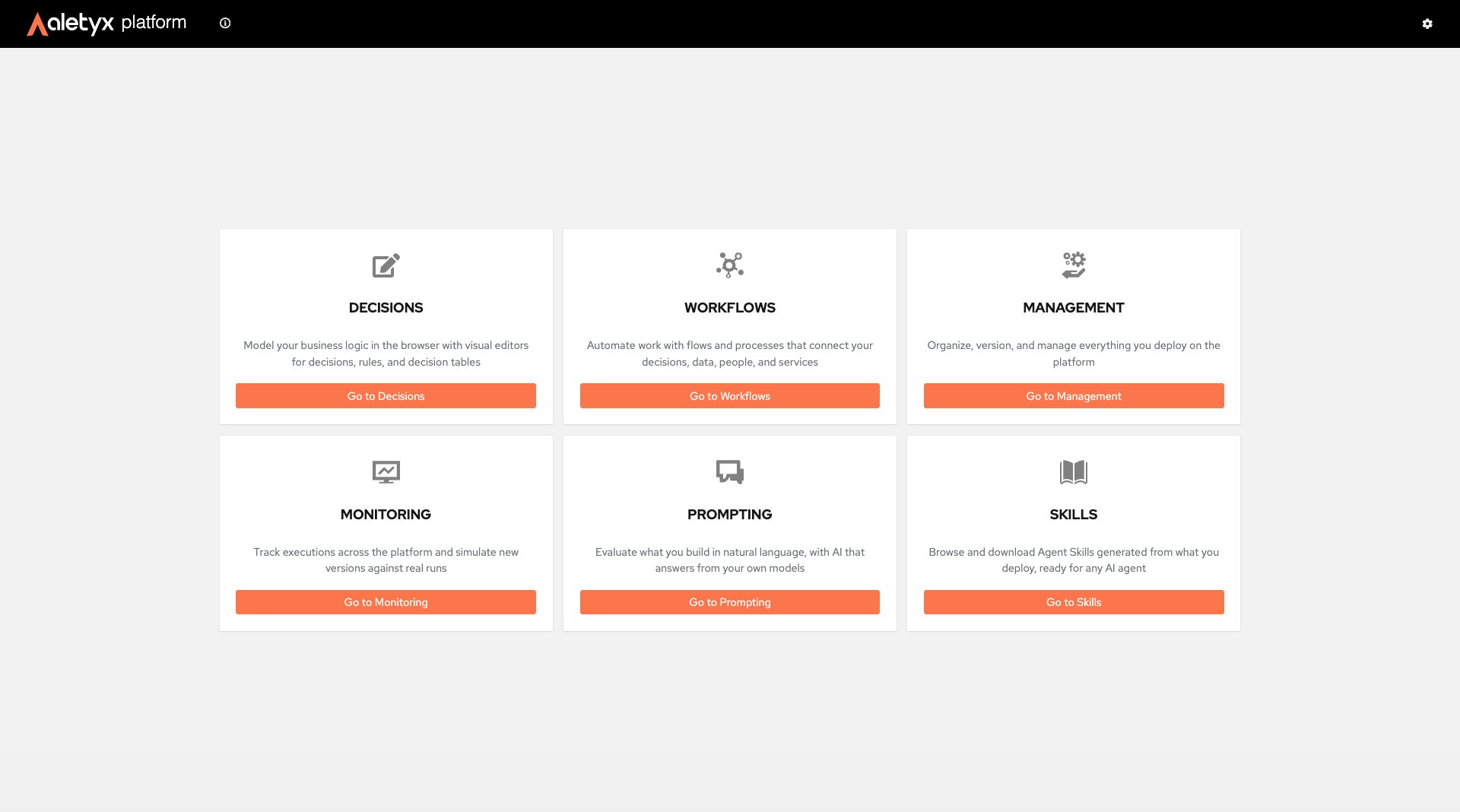
Each workspace is a card on the home page. To open one, find its card and click its Go to … button.Disabled vs hiddenA card you aren’t authorized for is shown disabled; a workspace turned off in your deployment is hidden entirely.
How to open global Settings
Open the global Settings dialog from the gear icon in the masthead. It is available from any screen and groups its options into tabs:- Git Providers — connect your GitHub, Bitbucket, or GitLab accounts so you can import from and sync with private repositories, gists, and snippets.
- Theme — switch the interface between light and dark themes.
- AI Assistant — store the API key the AI features use. (This tab appears only when the AI SaaS integration is enabled.)
- Click the gear icon (Settings) in the top-right masthead.
- In the Settings dialog, pick a tab: Git Providers, Theme, or AI Assistant.
- Make your changes (for example, choose a theme or paste an API key).
How to connect a Git provider
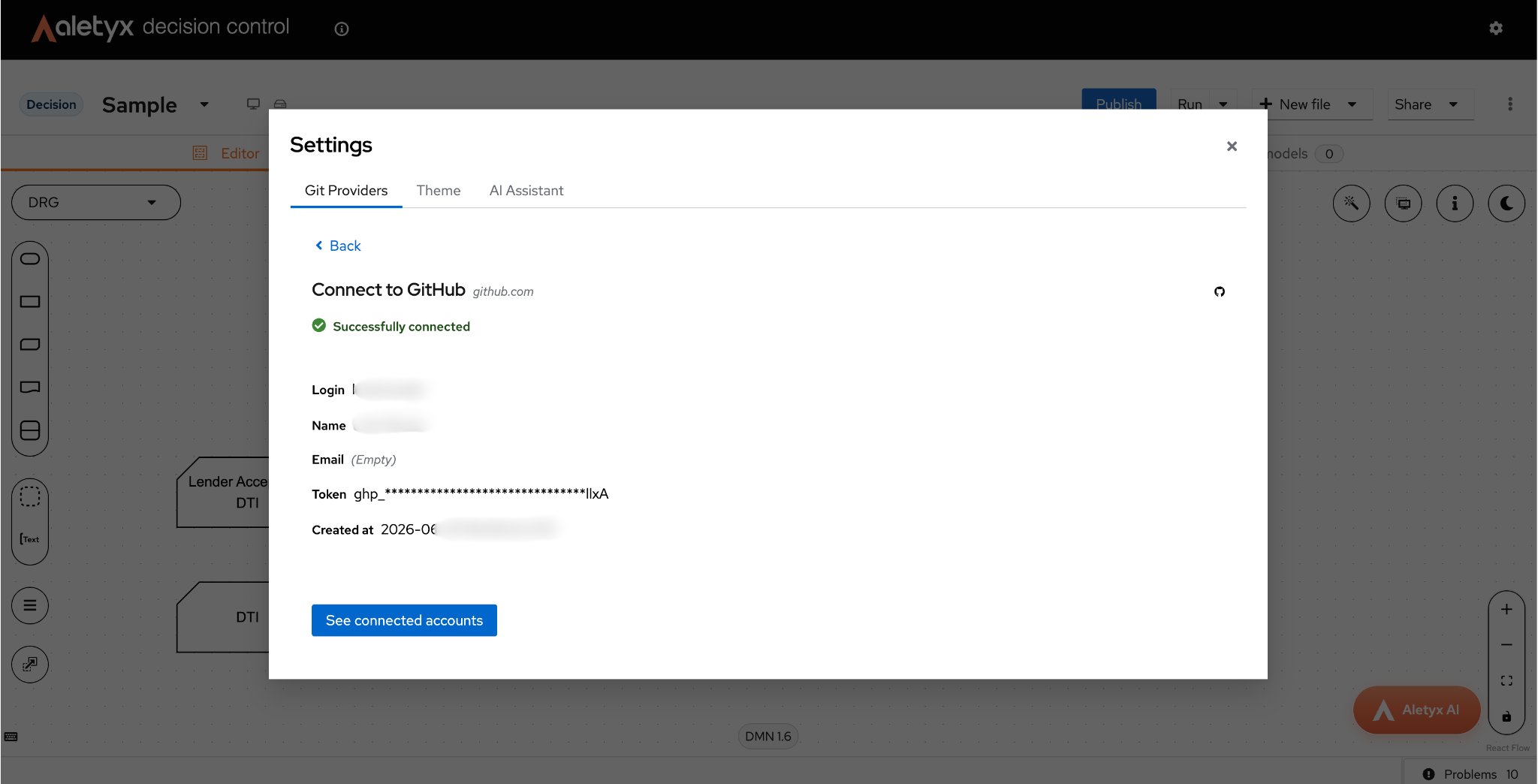
Connect a GitHub, Bitbucket, or GitLab account so you can import models from private repositories, gists, or snippets, and sync your Git-backed workspaces. Prerequisites: A Personal Access Token (PAT) from your Git provider. For GitHub, a classic token with therepo scope, or a fine-grained token with Contents: Read + Metadata: Read.
Steps:
- Open Settings (gear icon in the masthead) → Git Providers tab.
- Click the provider you want to connect (GitHub, Bitbucket, or GitLab).
- Paste your Personal Access Token and submit.