Introduction to business processes

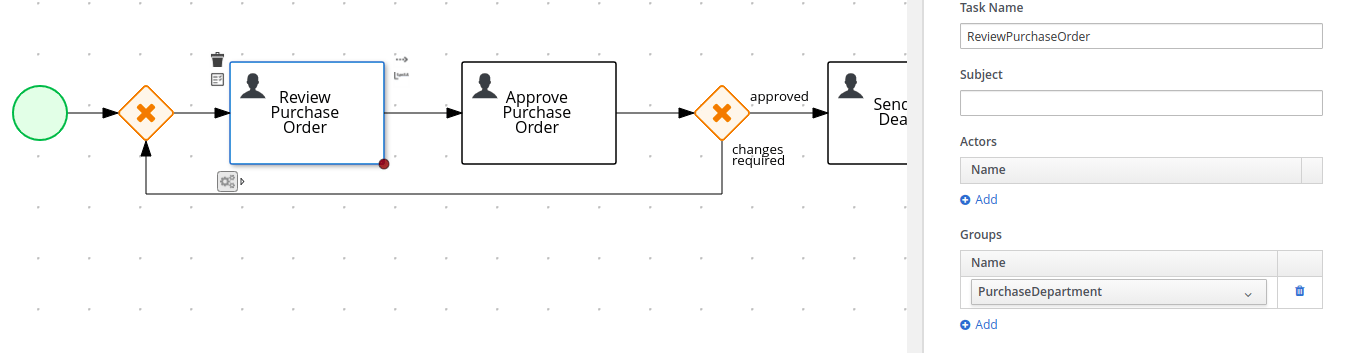
Business process management systems (BPMS) products such as jBPM have the ability to model and execute multiple business processes. A business process is typically composed of nodes such as events, gateways, and tasks that are connected to each other for defining the process flow. Every type of node has a specific semantic and is instantiated by the process runtime engine when a process instance is executed. Business processes that require human interaction are modelled by using human task nodes. The following image shows a process where three tasks require human interaction: PurchaseOrderProcessDefinition Example process It is usual for a system that executes several process instances to have many human task instances that are waiting for an external human action. BPMDefaultAssignment Default task list OptaPlanner integrates with jBPM to provide the ability to assign human tasks to users as part of an optimized plan. This is referred to as task assigning integration.

BPM standard task assigning

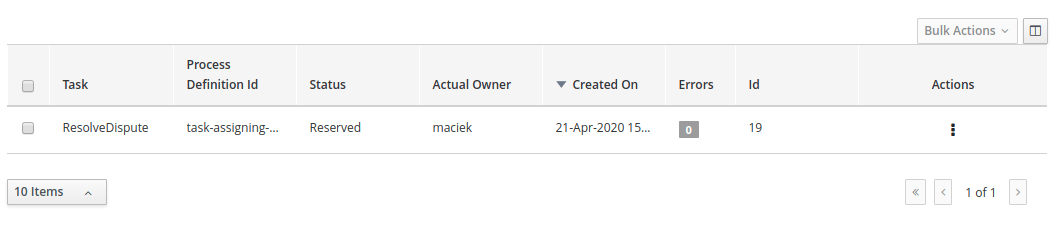
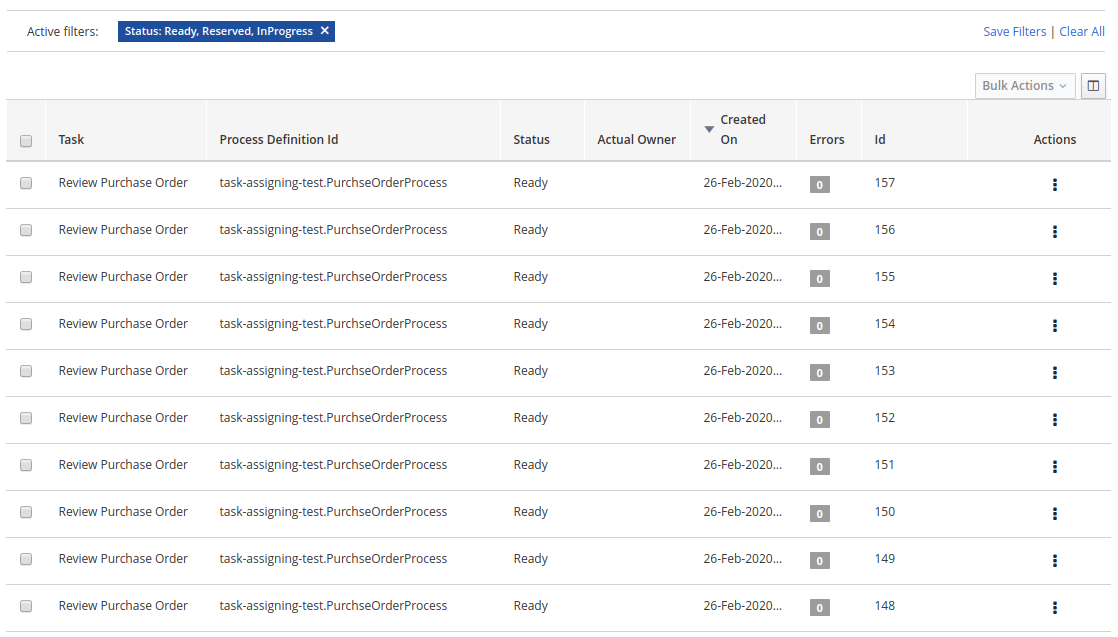
In general, business process runtime engines assign human tasks to users on a group basis. The target audience is usually included as part of the human task configuration. The following image shows how the Review Purchase Order human task is configured with the PurchaseDepartment group: ReviewPurchaseOrderTaskConfiguration Human task configuration At runtime, every time a new instance of the Review Purchase Order task is created it is automatically assigned to the PurchaseDepartment group with the status Ready. This makes the task automatically available to all users that belong to the group. All users in the group see it on their respective Task Inbox but none are the actual owner or responsible for the task. To be able to work with a particular task, a user must execute the claim operation to reserve the task for that user. The following image shows an example of the claim operation execution for the task #152: UserClaimsTask User claims a task When the claim operation is executed, the task status is changed to Reserved and the task is assigned to the claiming user. In the preceding example, the claimer of the task is the wbadmin user. After the user claims the task, he is known as the task “actual owner”. TaskClaimed Task claimed by wbadmin Although this is the standard procedure for most BPMS products, it is not flexible enough for all use cases. For example, this procedure does not work well with scenarios where an optimal distribution of a huge set of tasks between users by given criteria is required. In these cases, users usually find a large list of tasks up-front but do not have the knowledge to claim and execute them in the best way.


OptaPlanner driven task assigning

OptaPlanner and jBPM integration provides the ability to assign the human tasks produced by the process runtime engine between users according to an optimized plan. Instead of users having to claim the tasks, the tasks are assigned to them. The following image shows how the tasks are assigned when integration is enabled. TasksAlreadyDistributed Assignments produced by OptaPlanner The following assignments are shown:
  • User katy is assigned to tasks #150 and #148
  • User john is assigned to tasks #151 and #149
  • Tasks #152, #153, #154, #155, #156 and #157 are left un-assigned (these tasks will be analysed later)
Behind the scenes the following actions took place:
  1. All of the available tasks with the status “Ready” were consumed by OptaPlanner.
  2. The users john and katy were identified as belonging to the “PurchaseDepartment” users group.
  3. The “Review Purchase Order” tasks were identified as defined for the “PurchaseDepartment” group.
  4. An optimized plan was calculated and all of the tasks (including the “un-assigned” tasks) were assigned according to their configuration, for example group condition and OptaPlanner optimization rules. The resulting plan stated that:
    • Tasks #150 and #148 must be assigned to katy
    • Tasks #151 and #149 must be assigned to john
  5. OptaPlanner executed the correct process runtime actions to make these assignments happen. Note that the users were not required to execute the “claim” operation. Instead they can focus on completing their respective assigned work and leave the distribution and assignment work to OptaPlanner.
This simple example shows the main concept behind integration: “OptaPlanner analyses the available work, calculates an optimized plan, and produces the necessary assignments in the process runtime. Users then rely on that plan and focus on executing their assigned work”. Unassigned tasks Usually, a running BPM creates many process instances and many human tasks. At the same time, users are working and completing these human tasks. This cycle is repeated over and over. OptaPlanner addresses this situation by re-calculating the optimized plan when new human tasks are created and/or completed and producing “new assignments” to reflect the new optimized plan. This is often achieved by combining different “Repeated Planning and Real Time Planning” techniques. For detailed information see the OptaPlanner documentation. Additionally it might be the case that a plan that was optimal at time N is no longer optimal at time N+1. For example, a higher priority task has arrived and must be performed as soon as possible. The direct impact of this situation is that the programmed assignments at time N might change at time N+1, which means that tasks are routinely re-assigned many times when the new optimized plans are calculated. One of OptaPlanner’s strengths is the ability to react to a changing context. User impact If not controlled, continuous task re-assignment might negatively impact the user’s experience because they might feel that tasks come in and out of their workload randomly. This situation is present in other types of optimization problems as well and is usually managed by combining different repeated and continuous planning techniques. For detailed information see the “Repeated Planning” section of the OptaPlanner documentation. A simple strategy is to introduce the concept of a planning window which is a defined subset of the available work that will not be changed or re-assigned even when new plans are calculated. Only this subset is available to users. The tasks in the planning window are called published tasks. The previous example contains a planning window with a size of two. This means that only two tasks from the optimized plan are assigned in the processes runtime for each user so that users have at most two tasks assigned to them and they must focus on those two tasks. As soon as they start completing these tasks OptaPlanner assigns them additional tasks according to the last optimized plan. However, internally OptaPlanner maintains information about the best assignments for all of the tasks and not only the published tasks. This is how the assignments are distributed in the preceding example:
  • User katy is assigned to tasks #150 and #148 which belong to the planning window
  • User john is assigned to tasks #151 and #149 which belong to the planning window
  • The un-assigned tasks are outside of the planning window which means they are assigned only internally by OptaPlanner. As long as these tasks remain unpublished they can be reassigned if necessary during the different optimized plans calculation.

Configuring the integration

Product version

The current task assigning integration implementation is provided for the OptaPlanner, jBPM, and KIE Server 7.38.x+ series.
KIE Server provides many installation alternatives, for example controller driven servers, standalone servers, high availability, etc. The purpose of this guide is to show you how to configure your KIE Server installation for the task assigning integration.
For KIE Server and jBPM configuration information see their respective product documentation. The following procedure is recommended:
  1. Install the KIE Servers topology that you require.
  2. If you are using the jBPM schema generation scripts be sure to execute the following sql script corresponding to the target database management system: jBPM installer → /db/ddl-scripts/<dbms_vendor>/task_assigning_tables_<dbms_vendor>.sql For example, in the case of a db2 database you must execute the following script: jBPM installer → /db/ddl-scripts/db2/task_assigning_tables_db2.sql For more information related to these scripts see jBPM documentation. Note: the reverse script in cases where the generated schema needs to be deleted can be found in the same location and has the following name: task_assigning_tables_drop_<dbms_vendor>.sql
  3. Be sure the process runtime is executing well.
  4. Install a dedicated Planning kie-server (see next topics).
  5. Complete the task assigning integration specific configuration parameters in all of the associated Process Runtime kie-servers and the Planning kie-server.

Simplified architecture

The following simplified architecture identifies the key components and configuration parameters for the task assigning integration. SimplifiedArchitecture Simplified architecture

Process Runtime kie-server

This is the KIE Server instance where the business processes execute. In clustered and high-availability configurations, multiple instances can be used.
The task assigning integration can manage multiple process runtime KIE Servers as long as they share the same database where the process instances, human tasks instances, and so forth are stored and have the same set of deployed containers. In topologies where a KIE Server controller is configured this usually happens when they belong to the same KIE Server template. Be sure these statements are true before running the task assigning integration.

Planning kie-server

This is the KIE Server instance where OptaPlanner will execute, for example where the optimized plans and so forth will be calculated, and where the UserSystemService integration component will run. The task assigning integration requires a single dedicated KIE Server instance for this purpose. Be sure no other KIE Server extensions are enabled on this server.

Configuration parameters setup

All of the configuration parameters that are defined in the next topics are defined through the Java system properties. In Wildfly and Red Hat Enterprise Application Server (EAP) installations, these parameters are usually configured in the <system-properties> section of the selected configuration file, for example:
You can also use other methods of setting system properties, for example passing JVM parameters on the command line:
It is recommended to use the same configuration method for all KIE Server required parameters.

Process Runtime kie-server configuration

The following table shows the only parameter that must be configured in all of the Process Runtime kie-servers in the target topology.
ParameterRequirementDescription
org.kie.server.taskAssigning.runtime.ext.disabledNot required

The default value is “true”, meaning that the task assigning integration is always disabled.

Must be set to “false” for making it work.

Process Runtime kie-server Wildfly/EAP configuration example

Planning kie-server configuration

The following topics explain the parameters that you must configure in the Planning kie-server. Whatever the target topology is, only one instance of this server will exist.
The parameters tagged as “Required” must be set only in cases where the task assigning integration is enabled. Some of them have a default value that automatically applies when not set.

Global configuration parameters

ParameterRequirementDescription
org.kie.server.taskAssigning.planning.ext.disabledNot required

The default value is “true”, meaning that the task assigning integration is always disabled.

Must be set to “false” for making it work.

org.kie.server.services.taskAssigning.core.model.planningUserIdRequired

The default value is “planninguser”.

This value configures the user for being assigned with the tasks that no other user in the system can be assigned to.

For example, if a task has a required skill “astronaut” and no user can be found with this skill, it will be assigned to the planninguser.

But it is not only restricted to skills, another example might be a task configured for a users group “Finance”. If no user exists in that group it will be assigned to the planning user.

It is strongly recommended that the planning user has the required human tasks administration grants in all of the target Process Runtime kie-servers. By doing so it can easily proceed to track and eventually re-assign the tasks that couldn’t be managed by the tasks assigning integration.

Note: it is recommended to keep this name.

org.kie.server.taskAssigning.processRuntime.urlRequired

The default value is http://localhost:8080/kie-server/services/rest/server

This value configures the URL for connecting to the Process Runtime kie-server rest services.

In a clustered environment a list of ”|” separated urls can be used for doing load balancing between the different Process Runtime kie-servers.

org.kie.server.taskAssigning.processRuntime.userRequired

The default value is wbadmin

This value configures the user id for connecting to the Process Runtime kie-server. In a clustered environment it must exist in all of the configured target servers.

The configured user must belong to the human tasks administration group. This group is usually found by looking at the target Process Runtime kie-server configuration parameter:

<property name="org.jbpm.ht.admin.group" value="process-admin"/>

Following the example above the configured user must belong to the group “process-admin”

org.kie.server.taskAssigning.processRuntime.pwdRequired

No default value is set.

This value configures the password for the user configured in org.kie.server.taskAssigning.processRuntime.user parameter.

org.kie.server.taskAssigning.processRuntime.targetUserRequired

No default value is set.

This value configures the user ID used to execute the process runtime operations “on behalf of”, and is usually the same as the value of the org.kie.server.taskAssigning.processRuntime.user parameter

org.kie.server.taskAssigning.processRuntime.key.aliasNot Required

No default value is set.

This parameter can be used in cases where it is required to get the runtime user password from the KIE Server keystore and represents the alias for locating it.

org.kie.server.taskAssigning.processRuntime.key.pwdNot Required

No default value is set.

This parameter must be used in cases where the runtime user password is stored in the KIE Server keystore, and represents the password for accessing the corresponding keystore entry.

kie.keystore.keyStoreURLNot Required

No default value is set.

URL for the JCEKS that you want to use, for example file:///home/kie/keystores/keystore.jceks

kie.keystore.keyStorePwdNot Required

No default value is set.

Password for the JCEKS

org.kie.server.taskAssigning.processRuntime.timeoutNot Required

The default value is 90000.

This value configures the timeout in milliseconds for the operation invocations on the Process runtime kie-server.

org.kie.server.taskAssigning.runtimeDelegate.pageSizeNot Required

The default value is 3000.

This value configures the page size for the paged queries. The default value is good for most scenarios and it’s not recommended to be modified unless specific fine tunings are required.

org.kie.server.taskAssigning.solutionSyncIntervalRequired

The default value is “PT2S” (two seconds).

This value configures the time interval for the tasks information refreshing from the Process Runtime kie-server.

The accepted format is based on the ISO-8601 duration format PnDTnHnMn.nS with days considered to be exactly 24 hours. For example:

“PT1.500S”: configures 1500 milliseconds.

”PT0.500S”: configures 500 milliseconds.

”PT3S”: configures 3000 milliseconds.

org.kie.server.taskAssigning.solutionSyncQueriesShiftRequired

The default value is “PT10M”

This value configures a timeshift for adjusting the tasks information refreshing queries. In most cases it should never be modified and should not be less than PT5M (five minutes).

The accepted format is based on the ISO-8601 duration format PnDTnHnMn.nS with days considered to be exactly 24 hours.

org.kie.server.taskAssigning.publishWindowSizeRequired

The default value is 2.

This value configures the maximum amount of tasks per user that will be assigned to it in the Process Runtime kie-server when an optimized plan is calculated. See “published tasks”

This value should usually be low, 2, 3, or 4, since it is expected that the tasks will be assigned to the users according to an optimized plan that is changing over time. High values might lead to the BPM Standard task assigning which could make the tasks assigning integration senseless.

org.kie.server.taskAssigning.usersSyncIntervalRequired

The default value is “PT2H” (two hours)

This value configures the time interval for the user’s information refreshing from the UserSystemService integration component.

The accepted format is based on the ISO-8601 duration format PnDTnHnMn.nS with days considered to be exactly 24 hours.

org.kie.server.taskAssigning.waitForImprovedSolutionDurationNot Required

The default value is “PT0S” (no wait)

This value configures the time interval to improve a solution before the corresponding optimized plan is sent to the Process Runtime kie-server.

Because this wait time is applied every time a new set of changes is processed it should usually be short, for example “PT0.500” (500 milliseconds). Use it in cases when early improvements are desired.

The accepted format is based on the ISO-8601 duration format PnDTnHnMn.nS with days considered to be exactly 24 hours.

org.kie.server.taskAssigning.improveSolutionOnBackgroundDurationNot Required

The default value is “PT1M” (one minute)

This value configures the time interval for doing a background optimization of the current solution after the corresponding optimized plan is sent to the Process Runtime kie-server.

In situations where no changes in the processes are produced and a better solution is calculated during that period, the new optimized plan is automatically sent to the Process Runtime kie-server.

The accepted format is based on the ISO-8601 duration format PnDTnHnMn.nS with days considered to be exactly 24 hours.

Solver configuration parameters

As mentioned, the task assigning integration delegates the calculation of “which tasks must be assigned to whom” to OptaPlanner, which resolves this requirement by producing an optimized plan. This plan is calculated by using a Solver with a set of configured constraints. See OptaPlanner product documentation for more information. Two mechanisms are available for configuring OptaPlanner’s Solver specifics. Note: The parameter tagged as “Required” must have a value independently of the selected Solver configuration mechanism.

Class path based solver configuration

This mechanism implements the ability of configuring the Solver by using a class path resource.
ParameterRequirementDescription
org.kie.server.taskAssigning.solver.configResourceRequired

The default value is: “org/kie/server/services/taskassigning/solver/taskAssigningDefaultSolverConfig.xml”

This value configures the path to a class-path resource with the Solver configuration.

If the resource can’t be found or the configuration is wrong, a controlled error will be added to the Planning kie-server error messages and the task assigning integration won’t be initialized. The KIE Server APIs can be used for querying these error messages and checking the status.

org.kie.server.taskAssigning.solver.moveThreadCountNot Required

The default value is AUTO.

This value configures the solver’s ability of using multithreaded incremental solving.

For more information see OptaPlanner documentation.

Note: when the container based solver configuration is used this value is not considered, the configuration provided in the KJAR is used instead.

org.kie.server.taskAssigning.solver.moveThreadBufferSizeNot Required

No default value is set.

This value power tweaks the number of moves that are selected but won’t be foraged when multithreaded incremental solving is used. Setting it too low reduces performance, but setting it too high too. Unless you’re deeply familiar with the inner workings of multithreaded solving, don’t configure this parameter.

For more information see OptaPlanner documentation.

Note: when the container based solver configuration is used this value is not considered, the configuration provided in the KJAR is used instead.

org.kie.server.taskAssigning.solver.threadFactoryClassNot Required

No default value is set.

The threadFactoryClass allows you to plug in a custom ThreadFactory for environments where arbitrary thread creation should be avoided.

For more information see OptaPlanner documentation.

Note: when the container based solver configuration is used this value is not considered, the configuration provided in the KJAR is used instead.

The default solver configuration includes a set of constraints for implementing optimized task assigning, therefore it is not necessary to provide a different set of constraints in most cases. Use cases that require specific tunings, for example related to business data, can use this alternative. However it is recommended to use a Container based configuration for these purposes.

Container based solver configuration

This mechanism implements the ability to configure the Solver by using a container. Finally, given that the KIE Server architecture is based on containers, this is usually the recommended approach. However, in many of the use cases the default configuration is good enough and no container configuration is necessary, see Default Constraints. The following table shows the container-based configuration parameters:
ParameterRequirementDescription
org.kie.server.taskAssigning.solver.container.idNot Required

No default value is set.

This value configures the Identifier of the container to use.

When set the container based configuration will be activated and the following container related parameters are required.

org.kie.server.taskAssigning.solver.container.groupIdRequired if the container configuration is activated

No default value is set.

This value configures the Maven groupId of the artifact to use for creating the container when needed.

org.kie.server.taskAssigning.solver.container.artifactIdRequired if the container configuration is activated

No default value is set.

This value configures the Maven artifactId for the artifact to use for creating the container when needed.

org.kie.server.taskAssigning.solver.container.versionRequired if the container configuration is activated

No default value is set.

This value configures the Maven version for the artifact to use for creating the container when needed.

org.kie.server.taskAssigning.solver.configResourceRequired if the container configuration is activated

This value configures the path to the resource with the Solver configuration in the container class-path.

In case of errors, analogous to the “Class path based solver configuration” proper KIE Server error messages will be generated and the task assigning integration won’t be initialized. The KIE Server APIs can be used for querying these error messages and checking the status.

UserSystemService integration component

Calculating an optimized plan for assigning tasks to users often requires considering business related information. Common examples, included in the current task assigning integration version, are the usage of the groups, the skills that a given user has, or the affinities in certain topics, etc. See Skills and Affinities. This business oriented information must be provided by each particular installation and is delegated to the UserSystemService integration component. It is up to the tasks assigning integrator to provide this component. UserSystemService API A user system service component must implement the following API.

UserSystemService configuration

Analogous to the Solver configuration, two mechanisms are available for configuring the UserSystemService and in both cases the standard Java SPI (Service Provider Interface) and ServiceLoader mechanisms are used for its instantiation.

Class path based UserSystemService configuration

Use the following resource for configuring the different UserSystemService provider implementations: META-INF/services/org.kie.server.services.taskassigning.user.system.api.UserSystemService And finally add the following configuration parameters for configuring the selected implementation:
ParameterRequirementDescription
org.kie.server.taskAssigning.userSystem.nameRequired

No default value is set.

This value configures the name of the UserSystemService provider instance to use.

See: UserSystemService.getName()

All of the configured providers are loaded from the application class-path and the one that matches with the configured name will be used.

A simple user system service implementation is provided, see SimpleUserSystemService.

Container based UserSystemService configuration

Use the following resource in your Kie Module (KJAR) to configure the different UserSystemService provider implementations: project_home/src/main/resources/META-INF/services/org.kie.server.services.taskassigning.user.system.api.UserSystemService And finally add the following configuration parameters for configuring the selected implementation:
ParameterRequirementDescription
org.kie.server.taskAssigning.userSystem.nameRequired

No default value is set.

This value configures the name of the UserSystemService provider instance to use.

See: UserSystemService.getName()

org.kie.server.taskAssigning.userSystem.container.idNot Required

No default value is set.

This value configures the Identifier of the container to use.

When set the container based configuration will be activated and all of the potential UserSystemService providers that might be defined in the container class-path will be considered for selection, additionally to the ones in the application class-path.

The following parameters will be required.

org.kie.server.taskAssigning.userSystem.container.groupIdRequired if the container configuration is activated.

No default value is set.

This value configures the Maven groupId of the artifact to use for creating the container when needed.

org.kie.server.taskAssigning.userSystem.container.artifactIdRequired if the container configuration is activated.

No default value is set.

This value configures the Maven artifactId for the artifact to use for creating the container when needed.

org.kie.server.taskAssigning.userSystem.container.versionRequired if the container configuration is activated.

No default value is set.

This value configures the Maven version for the artifact to use for creating the container when needed.

In case of errors, for example if the configured provider name was not found, the container couldn’t be instantiated, etc., a controlled error will be added to the Planning kie-server error messages and the task assigning integration won’t be initialized. The KIE Server APIs can be used for querying these error messages and checking the status.

SimpleUserSystemService

The SimpleUserSystemService is a basic UserSystemService implementation that loads the user definitions, skills and affinities from a Java properties file in the format used by the Wildfly/EAP application servers. This implementation is always present in the Planning kie-server and is intended mainly for development and testing purposes. The following example shows a user definitions file:
In this example, two users are defined:
  • User katy that belongs to the groups analyst and HR
  • User john that belongs to the groups IT and Developer
The following parameters can be used to configure it:
ParameterRequirementDescription
org.kie.server.taskAssigning.userSystem.nameRequired

Must be the value SimpleUserSystemService

org.kie.server.services.taskassigning.user.system.simple.usersRequired

This value configures a Planning kie-server web application accessible path with the user definitions file.

For example, in Wildfly/EAP installations it can be like this.

${jboss.server.config.dir}/roles.properties

Note: the configured file must have the same values as the roles.properties files of the Process Runtime kie-servers in the target topology.

org.kie.server.services.taskassigning.user.system.simple.skillsNot Required

This value configures a Planning kie-server web application accessible path with the users skills definitions if desired, see Skills and Affinities.

For example, in Wildfly/EAP installations it can be like this.

${jboss.server.config.dir}/skills.properties

Note: the format is analogous to the user definitions file.

katy=skill1,skill2
john=skill1,skill2

org.kie.server.services.taskassigning.user.system.simple.affinitiesNot Required

This value configures a Planning kie-server web application accessible path with the users affinities definition if desired, Skills and Affinities.

For example, in Wildfly/EAP installations it can be like this.

${jboss.server.config.dir}/affinities.properties

Note: the format is analogous to the user definitions file.

katy=affinity1,affinity4
In this example john has no affinities.

Planning kie-server Wildfly/EAP configuration example

Below is an extract of the task assigning configuration parameters for a Wildfly/EAP server.

Spring Boot configuration

When the KIE Server Spring Boot Starter version is used the following configuration parameters are used to configure the task assigning integration. These parameters are usually configured in the corresponding Spring Boot application.properties file. The same statements as for standard KIE Server topologies apply in this case.

Default Constraints

The following table gives a high level description of the set of constraints that are included in the task assigning integration. These constraints are used for the construction of the optimized plan, in other words “for determining which tasks should be assigned to whom”. In general a large set of use cases can be covered by using them and no extensions are required, but it is possible to work with a user-provided customized set of constraints if needed, see Container based solver configuration. Optimized solutions construction is made by using a BendableLongScore with two levels of Hard constraints and six levels of Soft constraints. These constraint levels can be customized by following a set of restrictions.
ConstraintLevel/RequirementDescription
Required Potential OwnerHard Constraint 0 (required)

Determines that a task must be assigned to one of its “Potential Owners”, or to the “Planning User” in cases where no “Potential Owners” are found.

User provided customizations must always include this constraint as the first level hard constraint. Otherwise the business process semantics won’t be considered by the task assigning integration, i.e., tasks might be assigned to users that are not “Potential Owners” for it.

In cases where this constraint is still customized, it must always consider assigning the “Planning User” when no other user fits the customized condition.

Required SkillsHard Constraint 1

Determines that a task can only be assigned to a user that has all of the task’s configured skills, see Skills and Affinities.

If a task has configured skills but no user with all of these skills can be found it’ll be assigned to the “Planning User”.

If the task doesn’t have configured skills the constraint has no effect.

In cases where this constraint is customized, it must always consider assigning the “Planning User” when no other user fits the customized condition.

PlanningUser assignmentSoft Constraint 0 (required)

Penalizes the “Planning User” assignment. This constraint enforces the minimization of the “Planning User” assignment and ensures it’ll be assigned as the “last available option”.

Do not customize or change this constraint.

High level prioritySoft Constraint 1

Enforces the assignment of higher priority tasks first whenever it is possible.

Desired AffinitiesSoft Constraint 2

Makes a best effort for assigning tasks according to its configured affinities, see Skills and Affinities

If a task has configured affinities, whenever it is possible, a user with the most of them will be picked for its assignment.

If the task doesn’t have configured affinities the constraint has no effect.

Minimize makespanSoft Constraint 3 (required)

Reduce the time to complete all tasks.

This constraint must always be included.

Medium level prioritySoft Constraint 4

Medium level priority tasks are assigned after higher priority tasks whenever it is possible.

Low level prioritySoft Constraint 5

Low level priority tasks are assigned last whenever it is possible.

The current TaskAssigningSolution implementation is based on a BendableLongScore scoring function and thus any potential extension of the provided constraints, etc., typically by using a user provided KJAR, will be based on it. However this scoring function as well as the core model classes might change in future releases.

Constraints configuration by using a DRL file

The following example shows the key parts of the DRL file that contains the constraints configurations.
The current default DRL might change in future versions and thus cannot be considered as part of the product public API. Any potential customization of the provided constraints might use this DRL as a starting point or could also use other mechanisms such as the constraints streams for implementing them.

Skills and Affinities

The use of skills and affinities implements the ability of declaring business related data for being considered by the default provided constraints or any other user defined ones. This is a fine grained decision mechanism that you can use on top of the groups-based assignment semantics defined in the business process. Internally, this mechanism is based on the ability to label the human tasks generated by the business processes runtime and the users information. Labeling mechanism The following procedure shows how the labeling mechanism converts information in human tasks and users information to labels: LabelingMechanismTasks Tasks Labeling
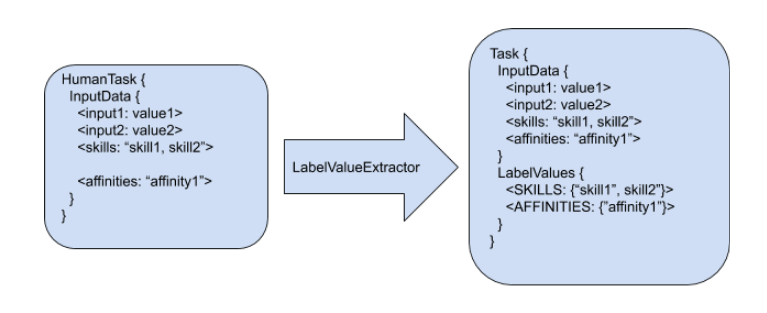
  1. Any human task is created in the processes runtime.
  2. When the new task is detected by the task assigning solution refreshing mechanism, a set of LabelValueExtractors is applied.
  3. These LabelValueExtractors can transform any piece of information in the human task or user into a label.
  4. The default constraints consider these labels.
In the preceding example, the following labels are produced:
  • The input data “skills”, with the value “skill1, skill2” resulted in the label SKILLS with the following set of values {“skill1”, “skill2”}
  • The input data “affinities” with the value “affinity1” resulted in the label AFFINITIES with the following set of values {“affinity1”}
Task labels are calculated only the first time the task is identified by the task assigning integration and can use any of the information present in the task.
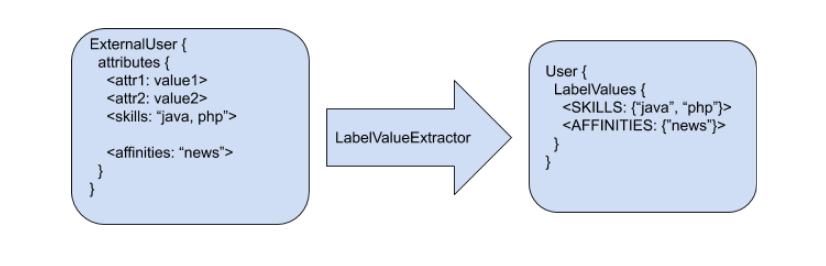
User labeling works in a similar way: LabelingMechanismUsers Users Labeling

Default HumanTask and User LabelValueExtractors

Four label value extractors are provided to manage the SKILLS and AFFINITIES labels.
Extractor NameDescription
DefaultTaskDataSkillsValueExtractor

Processes the human task “skills” input value as a string of comma separated values, and creates a java Set<Object> with tokenized String values. The resulting set is assigned to the label SKILLS.

For example, the “skills” input value “english,finance” is extracted as a set with the values {“english”, “finance”} and assigned to the label with name SKILLS.

By default extraction can be customized by using the following system property for defining the task input value from where the SKILLS will be extracted.

For example: org.kie.server.services.taskassigning.planning.data.DefaultTaskDataSkillsValueExtractor.skills=someOtherName

DefaultTaskDataAffinitiesValueExtractor

Processes the human task “affinities” input value, as a string of comma separated values, and creates a java Set<Object> with tokenized String values. The resulting set is assigned to the label AFFINITIES.

For example, the “affinities” input value “news,history” is extracted as a set with the values {“news”, “history”} and assigned to the label with name AFFINITIES.

By default extraction can be customized by using the following system property for defining the task input value from where the AFFINITIES will be extracted.

For example: org.kie.server.services.taskassigning.planning.data.DefaultTaskDataAffinitiesValueExtractor.affinities=someOtherName

DefaultUserSkillsValueExtractor

Analogous to the DefaultTaskDataSkillsValueExtractor. By default extraction can be customized by using the following system property for defining the user attribute from where the SKILLS will be extracted.

For example: org.kie.server.services.taskassigning.planning.data.DefaultUserSkillsValueExtractor.skills=someOtherName

DefaultUserAffinitiesValueExtractor

Analogous to the DefaultTaskDataAffinitiesValueExtractor. By default extraction can be customized by using the following system property for defining the user attribute from where the AFFINITIES will be extracted.

For example: org.kie.server.services.taskassigning.planning.data.DefaultUserAffinitiesValueExtractor.affinities=someOtherName

The current core model classes like the TaskAssigningSolution, Task and User might change in future releases.

Linking the human tasks inputs with the labels

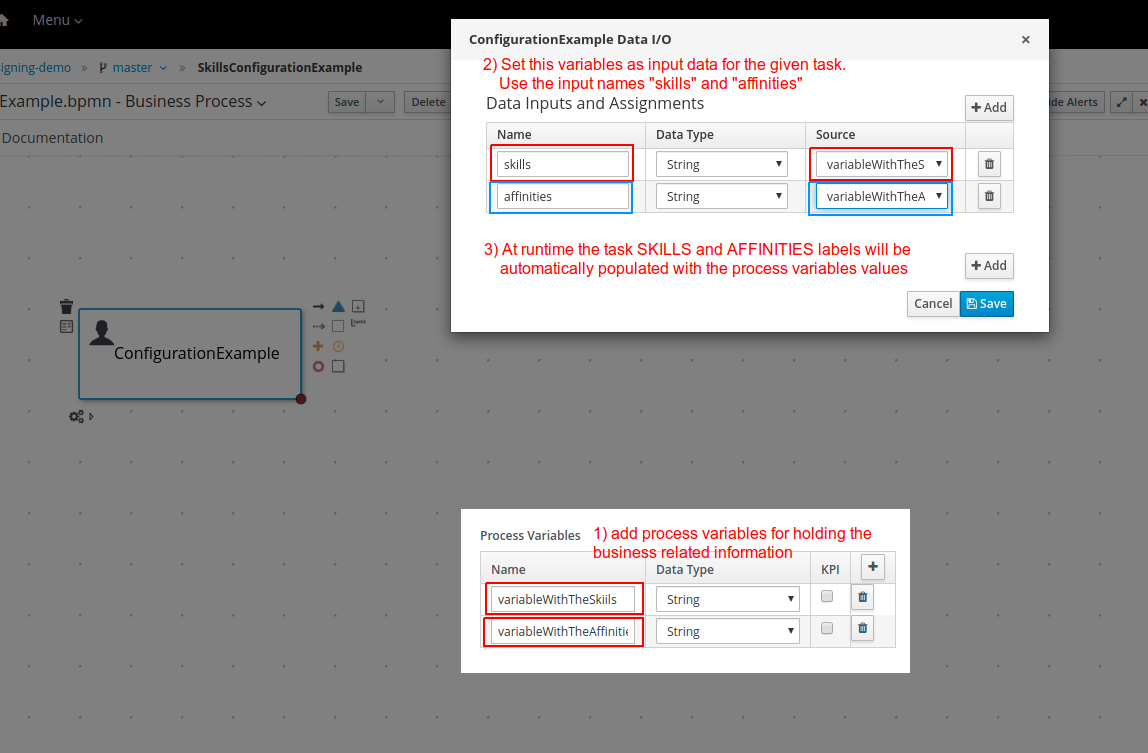
A simple approach for labeling tasks with business related information is implemented using the task inputs configuration. The following image shows an example of such a configuration. SkillsAndAffinitiesConfigurationExample Skills and affinities configuration The example above links the process variable “variableWithTheSkills” with the task input name “skills”, and the corresponding value will be processed by the “DefaultTaskDataSkillsValueExtractor” and automatically associated with the label name SKILLS. This mechanism can be used for any other user provided LabelValueExtractor.
Custom extractors

Installations that require the definition of customized LabelValueExtractors can add them by providing their implementations in the customized KJARs with the UserSystemIntegration implementation or the Solver configuration.
  1. Add a component in the specified KJAR that implements the following interface: org.kie.server.api.model.taskassigning.data.LabelValueExtractor Note: Ensure that the following dependency is added to the given KJAR:
  1. Declare the component implementation by using the Java standard service provider mechanism in the following resource: project_home/src/main/resources/META-INF/services/org.kie.server.api.model.taskassigning.data.LabelValueExtractor
When configured, the LabelValueExtractor will be processed accordingly. The following example shows a custom LabelValueExtractor:
Ensure that the following dependency is added to the specified KJAR:
Extractors for processing the human tasks information must use the class org.kie.server.api.model.taskassigning.TaskData as source type.
The current core model classes like the TaskAssigningSolution, Task and User might change in future releases.

Integration alternatives

System integrators usually consume the human tasks available in the Process Runtime kie-server for different purposes. One example is the Business Central “Task Inbox”. In this case, Business Central acts as an “integrator” which means that the human tasks are consumed from the Process Runtime kie-server by using the kie-server queries APIs and applying different filtering criterias. Finally these tasks are listed in the “Task Inbox” UI, etc. In this way, Business Central is decoupled from the Process Runtime kie-server, etc. The next topics present a set of queries similar to queries used by the Business Central “Task Inbox”. These queries might facilitate integrations in cases where the task assigning integration is enabled.

Task Assigning Human Tasks Query

This query facilitates the consumption of the available human tasks. The task can integrate additional information depending on the query variant. It is up to the “integrator” to select the query variant that best supports its needs.

Filtering parameters

The available filtering parameters are defined in the following kie-server-api enums:
Both classes are found in the following maven artifact:
The following table shows the parameter name and the expected type.

Querying the human tasks as TaskData instances

This query execution variant enables getting the result values as instances of:
The following example shows how to use this variant: Example 1)
In this case, only the tasks currently assigned by the task assigning integration will be considered. This is the usual scenario when task assigning integration is enabled, because it is expected that the tasks are consumed and executed according to the generated planning.
The task inputs and potential owners are not loaded by this query.
Example 2)
In this case all of the tasks will be considered but only the tasks assigned by the task assigning integration will have the TaskData.planningTask filled. It means that non-assigned tasks or tasks not yet managed by the task assigning integration might be included in the results. This alternative facilitates a more advanced processing of the “potential” tasks, however it is strongly encouraged to make available to the users only the tasks that are currently assigned by the task assigning integration, i.e. the ones with TaskData.planningTask != null, otherwise the integration becomes senseless.
The task inputs and potential owners are not loaded by this query.
See KIE Server API documentation for more information on how to create the KIE Server clients and the query API general functioning.

Examples

Credit dispute process

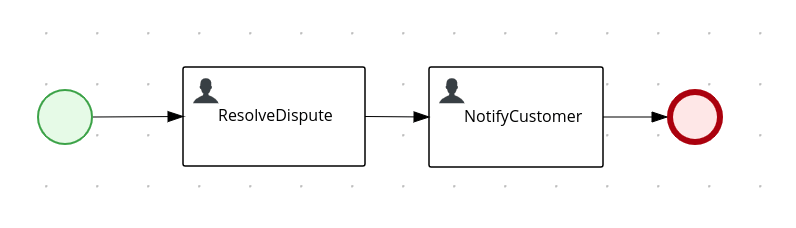
The following credit dispute process example is intended to show a simple use case where you can use the “skills” configuration to influence the way tasks are assigned according to the solver constraints and the process data. CreditDisputeProcess Credit dispute process
Process start

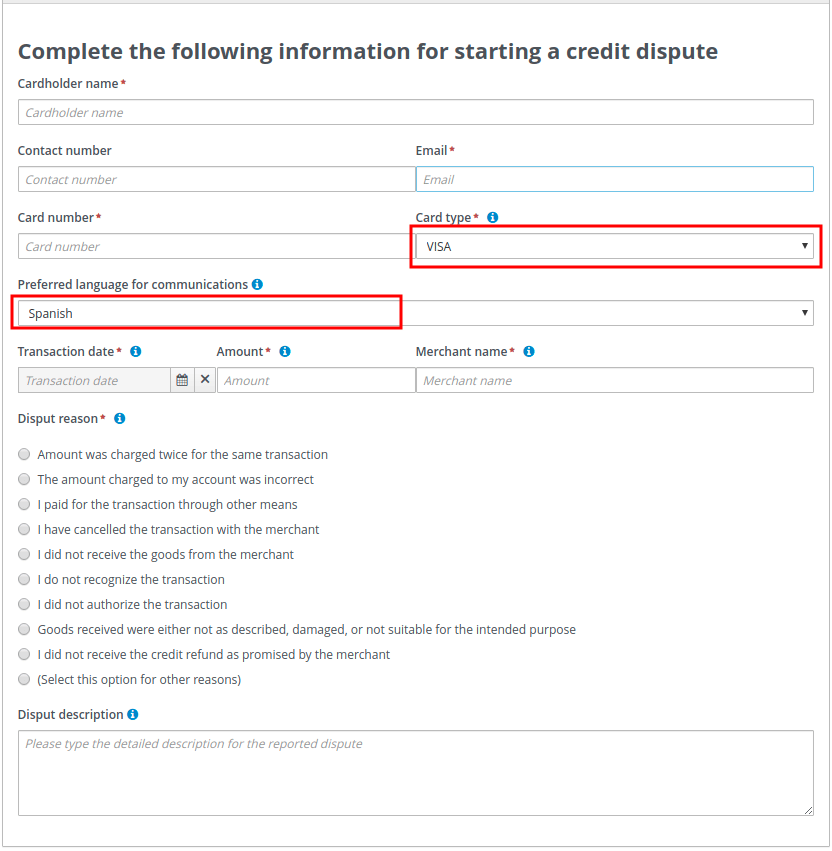
When the process starts, the user is asked to complete the information in the following image. In particular, the credit card brand for which the dispute is related to and the preferred language for receiving the process notifications are requested. This information is used for assigning the process tasks. StartCreditDisputeForm Start credit dispute process form
Process configuration

The following image shows the process variables that are used for holding the card brand and language respectively. CreditDisputeProcessWithVariables Credit dispute process variables The process start form populates these variables with the user inputs.
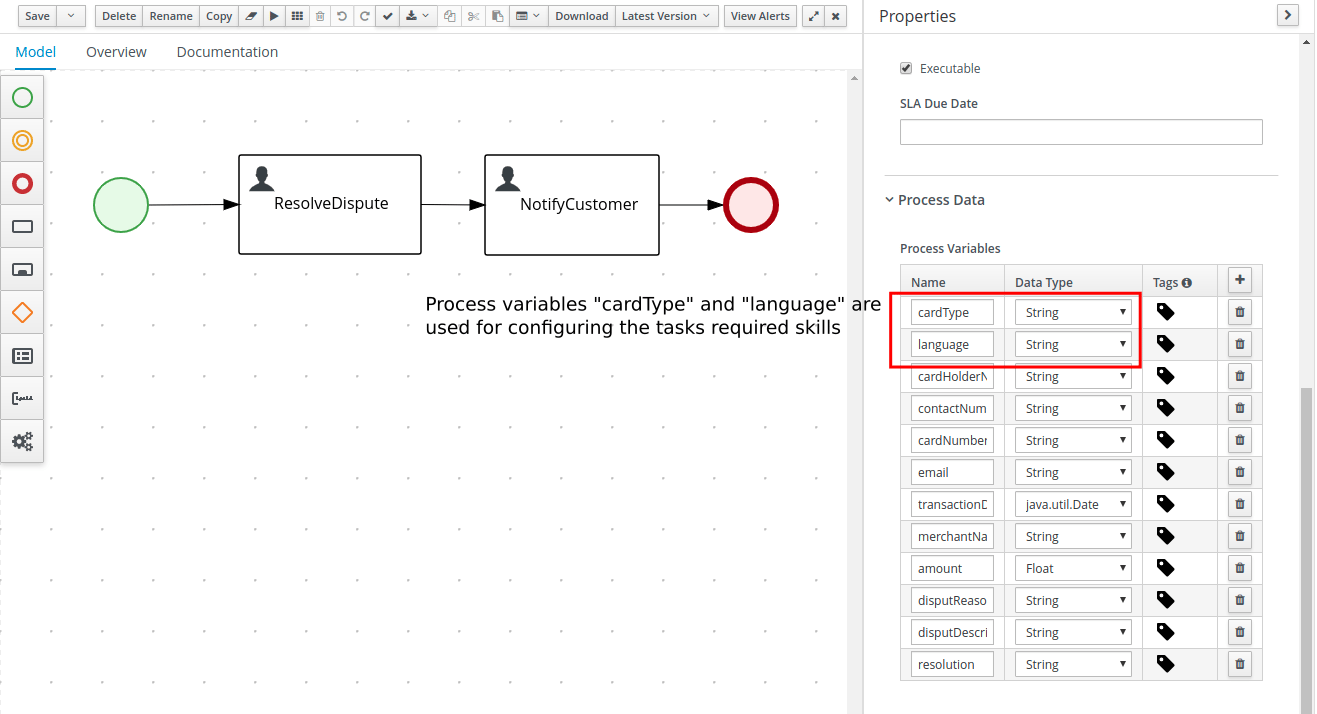
Resolve dispute task configuration

The following image shows the ResolveDispute task configuration, which establishes that the task input parameter skills is assigned with the value of the process variable cardType. ResolveDisputeTaskConfiguration Resolve dispute task configuration With this configuration, OptaPlanner assigns this task to users that meet the following criteria:
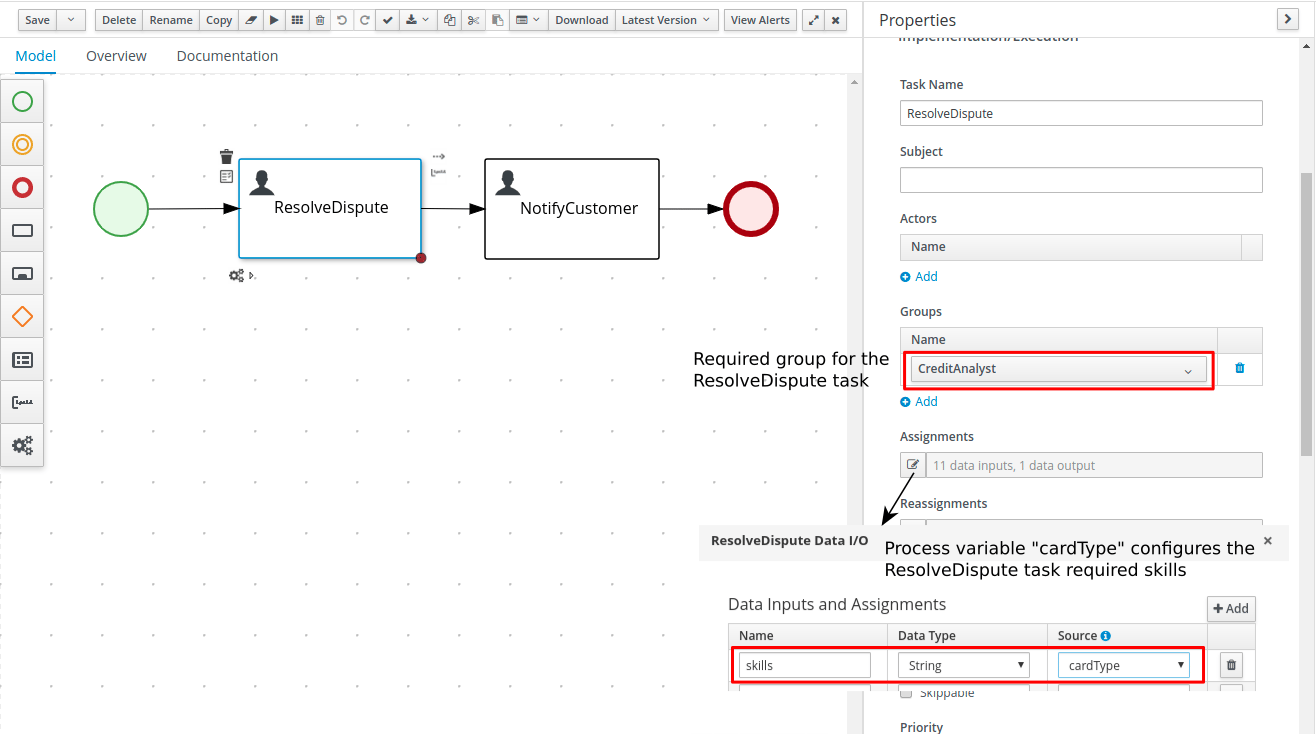
  1. Are in the user group CreditAnalyst
  2. Have all of the skills configured in the task input parameter skills

Notify customer task configuration

The following image shows the NotifyCustomer task configuration, which establishes that the task input parameter skills is assigned with the value of the process variable language. NotifyCustomerTaskConfiguration Notify customer task configuration With this configuration OptaPlanner assigns this task to users that meet the following criteria:
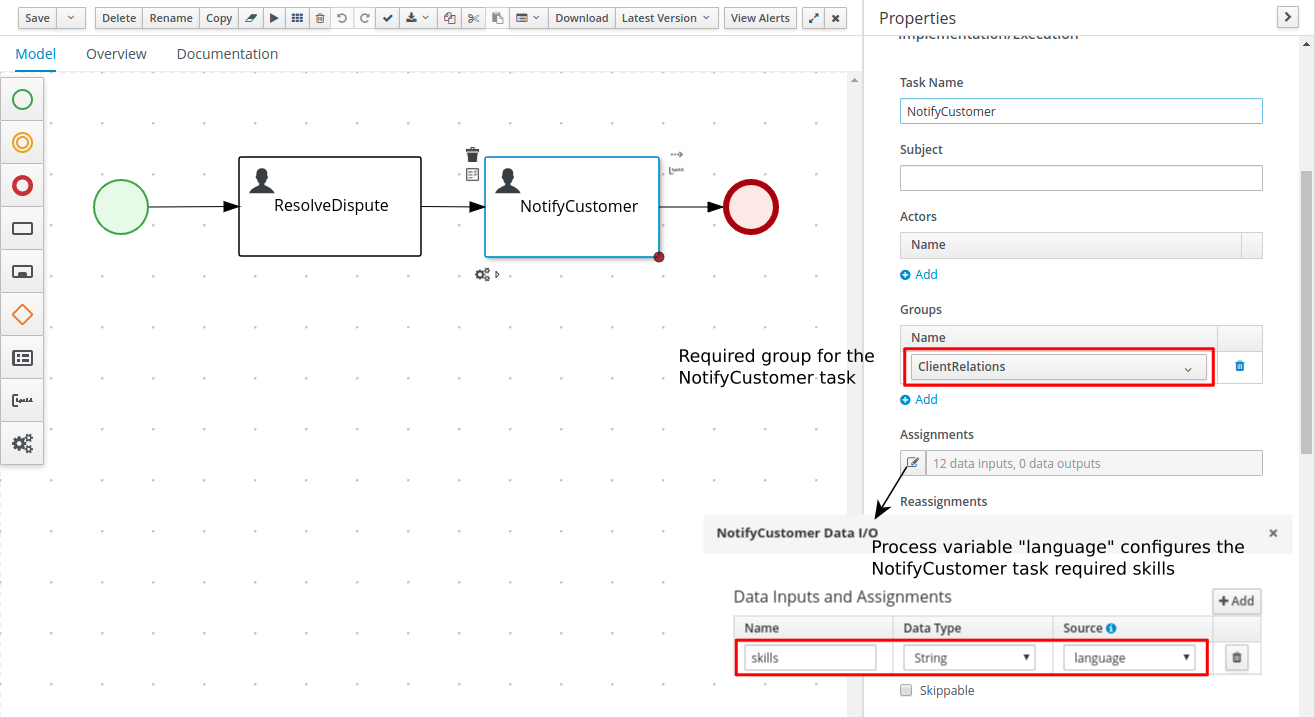
  1. Are in the group ClientRelations
  2. Have all of the skills configured in the task input parameter skills
  3. Note that in this case the language selection is optional since the form field is not marked with ”*” see the process start form, meaning that when no language is selected the task won’t have any configured skills. This implies that in such cases whatever users that are in group ClientRelations can be assigned to the task.

Process execution (example users)

Let’s assume that the following user configurations are used for executing the process. users.properties file:
skills.properties file:

Process execution (example instances)

With the preceding configurations the following execution scenarios are expected: Process instance #1:
  1. Start process
StartCreditDisputeInstance1Simple Start credit dispute process instance #1
  1. ResolveDispute task
ResolveDisputeTaskForProcessInstance1WasCreated Resolve dispute task for process instance #1 The ResolveDispute task is assigned to the user maciek since it requires VISA skills.
In real environments there might be many users with this skill. In this case OptaPlanner assigns the newly created task considering the optimized plan, which means that depending on the workload a different user could have been assigned.
  1. NotifyCustomer task
NotifyCustomerTaskForProcessInstance1WasCreated Notify customer task for process instance #1 When the ResolveDispute task is completed, a new task NotifyCustomer is created and assigned to the user john because that task requires skills in Spanish. Process instance #2:
  1. Start process
StartCreditDisputeInstance2Simple Start credit dispute process instance #2
  1. ResolveDispute task
ResolveDisputeTaskForProcessInstance2WasCreated Resolve dispute task for process instance #2 The ResolveDispute task is assigned to the user katy since it requires CITI skills.
  1. NotifyCustomer task
NotifyCustomerTaskForProcessInstance2WasCreated Notify customer task for process instance #2 When the ResolveDispute task is completed, a new task NotifyCustomer is created and assigned to the user mary because that task requires skills in Chinese. Process instance #3:
  1. Start process
StartCreditDisputeInstance3Simple Start credit dispute process instance #3
  1. ResolveDispute task
ResolveDisputeTaskForProcessInstance3WasCreated Resolve dispute task for process instance #3 The ResolveDispute task is assigned to the user katy because that task requires skills in the MASTER card.
  1. NotifyCustomer task
NotifyCustomerTaskForProcessInstance3WasCreated Notify customer task for process instance #3 When the ResolveDispute task is completed, a new task NotifyCustomer is created and assigned to the planninguser because none of the users has the required skills in Hindi. In this case, an external interaction is required to determine the best suited user to complete the task. The planninguser must perform this action by delegating the task.
The planninguser assignment is used to cover edge cases and should not be part of the modelling strategy. In the preceding example, if it is known that no user will have skills in Hindi, a similar but softer constraint can be configured by using affinities.

Customized User System Service

For creating a custom user system service implementation follow these steps:
  1. Create a KJAR project structure
  2. Add the following dependency
  1. Provide your UserSystemService implementation, see the following example:
  1. Add the following resource to the project and declare your user system service provider class on it.
Finally, for using it in the Planning kie-server follow these steps:
  1. Build your KJAR and be sure the corresponding maven generated artifact is installed in the maven repository used by your Planning kie-server.
  2. Add a datasource configuration to your Planning kie-server pointing to the target DB (this step is only required for the example above). For example with JNDI name java:jboss/datasources/db-user-system-datasource
  3. Finally add the following items to the Planning kie-server configuration file: