- Deploy the WAR file into your application server, as described below.
- Create a user with the role of
kie-serveron the container. Check the section below for the guidelines for your container. - Test that you can access KIE Server by navigating to the endpoint in a browser window:
http://SERVER:PORT/CONTEXT/services/rest/server/. - When prompted for user name/password, type in the user name and password that you created.
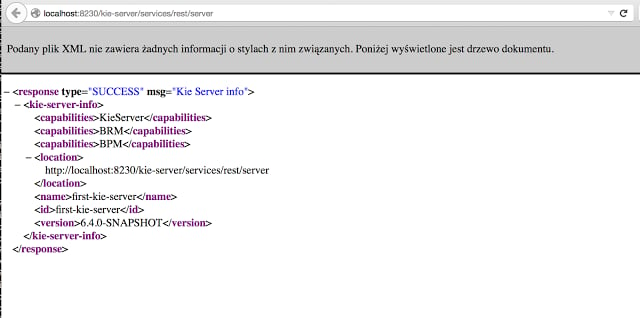
- Once authenticated, you will see an XML response in the form of KIE Server status, similar to this:
Sample handshaking server response
Application Server Deployment
WildFly 35.0.0
-
Download and unzip your WildFly distribution file from the project website . Let’s call the root of the distribution
WILDFLY_HOME. -
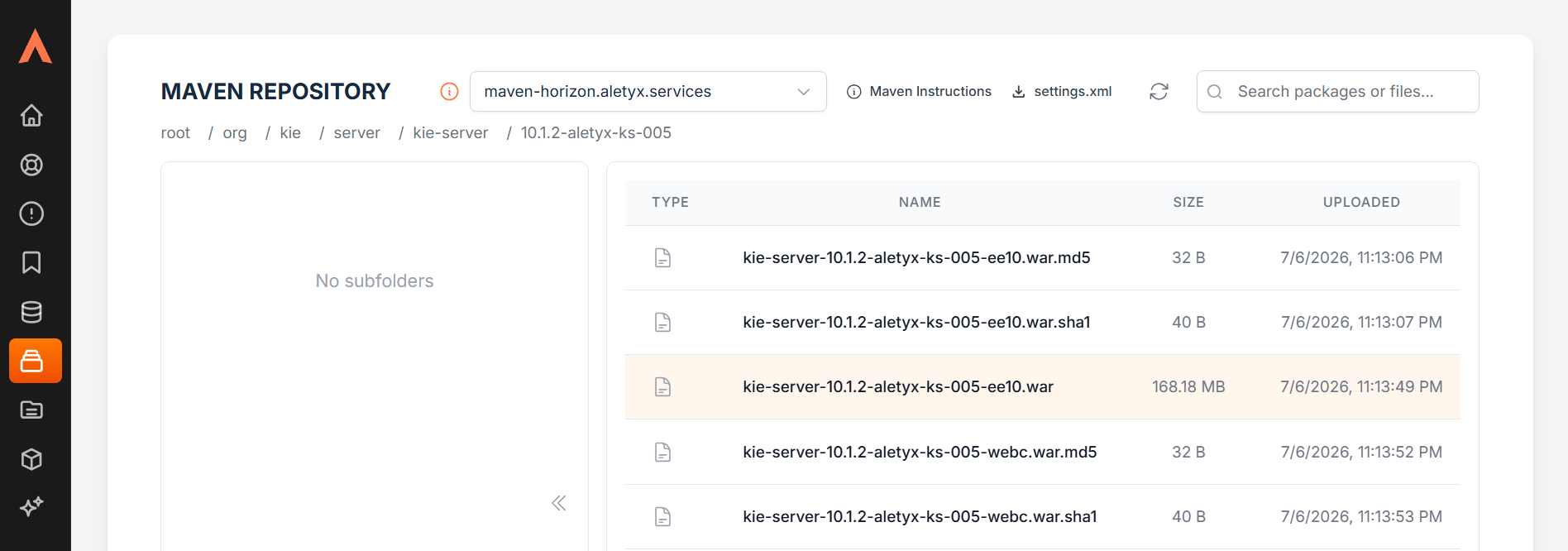
Download the kie-server war file (kie-server-10.1.2-aletyx-ks-005-ee10.war).
From https://my.aletyx.ai/maven, download your .war file.
Find the file under org/kie/server/kie-server/10.1.2-aletyx-ks-005
You can rename the file to simply “kie-server.war” to set “kie-server” as context path, or map your prefered context path in wildfly configuration.
-
Copy the war file into
WILDFLY_HOME/standalone/deployments. -
Configure users and roles by executing the following command:
The
-aflag adds the user to the application realm (ApplicationRealm), and-gassigns its groups. You can choose a different user name and password, just make sure that the user has the rolekie-server. -
Start the server by running
WILDFLY_HOME/bin/standalone.[sh|bat] -c standalone-full.xml <bootstrap_switches>. You can check out the standard output or WildFly logs inWILDFLY_HOME/standalone/logsto see if the application deployed successfully. See the KIE Server system properties table for the bootstrap switches that can be used to properly configure the instance. For instance: -
Verify the server is running. Go to
http://localhost:8080/kie-server/services/rest/server/and type the specified user name and password. You should see a simple XML message with basic information about the server.