

Access in this section
Four-eyes enforcementActing on a task requires that the task is claimed by you, and the claim model prevents one person from completing both submission and approval. Segregation of duties is enforced server-side through claim and assignment.
Where review actions appearApprove, Reject, and Request Changes appear on any review step that hasn’t finished yet - any step whose name includes review, approval, or check - not only a step named exactly “Approve”.
How to view pending governance tasks
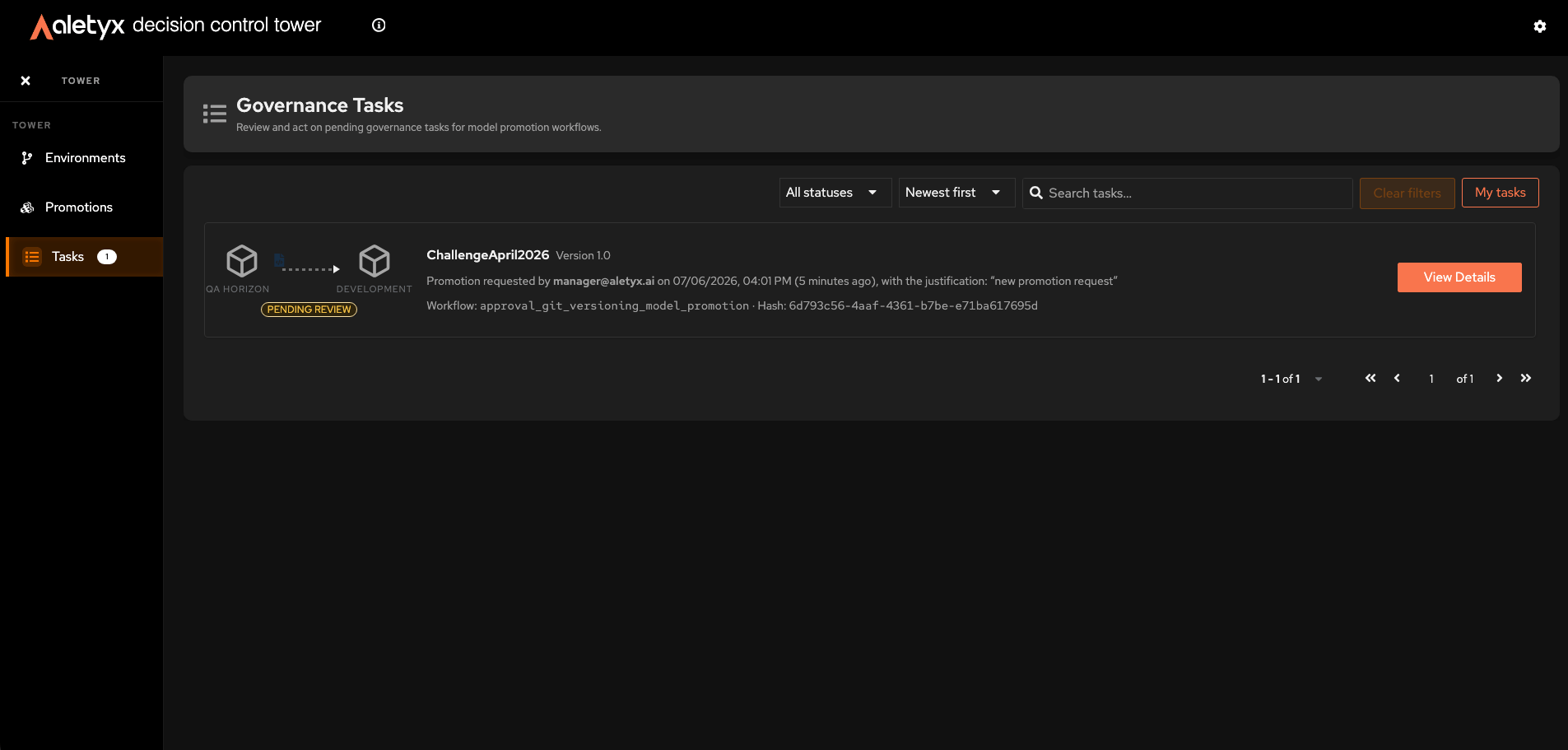
Open the approval inbox to see promotion requests awaiting action. Steps:- In the sidebar, click Tasks (a badge shows the pending count).
- Review the cards under Governance Tasks (shown inside the framed page header).
{process} line, and a status label (for example, “Pending review”, “In progress”, “Changes requested”). The card you select is highlighted with an accent border.
How to find a task
Use the toolbar to narrow the inbox.- Filter by status
- Sort by age
- Search
- My tasks vs All tasks
Open the status dropdown (defaults to All statuses) and choose Pending review, In progress, or Changes requested.
How to open a task’s details
Inspect a request before acting on it. Steps:- Click a task card, or its View Details button.
- In the drawer, use the tabs:
- Request - model, environments, Workflow, and the process diagram; the requester’s Justification appears in the Requester section.
- Notes & Timeline - chronological log plus your team’s comments.
- Changes Requested - appears when the task is in a change-request state.
How to claim a task
Reserve a task so you’re the one reviewing it. Prerequisites: Approval access for the task’s current step; the task is unclaimed. Steps:- Open the task details drawer.
- Click Claim Task.
How to unclaim a task
Release a task back to the pool for someone else. Prerequisites: You currently hold the claim. Steps:- In the task drawer, click Unclaim Task.
How to approve a request
Approve a promotion so it proceeds through the workflow. Prerequisites: Approval access for the Approve step; the task is claimed by you. Steps:- Open the task drawer (claim it first if needed).
- Open Select action and choose Approve.
- (Optional) Add a comment.
- Click Submit.
What happens after the final approvalApproving doesn’t always mean the promotion is done - it just advances the workflow. If more steps remain, the next reviewer is notified. When the last required step is approved, the model is deployed to the target environment and the request status becomes Deployed (see the promotion history). If the deployment itself fails, the status becomes Failed and the promotion history shows the reason.
How to reject a request
Deny a promotion request. Prerequisites: Approval access for the Approve step; task claimed by you; a comment is required. Steps:- In the drawer, choose Reject from Select action.
- Enter a reason in Comment (required).
- Click Submit.
How to request changes on a request
Send a request back to the submitter for revision instead of approving or rejecting. Prerequisites: Approval access for the Approve step; task claimed by you; a comment is required. Steps:- In the drawer, choose Request Changes.
- Enter guidance in Comment (required).
- Click Submit.
How to resubmit a change request with a new version
As the original requester, supply a corrected model version and send the request back for review. Prerequisites: You are the original requester; the task is at the Change-Request step. Steps:- Open the task drawer; choose Resubmit from Select action.
- In Resubmit version (“Select version”), pick the corrected version.
- (Optional) Add a comment.
- Click Submit (enabled only once a version is chosen).
How to cancel a request
Withdraw your promotion request entirely. Prerequisites: You are the original requester; the task is at the Change-Request step; a comment is required. Steps:- In the drawer, choose Cancel Request.
- Enter a reason in Comment (required).
- Click Submit.
How to add, edit, or delete a note on a task
Record a comment visible to reviewers and the requester. Notes you authored can be edited or deleted later. Prerequisites: Task drawer open. For edit/delete, you must be the note’s author.Notes disappear after a Request ChangesNotes added via Notes & Timeline are cleared when someone performs a Request Changes on the task. To keep context from being lost, paste any relevant text (a copy of your note, a short summary) into the Comment field of the Request Changes action itself.
- Add a note
- Edit a note
- Delete a note
- Go to the Notes & Timeline tab.
- Click Add a note.
- Type into Write a note….
- Click Send note.