

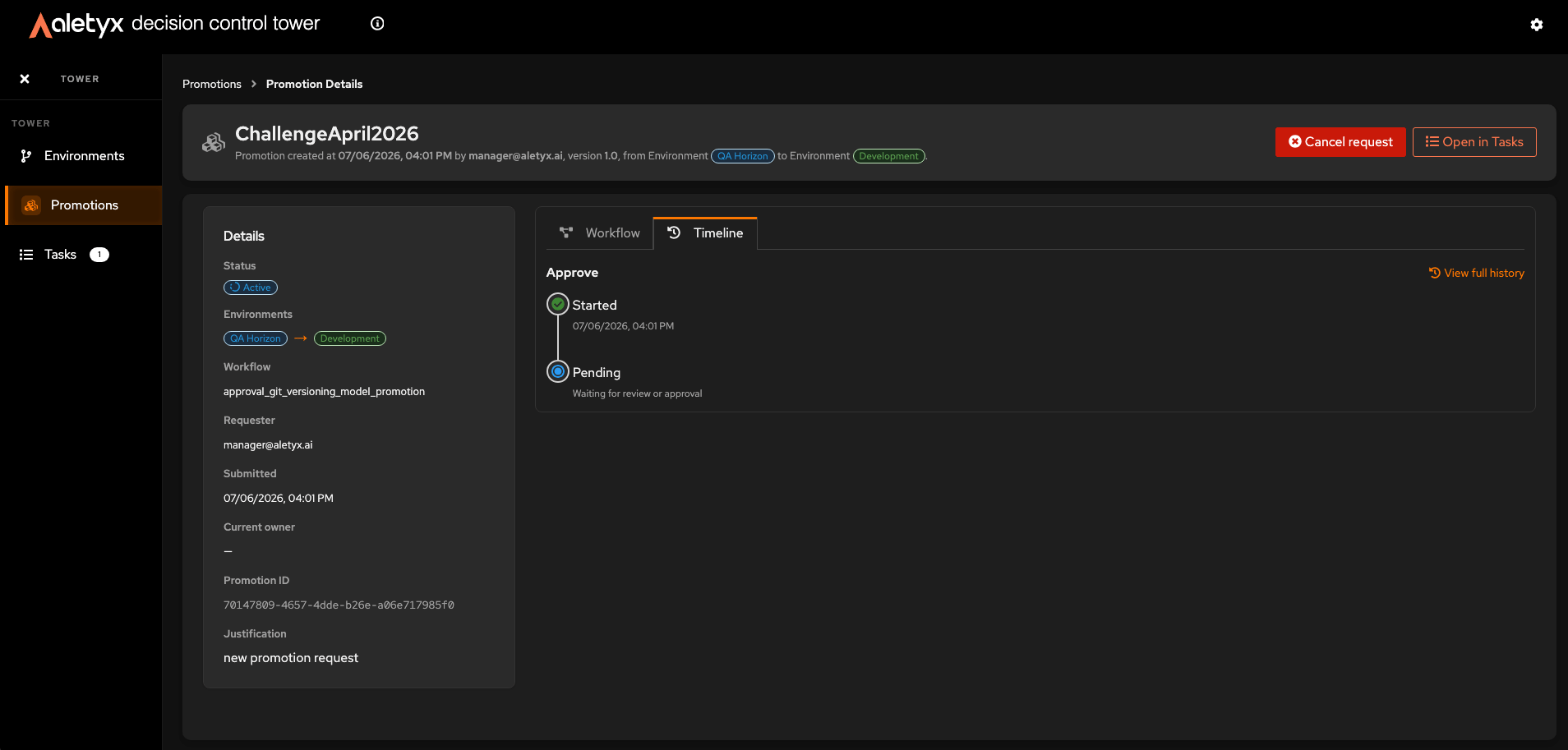
How to view a promotion’s timeline
See the lifecycle of a single promotion at a glance. Prerequisites: On a promotion detail page. Steps:- Open the Timeline tab.
- Read the per-task lifecycle (Started / Completed / Pending) for each step of the workflow.
How to open a promotion’s full history
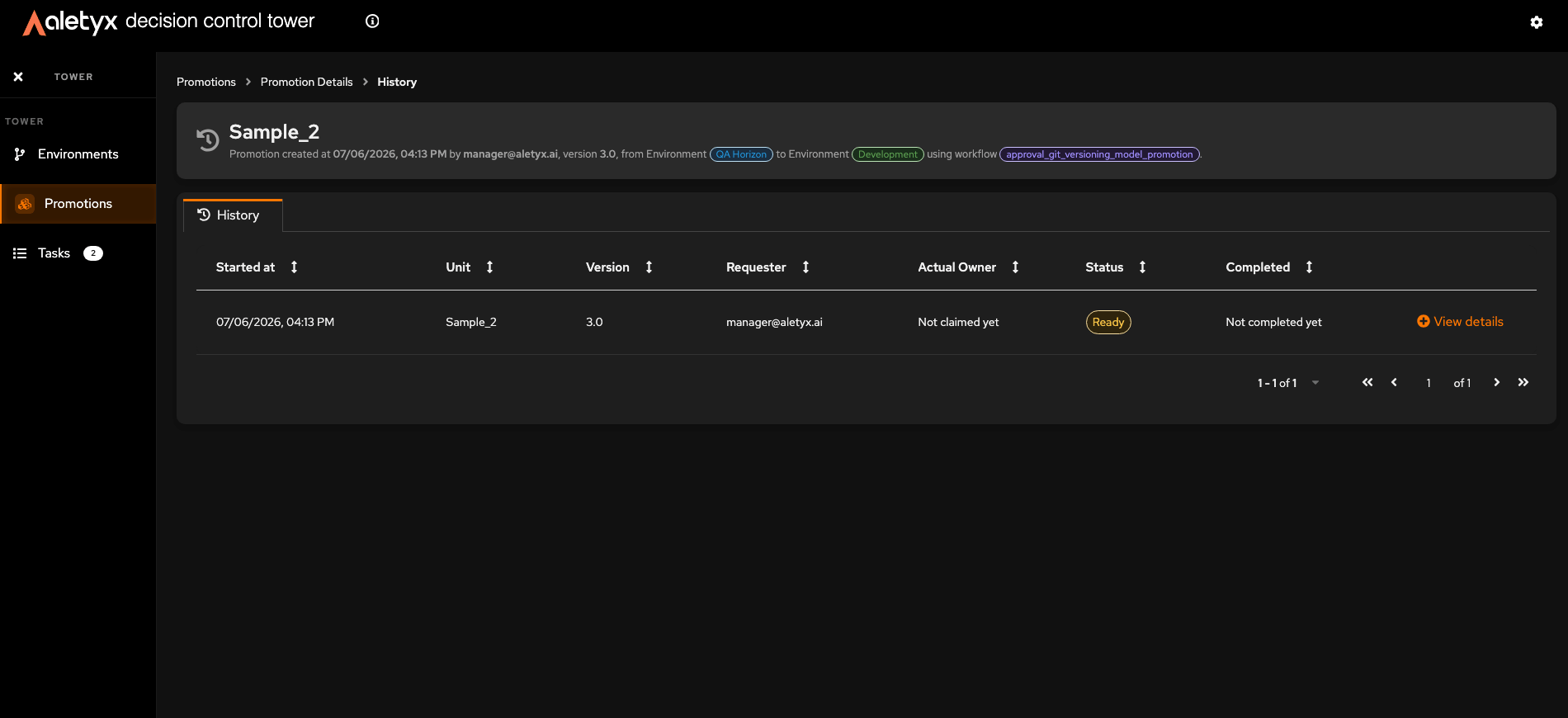
Drill into the complete task-by-task record for a promotion. Prerequisites: On a promotion detail page. Steps:- On the Timeline tab, click View full history (opens
/promotions/{id}/history). - Read the Promotion history table: Started at, Unit, Version, Requester, Actual Owner, Status, Completed.
- Sort or paginate as needed.
How to open a task’s detail
Expand one task into its own tab for full inspection. Prerequisites: On a promotion history page with at least one task. Steps:- In the history table, click View details on a row.
- Review the timeline (Started / Completed / Pending) and the details grid: Actual Owner, Requester, Approver outcome, Approver comment, Justification, etc.
- Close the tab when done.
{n} tab opens and becomes active.
How to inspect a task’s metadata
Retrieve the identifiers needed for support or cross-system tracing. Prerequisites: A task detail tab open. Steps:- Click the metadata icon (View metadata).
- In the Metadata dialog, read Promotion ID, Process Instance ID, and Task ID.
- Use the copy button next to any value.