

Required to use the assistantAll how-tos on this page require:
- Access: Authoring
- Deployment: the AI Assistant must be enabled by your administrator
- Credential: a valid AI Assistant API key configured in Settings → AI Assistant
History is per workspaceThe assistant’s chat history and pending queue are stored per workspace — switching to a different model shows that model’s own conversation, not a single global one.
How to open the AI Assistant panel
Open the in-editor assistant to get help building or analyzing a model. Steps:- With a model open, click the floating Aletyx AI trigger button (bottom-right of the editor).
How to ask the AI Assistant to create or modify a model
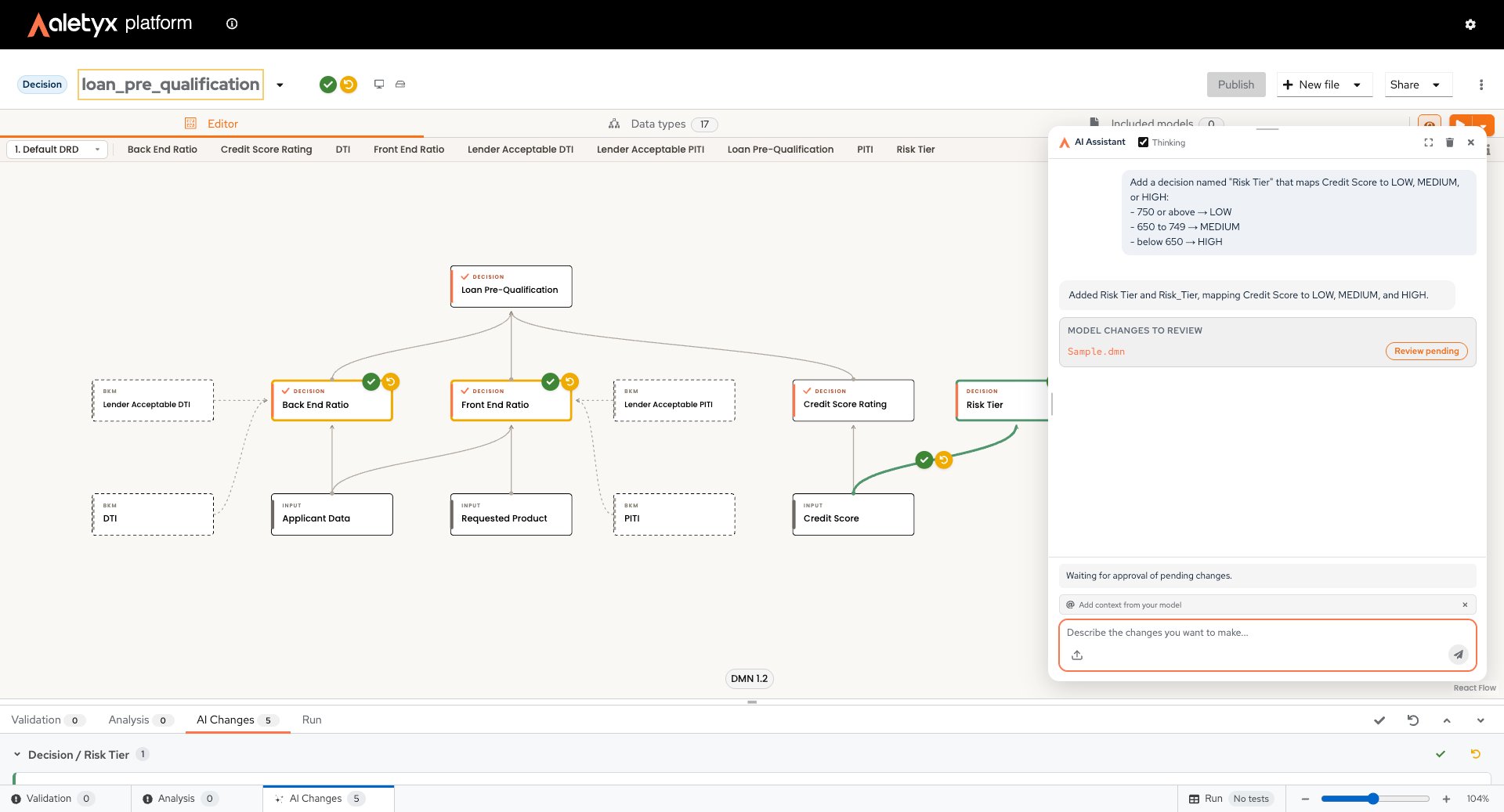
Describe a change in natural language and let the assistant draft DMN edits. Prerequisites: AI Assistant panel open and a valid API key (Settings → AI Assistant). Steps:- Type your request (for example, “Add a decision node called Eligibility”) in Describe the changes you want to make….
- Press Enter or click Send.
- Wait for the response (the editor locks while the model is being changed).
How to attach a file to the AI Assistant
Give the assistant supporting documents (PDF, CSV, images, spreadsheets, etc.). Prerequisites: AI Assistant open; file attachments enabled by your administrator; file ≤ 2 MB. Steps:- Click the paperclip (attach) button, or drag a file onto the open panel.
- Confirm the file badge appears, then send your message.
How to review and apply AI-suggested model changes
Approve or discard the model edits the assistant proposes. Prerequisites: An assistant reply that includes model changes (diff opened). Steps:- Inspect the diff overlay in the editor.
- Accept or revert the proposed changes.
How to load AI-generated test inputs into the DMN Runner
Move sample inputs the assistant produced straight into the runner. Prerequisites: An assistant message containing JSON test inputs; DMN Runner available. Steps:- On that message, click the Test button (play icon).
How to manage AI Assistant requests (queue, cancel, resend)
Control in-flight and failed assistant requests.How to clear the AI Assistant chat history
Wipe the assistant conversation for the current workspace. Prerequisites: AI Assistant open with at least one message. Steps:- Click the trash icon in the assistant panel header.
- Confirm Clear History in the dialog.
How to configure the AI Assistant API key
Store the credential the in-editor assistant needs. Prerequisites: AI SaaS integration enabled. Steps:-
Open Settings (masthead cog) → AI Assistant (or click Open Settings in the no-API-key prompt).
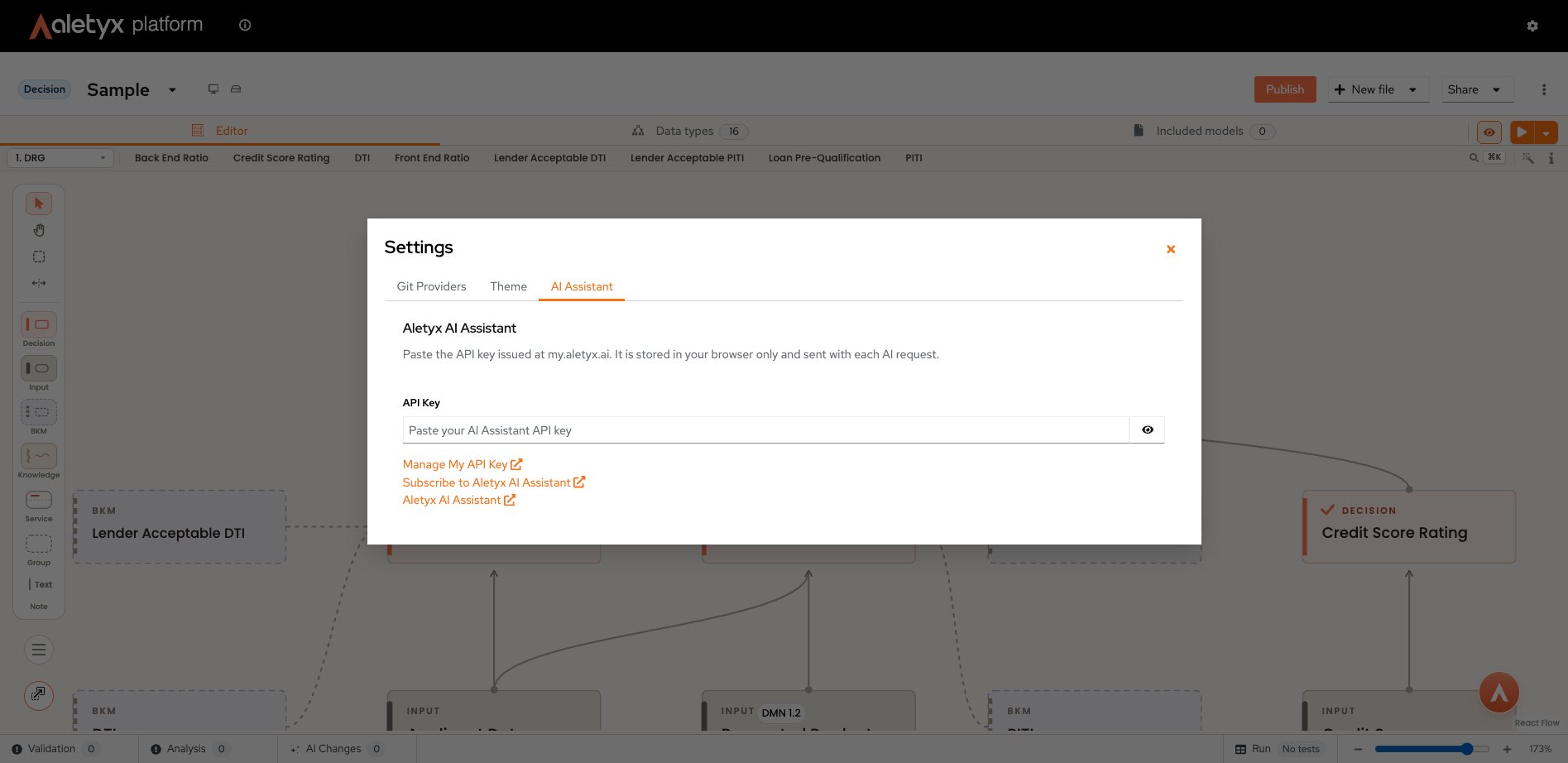
- Paste your API key.