> ## Documentation Index
> Fetch the complete documentation index at: https://aletyx.ai/docs/llms.txt
> Use this file to discover all available pages before exploring further.
# Installing the KIE Server
> The KIE Server is distributed as a web application archive (WAR) file, with packagings for web containers and Java EE containers.
The KIE Server is distributed as a web application archive (WAR) file.
The WAR file is available in different packagings:
* *webc* - WAR for ordinary Web containers (Servlet)
* *ee10* - WAR for Jakarta EE containers like JBoss EAP or WildFly
To install the KIE Execution Server and verify it is running, complete the following steps:
1. Deploy the WAR file into your web container.
2. Create a user with the role of `kie-server` on the container. Check the section below for the guidelines for your container.
3. Test that you can access KIE Server by navigating to the endpoint in a browser window: `http://SERVER:PORT/CONTEXT/services/rest/server/`.
4. When prompted for user name/password, type in the user name and password that you created.
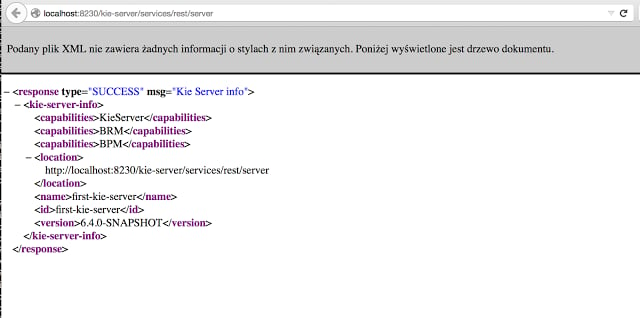
5. Once authenticated, you will see an XML response in the form of KIE Server status, similar to this:
```xml Sample handshaking server response theme={null}
7.67.2-SNAPSHOT
```
## Installation details for different containers
### Tomcat
1. Download and unzip the Tomcat distribution. Let's call the root of the distribution `TOMCAT_HOME`.
2. Download *kie-server-...-webc.war* and place it into `TOMCAT_HOME/webapps`.
3. Configure user(s) and role(s). Make sure that the file `TOMCAT_HOME/conf/tomcat-users.xml` contains the following user name and role definition. You can choose a different user name and password, just make sure that the user has the role `kie-server`:
```xml User name and role definition for Tomcat theme={null}
```
4. Start the server by running `TOMCAT_HOME/bin/startup.[sh|bat]`. You can check out the Tomcat logs in `TOMCAT_HOME/logs` to see if the application deployed successfully. See the [KIE Server system properties](/docs/kie-server/system-properties) table for the bootstrap switches that can be used to properly configure the instance. For instance:
```text theme={null}
./startup.sh -Dorg.kie.server.id=first-kie-server
-Dorg.kie.server.location=http://localhost:8080/kie-server/services/rest/server
```
5. Verify the server is running. Go to `http://SERVER:PORT/CONTEXT/services/rest/server/` and type the specified user name and password. You should see a simple XML message with basic information about the server.
**Important**
You cannot leverage the JMS interface when running with Tomcat, or any other Web
container. The Web container version of the WAR contains only the REST interface.
### WildFly
1. Download and unzip the WildFly distribution. Let's call the root of the distribution `WILDFLY_HOME`.
2. Download *kie-server-...-ee.war* and place it into `WILDFLY_HOME/standalone/deployments`.
3. Configure users and roles by executing the following command:
```bash theme={null}
$ ./bin/jboss-cli.sh --commands="embed-server --std-out=echo,/subsystem=elytron/filesystem-realm=ApplicationRealm:add-identity(identity='kieserver'),/subsystem=elytron/filesystem-realm=ApplicationRealm:set-password(identity='kieserver', clear={password='kieserver1!'}),/subsystem=elytron/filesystem-realm=ApplicationRealm:add-identity-attribute(identity='kieserver', name=role, value=['kie-server'])"
```
You can choose a different user name and password, just make sure that the user has the role `kie-server`.
4. Start the server by running `WILDFLY_HOME/bin/standalone.[sh|bat] -c standalone-full.xml `. You can check out the standard output or WildFly logs in `WILDFLY_HOME/standalone/logs` to see if the application deployed successfully. See the [KIE Server system properties](/docs/kie-server/system-properties) table for the bootstrap switches that can be used to properly configure the instance. For instance:
```text theme={null}
./standalone.sh --server-config=standalone-full.xml
-Djboss.socket.binding.port-offset=150
-Dorg.kie.server.id=first-kie-server
-Dorg.kie.server.location=http://localhost:8230/kie-server/services/rest/server
```
5. Verify the server is running. Go to `http://SERVER:PORT/CONTEXT/services/rest/server/` and type the specified user name and password. You should see a simple XML message with basic information about the server.