> ## Documentation Index
> Fetch the complete documentation index at: https://aletyx.ai/docs/llms.txt
> Use this file to discover all available pages before exploring further.
# Aletyx AI Assistant
> Subscribe to the Aletyx AI Assistant, set up your token, and start working with your decision models in plain language.
The Aletyx AI Assistant lets you work with your decision models in plain language: describe a model and it builds or changes it for you, creates example test data, and answers questions about decisions in a chat. This guide shows you how to subscribe, set up your token, and start using it.
> Learn more about the product on the [Aletyx AI Assistant page](https://aletyx.ai/ai-assistant).
**Where it works**
The Aletyx AI Assistant connects to **Aletyx Decision Control**. Support for the [Aletyx Playground](/docs/components/playground/overview) is planned and will be documented when it ships.
## What you get
The assistant shows up in two places, depending on what you're doing:
| Where | Who it's for | What it does | Reference |
| ----------------------------- | ------------------------------- | ----------------------------------------------------------------------------------- | ----------------------------------------------------------------- |
| **In the editor** (Authoring) | People building decision models | Create and change models by describing them, attach files, and generate test inputs | [Authoring – AI Assistant](/docs/decision-control/how-to/authoring-ai) |
| **Prompting** (chat) | Everyone | Ask questions about - and run - *published* decision models in a chat | [Prompting](/docs/decision-control/how-to/prompting) |
The steps below set up the **in-editor assistant**, which uses the personal token you create when you subscribe. The Prompting chat is set up for you by Aletyx and doesn't need this token.
## How to subscribe
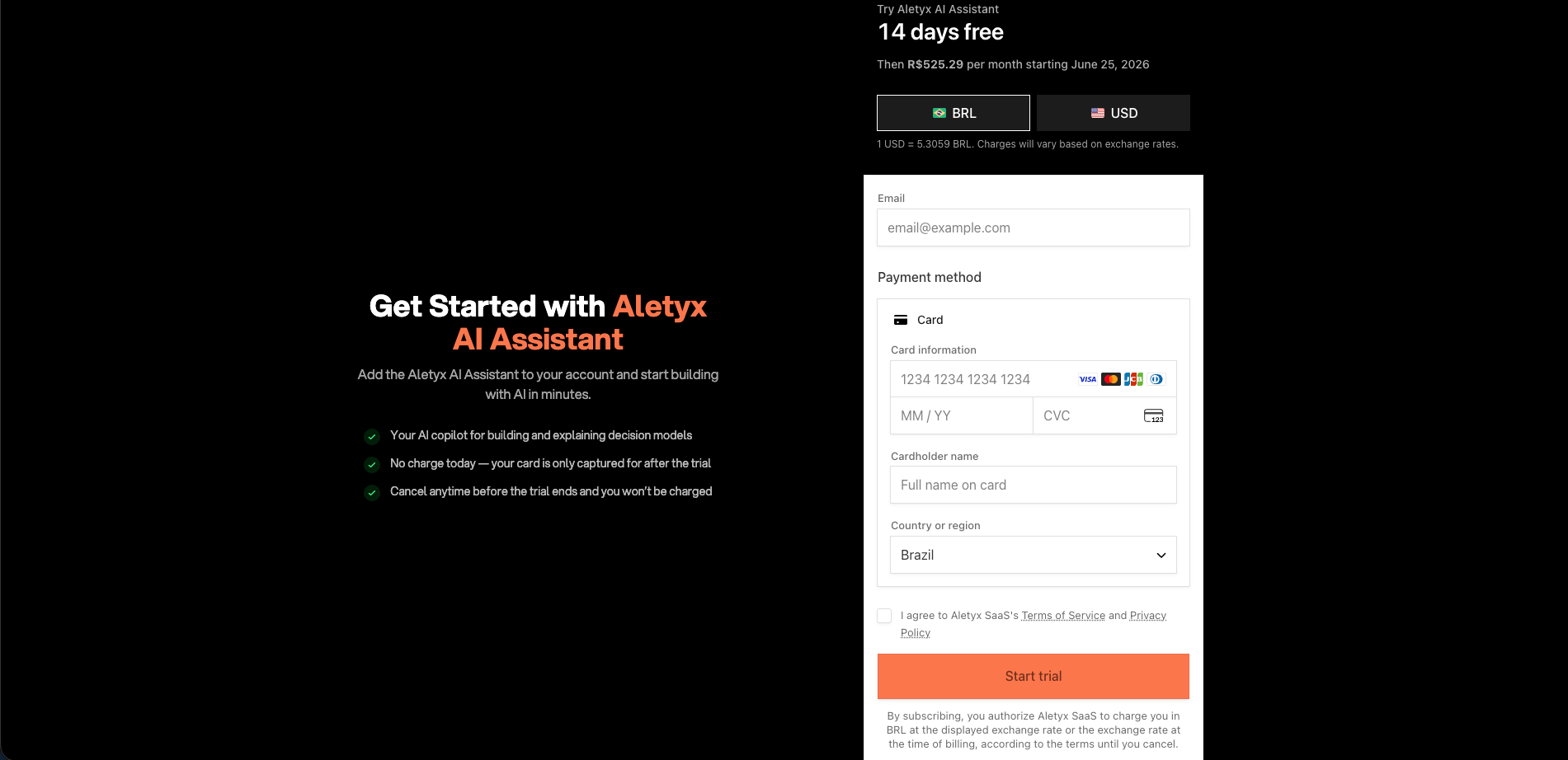
You subscribe on the Aletyx account site, **My Aletyx** (`my.aletyx.ai`). It starts with a **14-day free trial** - your card is saved but not charged until the trial ends, and you can cancel anytime before then without being charged.
How you start depends on whether you already have an Aletyx account:
* **Already have a My Aletyx account** (for example, you already use Maven, Registry, or Files): log in to [My Aletyx](https://my.aletyx.ai) and choose **Add AI Assistant**.
* **New to Aletyx:** go to [my.aletyx.ai/ai-assistant](https://my.aletyx.ai/ai-assistant) and sign up with your email.
Either way, you land on the **Get Started with Aletyx AI Assistant** checkout.
**Steps:**
1. Enter your **email** and **payment method** (card details and cardholder name), and pick your **country** and currency (**BRL** or **USD**).
2. Tick **I agree to Aletyx SaaS's Terms of Service and Privacy Policy**.
3. Click **Start trial**.
**Verify:** Your free trial starts and the AI Assistant is added to your account - with no charge today.
 4. Check your email. You'll get a message confirming your account was created, with a **Log In to Dashboard** button, then click it to open your dashboard.
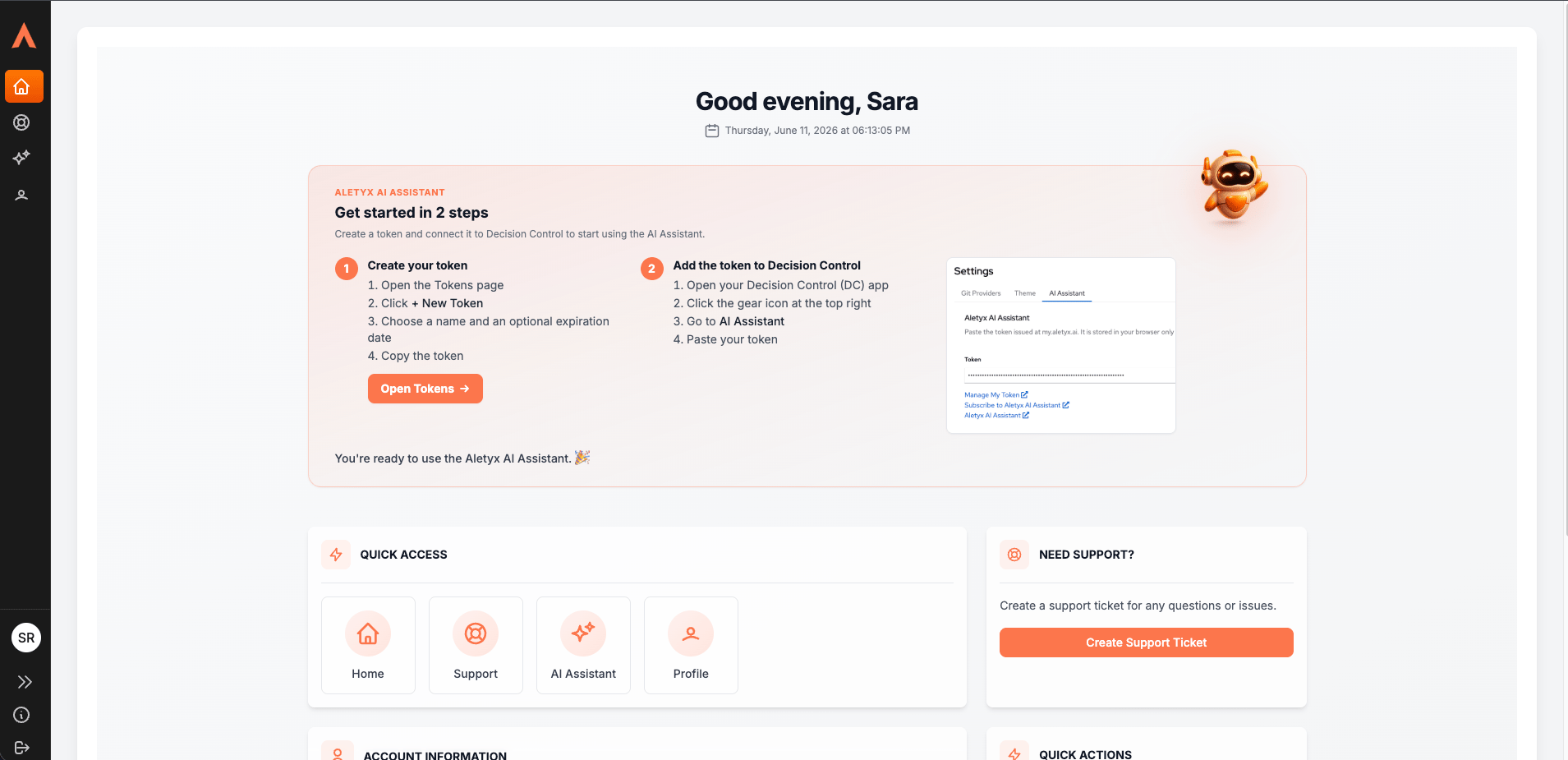
**Verify:** You're signed in to your **My Aletyx** dashboard.
4. Check your email. You'll get a message confirming your account was created, with a **Log In to Dashboard** button, then click it to open your dashboard.
**Verify:** You're signed in to your **My Aletyx** dashboard.
 **Free trial and billing**
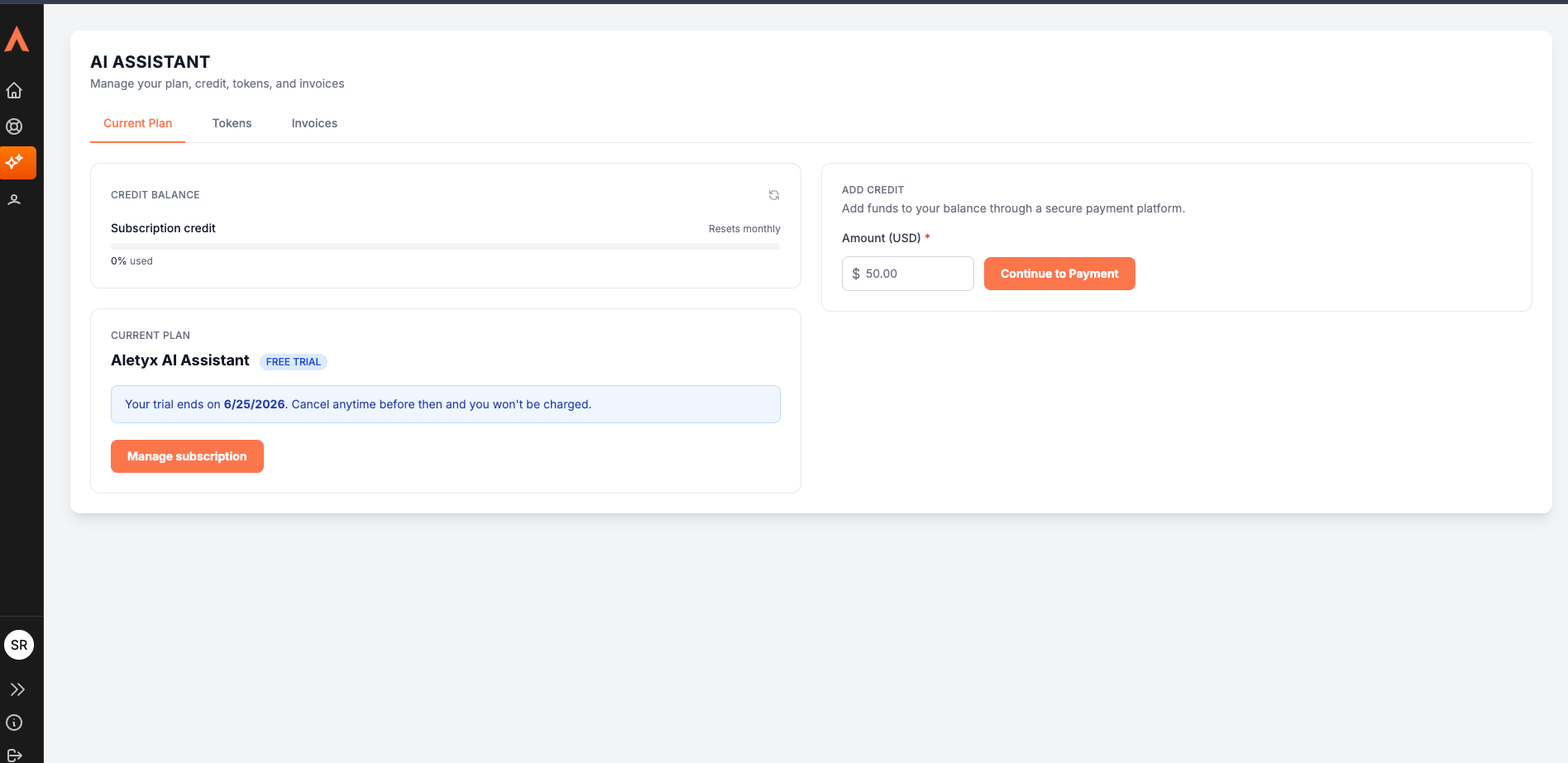
The first 14 days are free. After the trial, the subscription renews monthly at the price shown at checkout (in **BRL** or **USD**). Cancel before the trial ends and you won't be charged.
Open the **AI Assistant** section to manage your plan, credit, tokens, and invoices - click **Open Tokens** on the dashboard home page, or click the **AI Assistant** icon in the sidebar. It has three tabs:
* **Current Plan** - your plan and trial status, your **credit balance** (resets monthly), an **Add credit** option, and **Manage subscription** (to change or [cancel](#how-to-cancel-your-subscription)).
* **Tokens** - create and manage the tokens that connect the assistant to Decision Control (next section).
* **Invoices** - your billing history.
**Free trial and billing**
The first 14 days are free. After the trial, the subscription renews monthly at the price shown at checkout (in **BRL** or **USD**). Cancel before the trial ends and you won't be charged.
Open the **AI Assistant** section to manage your plan, credit, tokens, and invoices - click **Open Tokens** on the dashboard home page, or click the **AI Assistant** icon in the sidebar. It has three tabs:
* **Current Plan** - your plan and trial status, your **credit balance** (resets monthly), an **Add credit** option, and **Manage subscription** (to change or [cancel](#how-to-cancel-your-subscription)).
* **Tokens** - create and manage the tokens that connect the assistant to Decision Control (next section).
* **Invoices** - your billing history.
 (For help, use the **support** option in the sidebar to submit a ticket.)
Once subscribed, [create your token and connect it to Decision Control](#how-to-create-and-connect-your-token).
## How to create and connect your token
The assistant connects to Decision Control using a **token** - a code you create in your My Aletyx dashboard and paste into Decision Control. Decision Control checks it for you automatically; there's no Save button.
**Steps:**
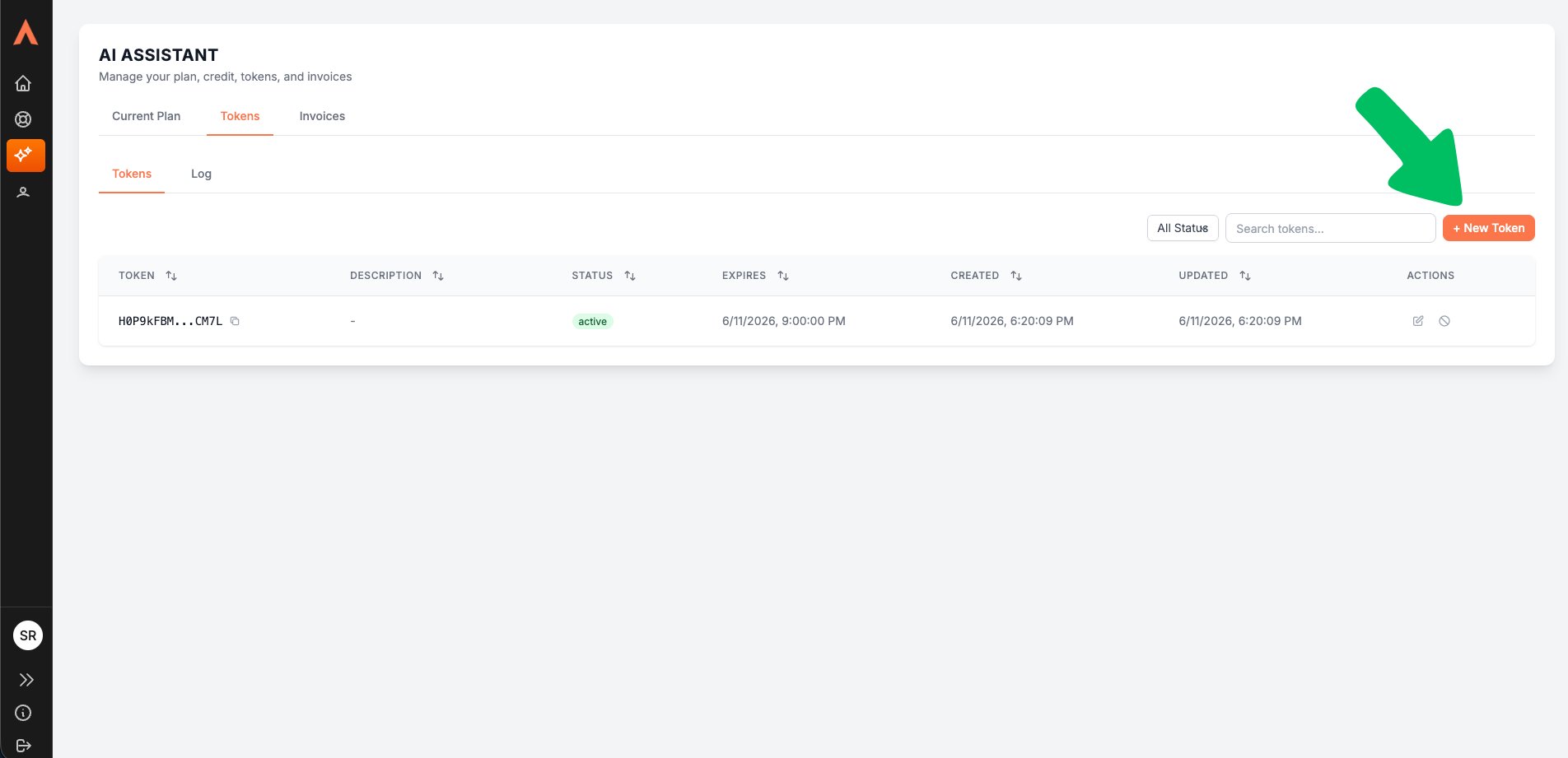
1. Open the **Tokens** tab - click **Open Tokens** on the dashboard home page, or click the **AI Assistant** icon in the sidebar and select the **Tokens** tab.
2. Click **+ New Token**, then copy the token.
**Verify:** The new token appears in your list.
(For help, use the **support** option in the sidebar to submit a ticket.)
Once subscribed, [create your token and connect it to Decision Control](#how-to-create-and-connect-your-token).
## How to create and connect your token
The assistant connects to Decision Control using a **token** - a code you create in your My Aletyx dashboard and paste into Decision Control. Decision Control checks it for you automatically; there's no Save button.
**Steps:**
1. Open the **Tokens** tab - click **Open Tokens** on the dashboard home page, or click the **AI Assistant** icon in the sidebar and select the **Tokens** tab.
2. Click **+ New Token**, then copy the token.
**Verify:** The new token appears in your list.
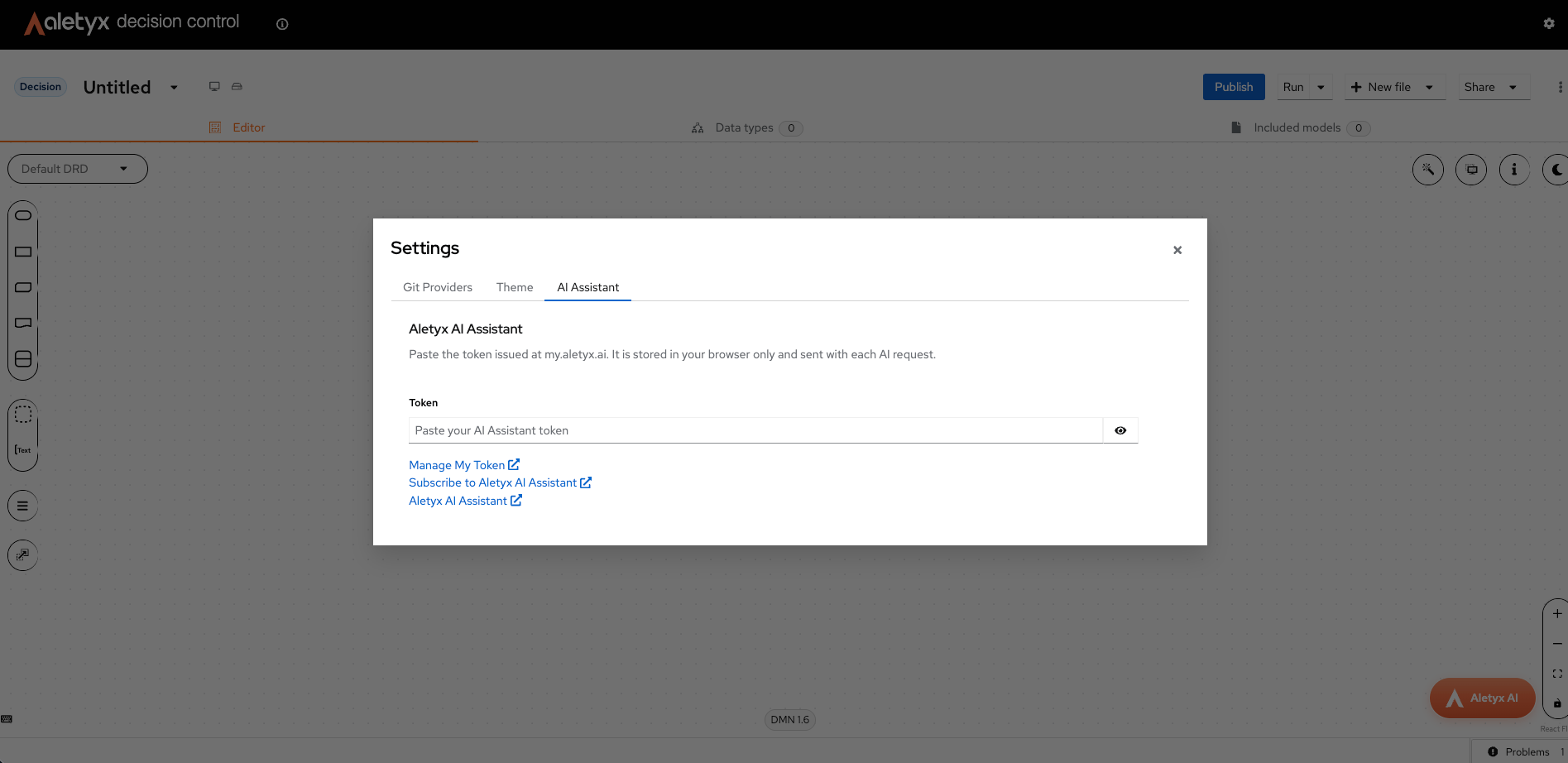
 3. In **Decision Control**, click the **gear** icon (top-right) → **AI Assistant**.
**Verify:** You see the **Token** field and the **Manage My Token** and **Subscribe** links.
4. Paste the token into the **Token** field. Use the eye icon to show or hide it while you check it.
**Verify:** The status shows **"Validating token…"**, then **"Token is valid."** - the assistant is ready to use.
3. In **Decision Control**, click the **gear** icon (top-right) → **AI Assistant**.
**Verify:** You see the **Token** field and the **Manage My Token** and **Subscribe** links.
4. Paste the token into the **Token** field. Use the eye icon to show or hide it while you check it.
**Verify:** The status shows **"Validating token…"**, then **"Token is valid."** - the assistant is ready to use.
 **More on the Decision Control side**
For the full token settings how-to in Decision Control - opening the panel, validation, and the no-token prompt - see the Decision Control how-tos:
* [Authoring – AI Assistant → Configure the AI Assistant token](/docs/decision-control/how-to/authoring-ai#how-to-configure-the-ai-assistant-token)
* [Prompting](/docs/decision-control/how-to/prompting) - using the assistant chat over published models
5. If you see **"Token is invalid,"** copy the token again from your dashboard and re-paste it. If you see **"Could not reach the validation service,"** click **Retry**.
**Verify:** The status changes to **"Token is valid."**
**Managing your token later:**
* To create a new token, renew, or revoke one, click **Manage My Token** - it opens your dashboard, where the tokens themselves are managed.
* To turn the assistant off on this computer, clear the **Token** field. The assistant then shows **"AI Assistant disabled."**
**Your token stays in your browser**
The token is saved in your browser on this computer only - it isn't shared with other people or devices. If you switch computers, paste it again.
**No token yet?**
If you open the assistant before adding a token, it shows **"AI Assistant disabled"** with a **Subscribe** link that takes you to My Aletyx.
## How to cancel your subscription
You manage billing and cancellation from your My Aletyx dashboard.
**Steps:**
1. Open the **AI Assistant** section (click the **AI Assistant** icon in the sidebar) and go to the **Current Plan** tab.
2. Click **Manage subscription**.
3. Open **Active plan**.
4. Inside **Active plan**, click **Cancel plan** and confirm.
**Verify:** Your subscription is marked for cancellation.
**Cancel during the free trial**
Cancel before the 14-day trial ends and you won't be charged.
## How to interact with the assistant
Here are two ways to start. Each links to a full step-by-step guide.
### Build or change a model in the editor
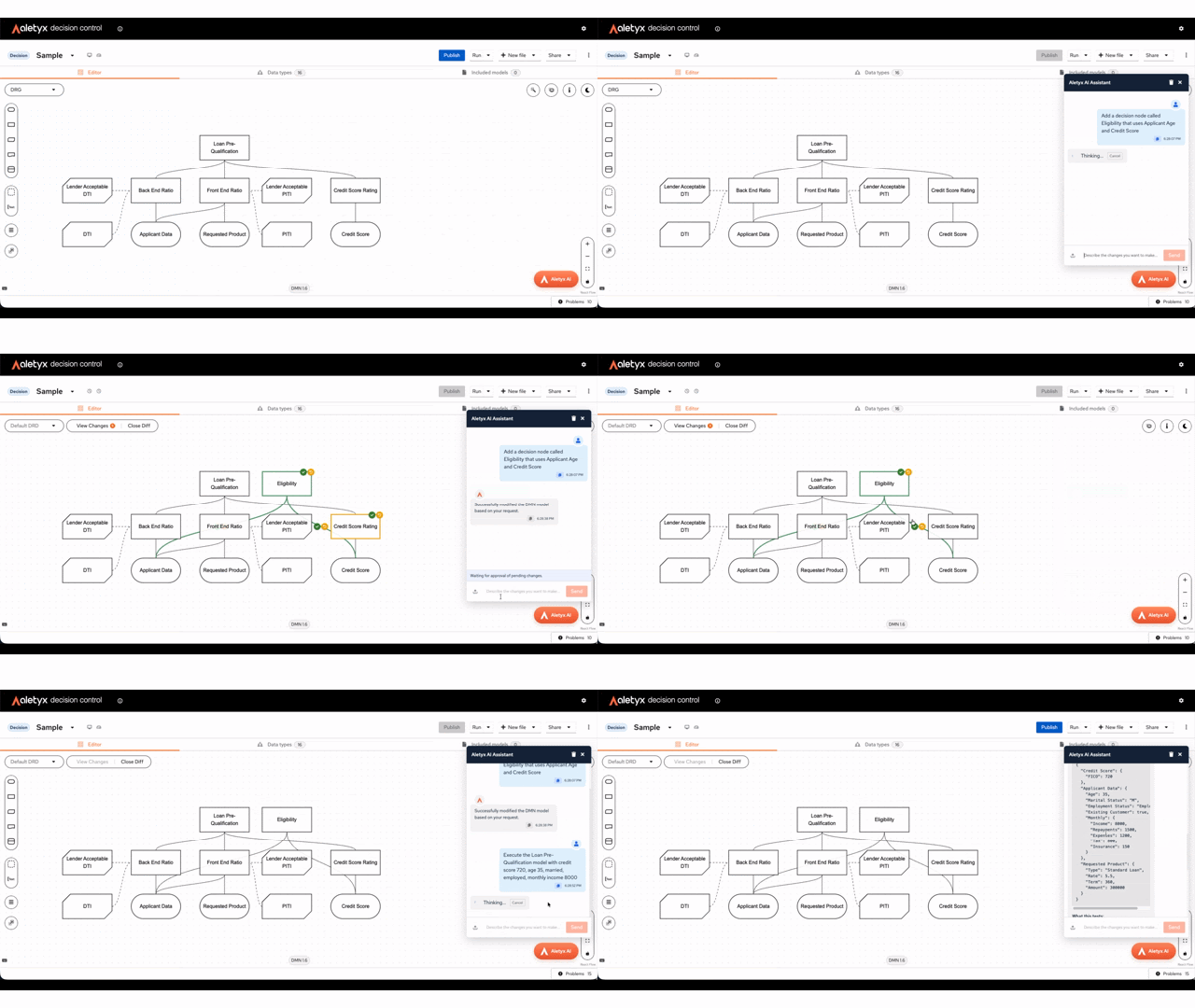
With a model open, click the floating **Aletyx AI** button (bottom-right of the editor) to open the assistant, then describe what you want:
```
Add a decision node called Eligibility that uses Applicant Age and Credit Score
```
The assistant suggests the changes and lets you review them before applying. Full walkthrough: [Authoring – AI Assistant](/docs/decision-control/how-to/authoring-ai).
**More on the Decision Control side**
For the full token settings how-to in Decision Control - opening the panel, validation, and the no-token prompt - see the Decision Control how-tos:
* [Authoring – AI Assistant → Configure the AI Assistant token](/docs/decision-control/how-to/authoring-ai#how-to-configure-the-ai-assistant-token)
* [Prompting](/docs/decision-control/how-to/prompting) - using the assistant chat over published models
5. If you see **"Token is invalid,"** copy the token again from your dashboard and re-paste it. If you see **"Could not reach the validation service,"** click **Retry**.
**Verify:** The status changes to **"Token is valid."**
**Managing your token later:**
* To create a new token, renew, or revoke one, click **Manage My Token** - it opens your dashboard, where the tokens themselves are managed.
* To turn the assistant off on this computer, clear the **Token** field. The assistant then shows **"AI Assistant disabled."**
**Your token stays in your browser**
The token is saved in your browser on this computer only - it isn't shared with other people or devices. If you switch computers, paste it again.
**No token yet?**
If you open the assistant before adding a token, it shows **"AI Assistant disabled"** with a **Subscribe** link that takes you to My Aletyx.
## How to cancel your subscription
You manage billing and cancellation from your My Aletyx dashboard.
**Steps:**
1. Open the **AI Assistant** section (click the **AI Assistant** icon in the sidebar) and go to the **Current Plan** tab.
2. Click **Manage subscription**.
3. Open **Active plan**.
4. Inside **Active plan**, click **Cancel plan** and confirm.
**Verify:** Your subscription is marked for cancellation.
**Cancel during the free trial**
Cancel before the 14-day trial ends and you won't be charged.
## How to interact with the assistant
Here are two ways to start. Each links to a full step-by-step guide.
### Build or change a model in the editor
With a model open, click the floating **Aletyx AI** button (bottom-right of the editor) to open the assistant, then describe what you want:
```
Add a decision node called Eligibility that uses Applicant Age and Credit Score
```
The assistant suggests the changes and lets you review them before applying. Full walkthrough: [Authoring – AI Assistant](/docs/decision-control/how-to/authoring-ai).
 **Be specific**
Naming the parts you want - the fields, the values, the conditions - gives much better results than a vague request.
### Ask questions and run a decision in chat
In the **Prompting** chat, ask the assistant to run a published model. Include the details upfront to get an answer in one step:
```
Execute the Loan Pre-Qualification model with credit score 720, age 35, married, employed, monthly income 8000
```
The assistant replies with the inputs it used and the result. Full walkthrough: [Prompting](/docs/decision-control/how-to/prompting).
## Next steps
* [Authoring – AI Assistant](/docs/decision-control/how-to/authoring-ai) - build and edit models with AI
* [Prompting](/docs/decision-control/how-to/prompting) - run decisions conversationally
* [Aletyx AI Assistant product page](https://aletyx.ai/ai-assistant)
**Be specific**
Naming the parts you want - the fields, the values, the conditions - gives much better results than a vague request.
### Ask questions and run a decision in chat
In the **Prompting** chat, ask the assistant to run a published model. Include the details upfront to get an answer in one step:
```
Execute the Loan Pre-Qualification model with credit score 720, age 35, married, employed, monthly income 8000
```
The assistant replies with the inputs it used and the result. Full walkthrough: [Prompting](/docs/decision-control/how-to/prompting).
## Next steps
* [Authoring – AI Assistant](/docs/decision-control/how-to/authoring-ai) - build and edit models with AI
* [Prompting](/docs/decision-control/how-to/prompting) - run decisions conversationally
* [Aletyx AI Assistant product page](https://aletyx.ai/ai-assistant)