> ## Documentation Index
> Fetch the complete documentation index at: https://aletyx.ai/docs/llms.txt
> Use this file to discover all available pages before exploring further.
# Prompting
> Ask about and execute decision models in natural language through the conversational assistant.
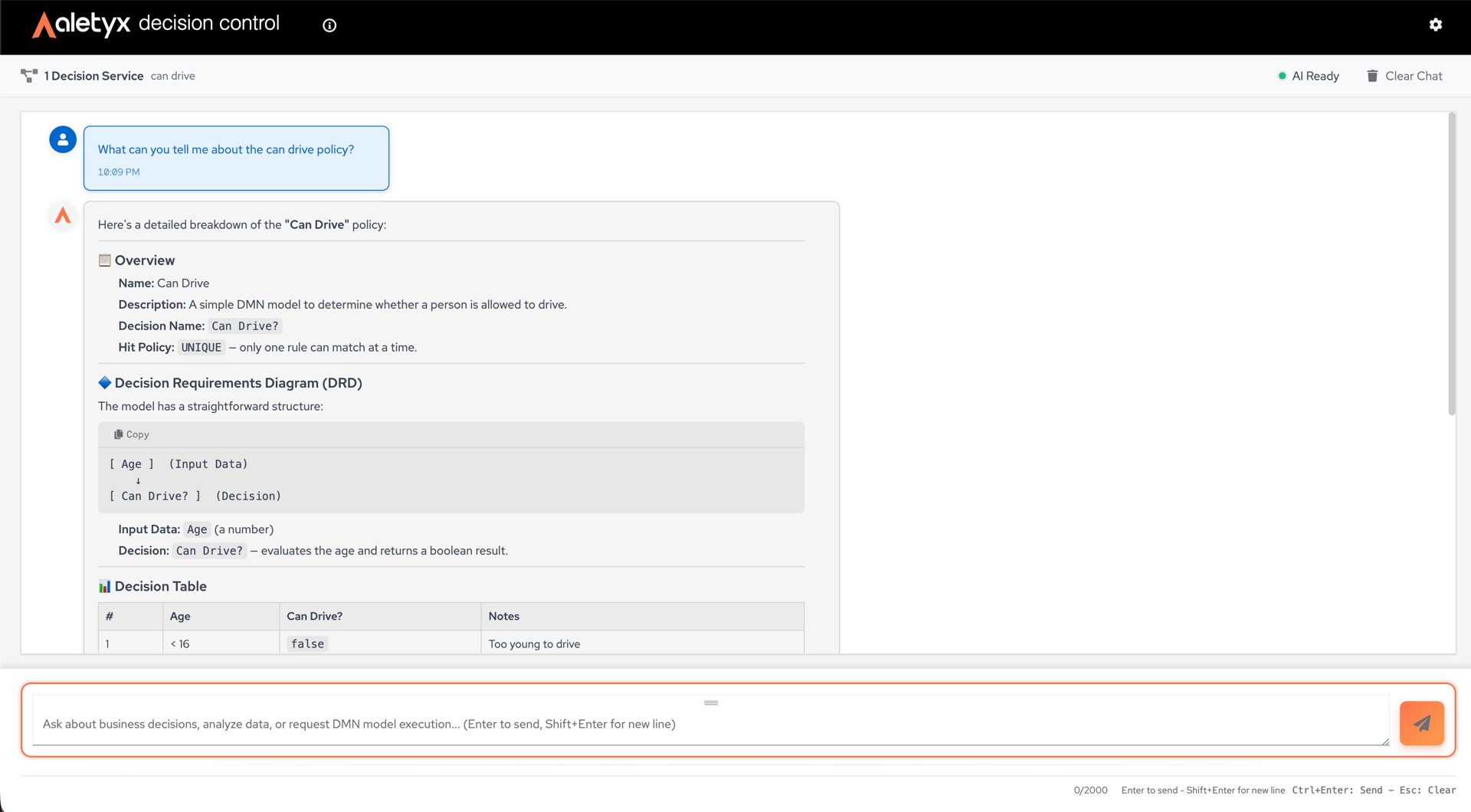
Ask about and execute decision models in natural language through the conversational assistant. All guides require Prompting access and AI features enabled by your administrator.
 **Not the same as the in-editor AI Assistant**
The **Prompting** workspace runs decisions and answers questions about *published* models, for end users. The [in-editor AI Assistant](/docs/decision-control/how-to/authoring-ai) builds and edits decision models inside Authoring, for authors. Different products, different access (Prompting vs Authoring).
## How to send a message to the AI assistant
Ask questions about your decision models in natural language.
**Steps:**
1. Open **Prompting** (chat).
2. Type your question in the message box ("Ask about business decisions…").
3. Press Enter to send (Shift+Enter for a new line).
**Verify:** An assistant reply streams in, with a per-message token count.
## How to use a suggested prompt
Start quickly from a canned example.
**Prerequisites:** Decision services loaded (suggestions only show then).
**Steps:**
1. On the empty chat screen, click one of the suggested prompts.
2. Edit if needed and send.
**Verify:** The suggestion fills the input / sends and the assistant responds.
## How to execute a decision model via chat
Have the assistant run a published model. If you don't include all the inputs, it collects the missing ones from you conversationally.
**Prerequisites:** At least one decision service available (the badge at the top of the chat shows the count, e.g., "1 Decision Service").
**Steps:**
1. Ask the assistant to execute a model — for example:
```
execute the can drive model
```
2. If a required input is missing, the assistant replies with a question (e.g., *"What is the Age?"*). Answer with the value in the next message.
3. Repeat until all inputs are provided. The assistant runs the model and replies with a result block: an **Input → Value** table, an **Output → Value** table, and a short interpretation.
**Verify:** The chat shows the result block with input and output tables — outputs marked ✓ (or ✗ for falsy/rejected results).
**Be specific about which model**
If you have several decision services, the assistant guesses from the name. Including the unit or full name avoids ambiguity: "Execute *loan-prequalification's* `Loan Pre-Qualification` model with…".
**Provide the inputs upfront to skip the back-and-forth**
`Execute the Loan Pre-Qualification model with credit score 720, age 35, married, employed, monthly income 8000` runs in one shot.
## How to clear the conversation
Reset the chat history on the prompting page.
**Prerequisites:** At least one message.
**Steps:**
1. Click **Clear Chat**.
2. Confirm **Clear** in the "Clear conversation?" dialog.
**Verify:** The conversation empties.
**Not the same as the in-editor AI Assistant**
The **Prompting** workspace runs decisions and answers questions about *published* models, for end users. The [in-editor AI Assistant](/docs/decision-control/how-to/authoring-ai) builds and edits decision models inside Authoring, for authors. Different products, different access (Prompting vs Authoring).
## How to send a message to the AI assistant
Ask questions about your decision models in natural language.
**Steps:**
1. Open **Prompting** (chat).
2. Type your question in the message box ("Ask about business decisions…").
3. Press Enter to send (Shift+Enter for a new line).
**Verify:** An assistant reply streams in, with a per-message token count.
## How to use a suggested prompt
Start quickly from a canned example.
**Prerequisites:** Decision services loaded (suggestions only show then).
**Steps:**
1. On the empty chat screen, click one of the suggested prompts.
2. Edit if needed and send.
**Verify:** The suggestion fills the input / sends and the assistant responds.
## How to execute a decision model via chat
Have the assistant run a published model. If you don't include all the inputs, it collects the missing ones from you conversationally.
**Prerequisites:** At least one decision service available (the badge at the top of the chat shows the count, e.g., "1 Decision Service").
**Steps:**
1. Ask the assistant to execute a model — for example:
```
execute the can drive model
```
2. If a required input is missing, the assistant replies with a question (e.g., *"What is the Age?"*). Answer with the value in the next message.
3. Repeat until all inputs are provided. The assistant runs the model and replies with a result block: an **Input → Value** table, an **Output → Value** table, and a short interpretation.
**Verify:** The chat shows the result block with input and output tables — outputs marked ✓ (or ✗ for falsy/rejected results).
**Be specific about which model**
If you have several decision services, the assistant guesses from the name. Including the unit or full name avoids ambiguity: "Execute *loan-prequalification's* `Loan Pre-Qualification` model with…".
**Provide the inputs upfront to skip the back-and-forth**
`Execute the Loan Pre-Qualification model with credit score 720, age 35, married, employed, monthly income 8000` runs in one shot.
## How to clear the conversation
Reset the chat history on the prompting page.
**Prerequisites:** At least one message.
**Steps:**
1. Click **Clear Chat**.
2. Confirm **Clear** in the "Clear conversation?" dialog.
**Verify:** The conversation empties.