> ## Documentation Index
> Fetch the complete documentation index at: https://aletyx.ai/docs/llms.txt
> Use this file to discover all available pages before exploring further.
# Management – Units & Models
> Manage the catalog of decision units, versions, and models from the Management workbench.
Manage the catalog of decision units, versions, and models from the Management workbench. All guides on this page require Management access. To execute models, see [Management – Execute Rules](/docs/decision-control/how-to/management-execute).
The Management workbench uses a left sidebar with **Dashboard**, **Decision Units**, **Upload DMN**, and **Execute Rules** — the sections below match those entries.
## Dashboard
`" timestamp.
### How to refresh dashboard statistics
Pull the latest metrics on demand.
**Steps:**
1. On the Dashboard, click **Refresh Statistics**.
**Verify:** Metrics update and the "Updated at" time changes.
## Decision Units
**Units aren't created empty**
A decision unit comes into existence only when you [upload DMN models](#how-to-upload-dmn-models). The "Create Decision Unit" button on the dashboard simply opens the Units page.
Every unit row exposes the same controls. The how-tos below use them by name:
| Control | What it does |
| ----------------- | --------------------------------------------------------------------- |
| **STATUS** switch | Toggles the whole unit (and its models as endpoints) ENABLED/DISABLED |
| Eye icon | Opens the unit's versions and models |
| Pencil icon | Edits the unit's description |
| Trash icon | Deletes the unit (cascades to versions/models) |
### How to find a decision unit
Locate units by name, date, or status.
**Steps:**
1. Open **Management → Decision Units**.
2. Type in **Search**, and/or use the **Date** and **Status** filters.
3. Sort by clicking column headers; click **Clear filters** to reset.
**Verify:** The table narrows to matching units.
### How to enable or disable a decision unit
Make a unit's models available (or not) as API endpoints.
**Steps:**
1. On **Decision Units**, find the unit's row.
2. Toggle the **STATUS** switch (shows ENABLED/DISABLED).
**Verify:** The switch reflects the new state.
### How to view a unit's versions and models
Drill into a unit to manage its versions and models.
**Steps:**
1. On **Decision Units**, click the unit row (or the eye icon).
**Verify:** The versions page opens, listing versions on the left.
### How to edit a unit's description
Update a unit's descriptive text.
**Steps:**
1. On **Decision Units**, click the pencil icon in the unit's **ACTIONS** column.
2. Edit **Description** and click **Save Changes**.
**Verify:** The new description shows in the table.
### How to delete a decision unit
Permanently remove a unit and all its versions/models.
**Cascade delete**
Deleting a unit removes **every version and every model inside it**. The dialog shows the cascade count before you confirm — read it. If a 409 conflict appears (the unit is in use), you'll be offered a force-delete option that bypasses the check.
**Steps:**
1. On **Decision Units**, click the trash icon in the unit's row.
2. Review the cascade warning and click **Delete**.
3. If a conflict appears, confirm the force-delete option.
**Verify:** The unit disappears from the table.
## Upload DMN
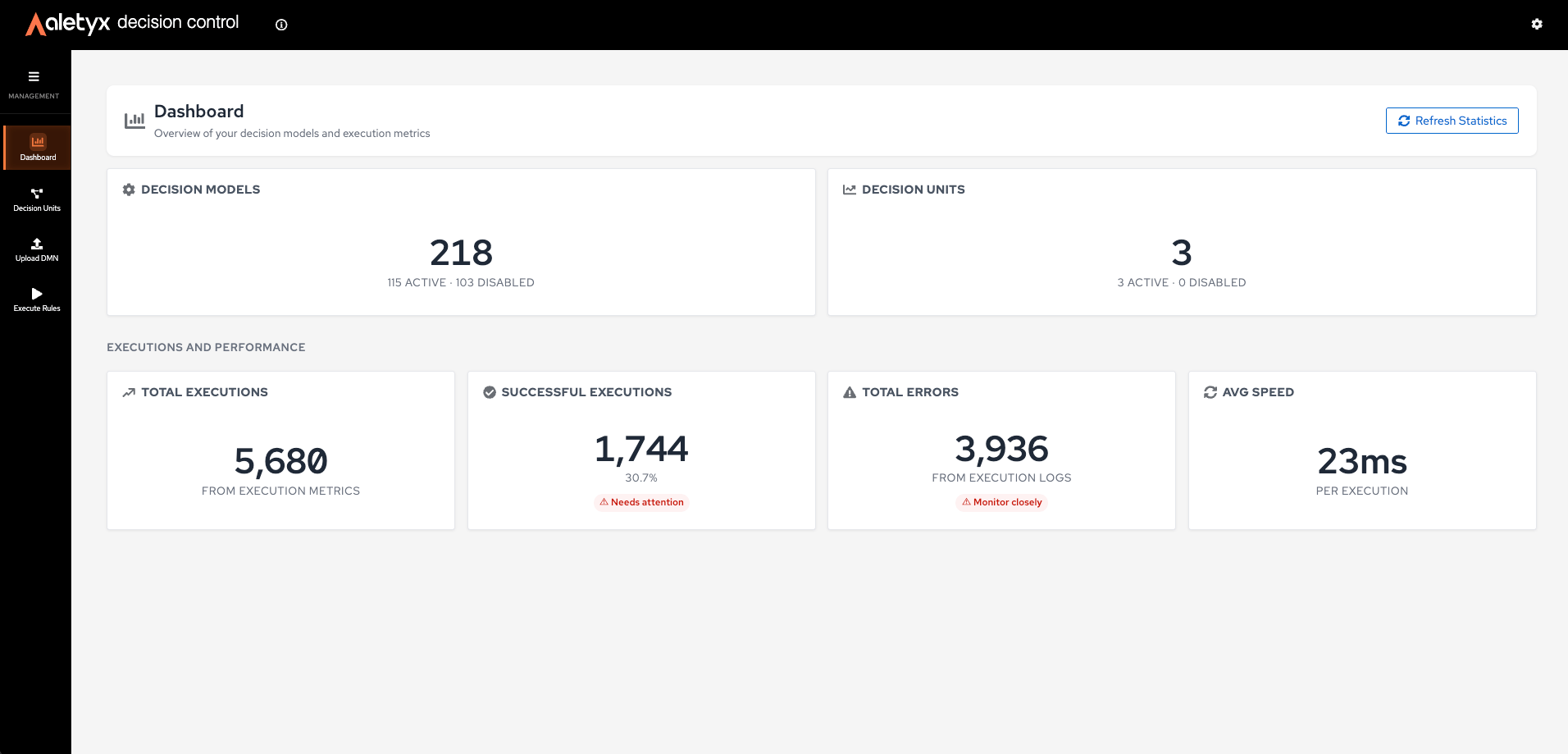 The Dashboard is the default screen of Management. It shows six metric cards:
| Card | What it shows |
| ------------------------- | ----------------------------------------- |
| **Decision Models** | Total number of models across all units |
| **Decision Units** | Total number of units |
| **Total Executions** | All execution attempts in the time window |
| **Successful Executions** | Executions that completed without error |
| **Total Errors** | Executions that failed |
| **Avg Speed** | Average evaluation time per execution |
Each card is clickable and links to its detail screen.
### How to view dashboard metrics
**Steps:**
1. Open **Management → Dashboard** (the default screen).
2. Read the metric cards (see the table above).
3. (Optional) Click a card to jump to its detail screen.
**Verify:** Cards display current numbers and an "Updated at `
The Dashboard is the default screen of Management. It shows six metric cards:
| Card | What it shows |
| ------------------------- | ----------------------------------------- |
| **Decision Models** | Total number of models across all units |
| **Decision Units** | Total number of units |
| **Total Executions** | All execution attempts in the time window |
| **Successful Executions** | Executions that completed without error |
| **Total Errors** | Executions that failed |
| **Avg Speed** | Average evaluation time per execution |
Each card is clickable and links to its detail screen.
### How to view dashboard metrics
**Steps:**
1. Open **Management → Dashboard** (the default screen).
2. Read the metric cards (see the table above).
3. (Optional) Click a card to jump to its detail screen.
**Verify:** Cards display current numbers and an "Updated at `