> ## Documentation Index
> Fetch the complete documentation index at: https://aletyx.ai/docs/llms.txt
> Use this file to discover all available pages before exploring further.
# Home & Global
> How to open each Decision Control workspace from the home page and use the global Settings dialog, including connecting a Git provider.
The home page is the entry point to each Decision Control workspace. Which cards appear depends on your role and on which workspaces your administrator has enabled — cards you aren't authorized for are shown disabled.
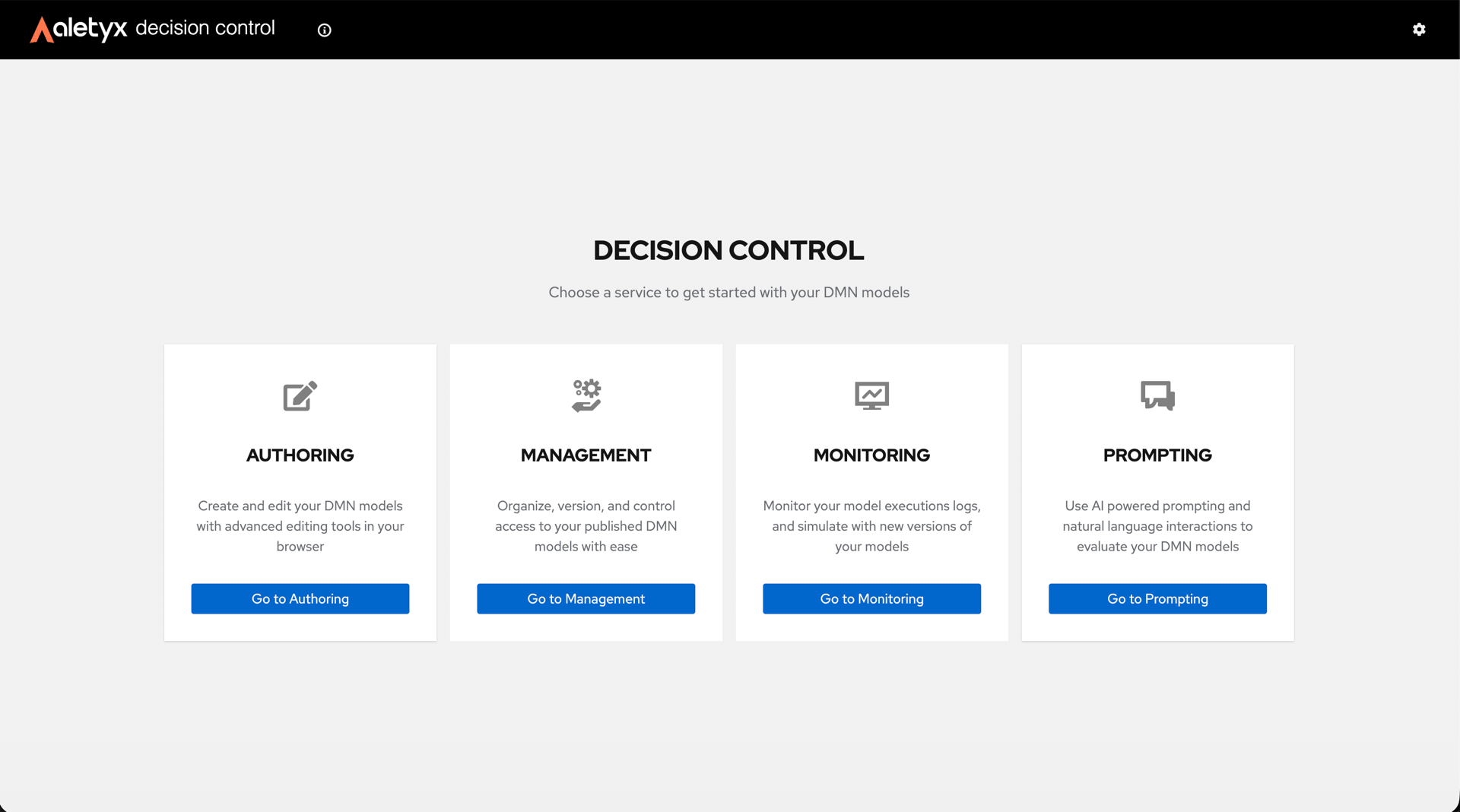 The home page shows one card per workspace: **Authoring**, **Management**, **Monitoring**, and **Prompting**. The masthead gear icon (top-right) opens the global **Settings**.
## How to open a workspace
Each workspace is a card on the home page. To open one, find its card and click its **Go to …** button.
| Workspace | What it's for | Role |
| -------------- | -------------------------------------------------- | ----------------- |
| **Authoring** | Build and edit DMN decision models | Authoring access |
| **Management** | Manage units, versions, models, uploads, execution | Management access |
| **Monitoring** | Execution history, audit logs, analytics | Management access |
| **Prompting** | Natural-language chat assistant | Prompting access |
**Disabled vs hidden**
A card you aren't authorized for is shown **disabled**; a workspace turned off in your deployment is **hidden** entirely.
**Verify:** The chosen workspace opens — for example, **Authoring** shows the Create / Import / Recent models sections, and **Management** loads its left sidebar with the Dashboard.
## How to open global Settings
Open the global Settings dialog from the gear icon in the masthead. It is available from any screen and groups its options into tabs:
* **Git Providers** — connect your GitHub, Bitbucket, or GitLab accounts so you can import from and sync with private repositories, gists, and snippets.
* **Theme** — switch the interface between light and dark themes.
* **AI Assistant** — store and validate the token the AI features use. (This tab appears only when the AI SaaS integration is enabled.)
**Prerequisites:** None.
**Steps:**
1. Click the gear icon (**Settings**) in the top-right masthead.
2. In the Settings dialog, pick a tab: **Git Providers**, **Theme**, or **AI Assistant**.
3. Make your changes (for example, choose a theme or paste a token).
**Verify:** The selected tab shows your saved values; the dialog can be closed and reopened with changes retained.
## How to connect a Git provider
Connect a GitHub, Bitbucket, or GitLab account so you can import models from private repositories, gists, or snippets, and sync your Git-backed workspaces.
**Prerequisites:** A Personal Access Token (PAT) from your Git provider. For GitHub, a classic token with the `repo` scope, or a fine-grained token with **Contents: Read** + **Metadata: Read**.
**Steps:**
1. Open **Settings** (gear icon in the masthead) → **Git Providers** tab.
2. Click the provider you want to connect (**GitHub**, **Bitbucket**, or **GitLab**).
3. Paste your Personal Access Token and submit.
The home page shows one card per workspace: **Authoring**, **Management**, **Monitoring**, and **Prompting**. The masthead gear icon (top-right) opens the global **Settings**.
## How to open a workspace
Each workspace is a card on the home page. To open one, find its card and click its **Go to …** button.
| Workspace | What it's for | Role |
| -------------- | -------------------------------------------------- | ----------------- |
| **Authoring** | Build and edit DMN decision models | Authoring access |
| **Management** | Manage units, versions, models, uploads, execution | Management access |
| **Monitoring** | Execution history, audit logs, analytics | Management access |
| **Prompting** | Natural-language chat assistant | Prompting access |
**Disabled vs hidden**
A card you aren't authorized for is shown **disabled**; a workspace turned off in your deployment is **hidden** entirely.
**Verify:** The chosen workspace opens — for example, **Authoring** shows the Create / Import / Recent models sections, and **Management** loads its left sidebar with the Dashboard.
## How to open global Settings
Open the global Settings dialog from the gear icon in the masthead. It is available from any screen and groups its options into tabs:
* **Git Providers** — connect your GitHub, Bitbucket, or GitLab accounts so you can import from and sync with private repositories, gists, and snippets.
* **Theme** — switch the interface between light and dark themes.
* **AI Assistant** — store and validate the token the AI features use. (This tab appears only when the AI SaaS integration is enabled.)
**Prerequisites:** None.
**Steps:**
1. Click the gear icon (**Settings**) in the top-right masthead.
2. In the Settings dialog, pick a tab: **Git Providers**, **Theme**, or **AI Assistant**.
3. Make your changes (for example, choose a theme or paste a token).
**Verify:** The selected tab shows your saved values; the dialog can be closed and reopened with changes retained.
## How to connect a Git provider
Connect a GitHub, Bitbucket, or GitLab account so you can import models from private repositories, gists, or snippets, and sync your Git-backed workspaces.
**Prerequisites:** A Personal Access Token (PAT) from your Git provider. For GitHub, a classic token with the `repo` scope, or a fine-grained token with **Contents: Read** + **Metadata: Read**.
**Steps:**
1. Open **Settings** (gear icon in the masthead) → **Git Providers** tab.
2. Click the provider you want to connect (**GitHub**, **Bitbucket**, or **GitLab**).
3. Paste your Personal Access Token and submit.
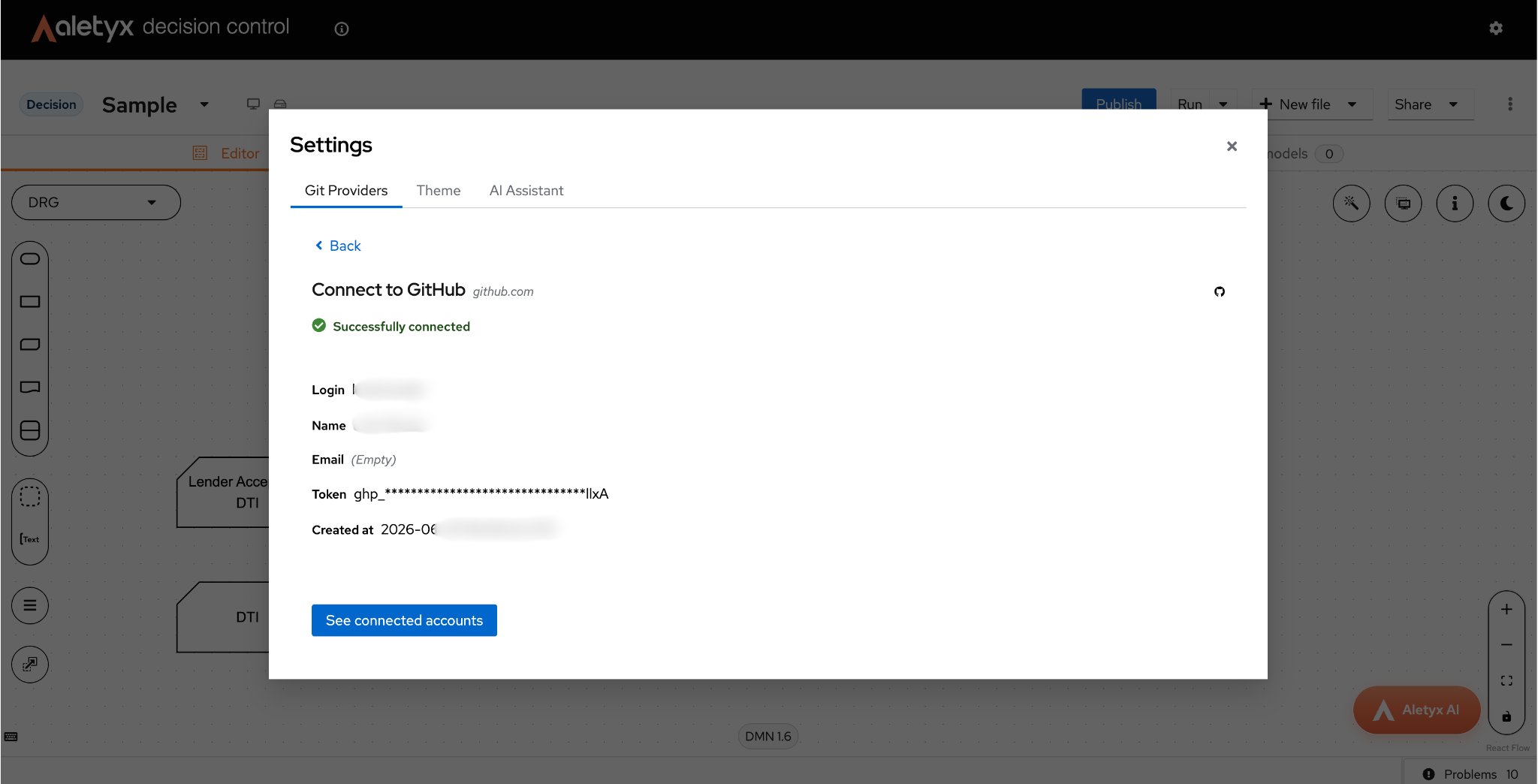 **Verify:** The dialog shows **✓ Successfully connected** along with your login, name, the masked token, and the connection date. Click **See connected accounts** to manage existing connections.
**Bad credentials (401)**
If the provider returns `Bad credentials` after you submit:
* Check the token was pasted in full (no leading/trailing spaces, no missing characters)
* Make sure the token hasn't expired
* Confirm the token has the required scopes (`repo` for GitHub classic, the equivalent permissions for fine-grained tokens, Bitbucket, or GitLab)
* If in doubt, generate a fresh PAT and try again
**Verify:** The dialog shows **✓ Successfully connected** along with your login, name, the masked token, and the connection date. Click **See connected accounts** to manage existing connections.
**Bad credentials (401)**
If the provider returns `Bad credentials` after you submit:
* Check the token was pasted in full (no leading/trailing spaces, no missing characters)
* Make sure the token hasn't expired
* Confirm the token has the required scopes (`repo` for GitHub classic, the equivalent permissions for fine-grained tokens, Bitbucket, or GitLab)
* If in doubt, generate a fresh PAT and try again