> ## Documentation Index
> Fetch the complete documentation index at: https://aletyx.ai/docs/llms.txt
> Use this file to discover all available pages before exploring further.
# Authoring – Testing in the Editor
> Test a DMN model locally with the DMN Runner before publishing — sample inputs, multiple scenarios, and saving or loading test data.
Test a DMN model locally with the DMN Runner before publishing. These guides require Authoring access and a running Extended Services instance.
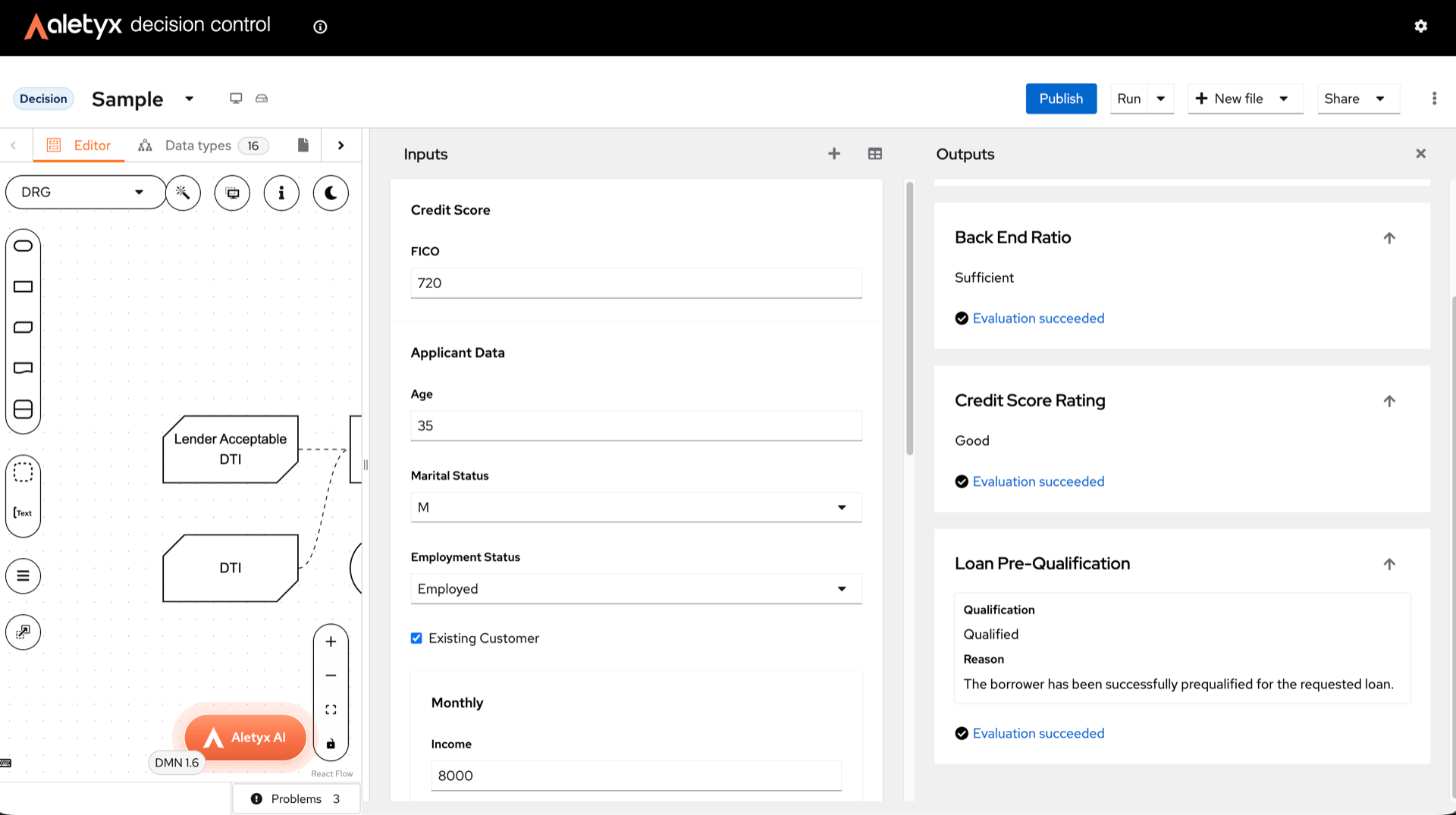
The DMN Runner takes over the right side of the editor, split into two panels: **Inputs** on the left (one field per Input Data node) and **Outputs** on the right, evaluated live as you fill the inputs.
 ## How to test a model with sample inputs
Run a DMN model locally against sample inputs and see live outputs.
**Prerequisites:** A `.dmn`/`.dmns` file open; Extended Services running (you are prompted to start it if not).
**Steps:**
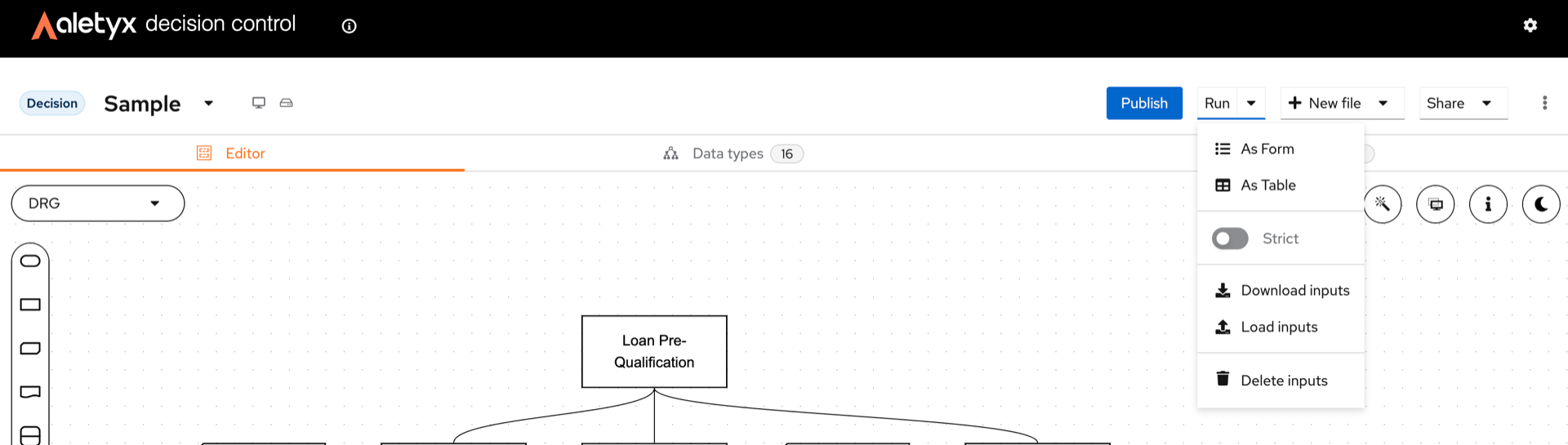
1. In the toolbar, open the **Run ▾** menu and choose **As Form** or **As Table**.
## How to test a model with sample inputs
Run a DMN model locally against sample inputs and see live outputs.
**Prerequisites:** A `.dmn`/`.dmns` file open; Extended Services running (you are prompted to start it if not).
**Steps:**
1. In the toolbar, open the **Run ▾** menu and choose **As Form** or **As Table**.
 2. In the **DMN Runner** panel, enter values in the generated inputs.
**Verify:** The output section updates automatically with evaluated results — the **Outputs** cards show real values instead of `(null)` / "Evaluation skipped".
## How to manage test input rows
Maintain multiple input scenarios for a model.
**Prerequisites:** DMN Runner open (see [How to test a model with sample inputs](#how-to-test-a-model-with-sample-inputs)).
**Steps:**
1. Click **Add row** to create a scenario.
2. Use the **Row N** dropdown to switch scenarios.
3. (Optional) Toggle **Strict mode** in the **Run** menu.
**Verify:** The selected row's inputs and outputs display in the panel.
## How to save, load, or clear test inputs
Persist or reset your test data.
**Prerequisites:** DMN Runner open.
**Steps:**
1. Open the **Run** menu.
2. Choose **Download inputs** (saves a `.json`), **Load inputs** (pick a `.json`), or **Delete inputs** (then confirm).
**Verify:** Inputs are downloaded, loaded into the rows, or cleared, respectively.
2. In the **DMN Runner** panel, enter values in the generated inputs.
**Verify:** The output section updates automatically with evaluated results — the **Outputs** cards show real values instead of `(null)` / "Evaluation skipped".
## How to manage test input rows
Maintain multiple input scenarios for a model.
**Prerequisites:** DMN Runner open (see [How to test a model with sample inputs](#how-to-test-a-model-with-sample-inputs)).
**Steps:**
1. Click **Add row** to create a scenario.
2. Use the **Row N** dropdown to switch scenarios.
3. (Optional) Toggle **Strict mode** in the **Run** menu.
**Verify:** The selected row's inputs and outputs display in the panel.
## How to save, load, or clear test inputs
Persist or reset your test data.
**Prerequisites:** DMN Runner open.
**Steps:**
1. Open the **Run** menu.
2. Choose **Download inputs** (saves a `.json`), **Load inputs** (pick a `.json`), or **Delete inputs** (then confirm).
**Verify:** Inputs are downloaded, loaded into the rows, or cleared, respectively.