> ## Documentation Index
> Fetch the complete documentation index at: https://aletyx.ai/docs/llms.txt
> Use this file to discover all available pages before exploring further.
# Sign in & Global
> How to get into the Control Tower and use the controls that are available from every screen - the Home page, the top masthead, and the collapsible sidebar.
How to get into the Control Tower and use the controls that are available from every screen - the Home page, the top masthead (About, theme, sign-out), and the collapsible sidebar.
 ## How to sign in with SSO
Single sign-on entry for any Tower user when the deployment is wired to an identity provider.
**Prerequisites:**
* A valid corporate account on the configured identity provider (Microsoft Entra or Keycloak).
* SSO must be enabled for your deployment.
**Steps:**
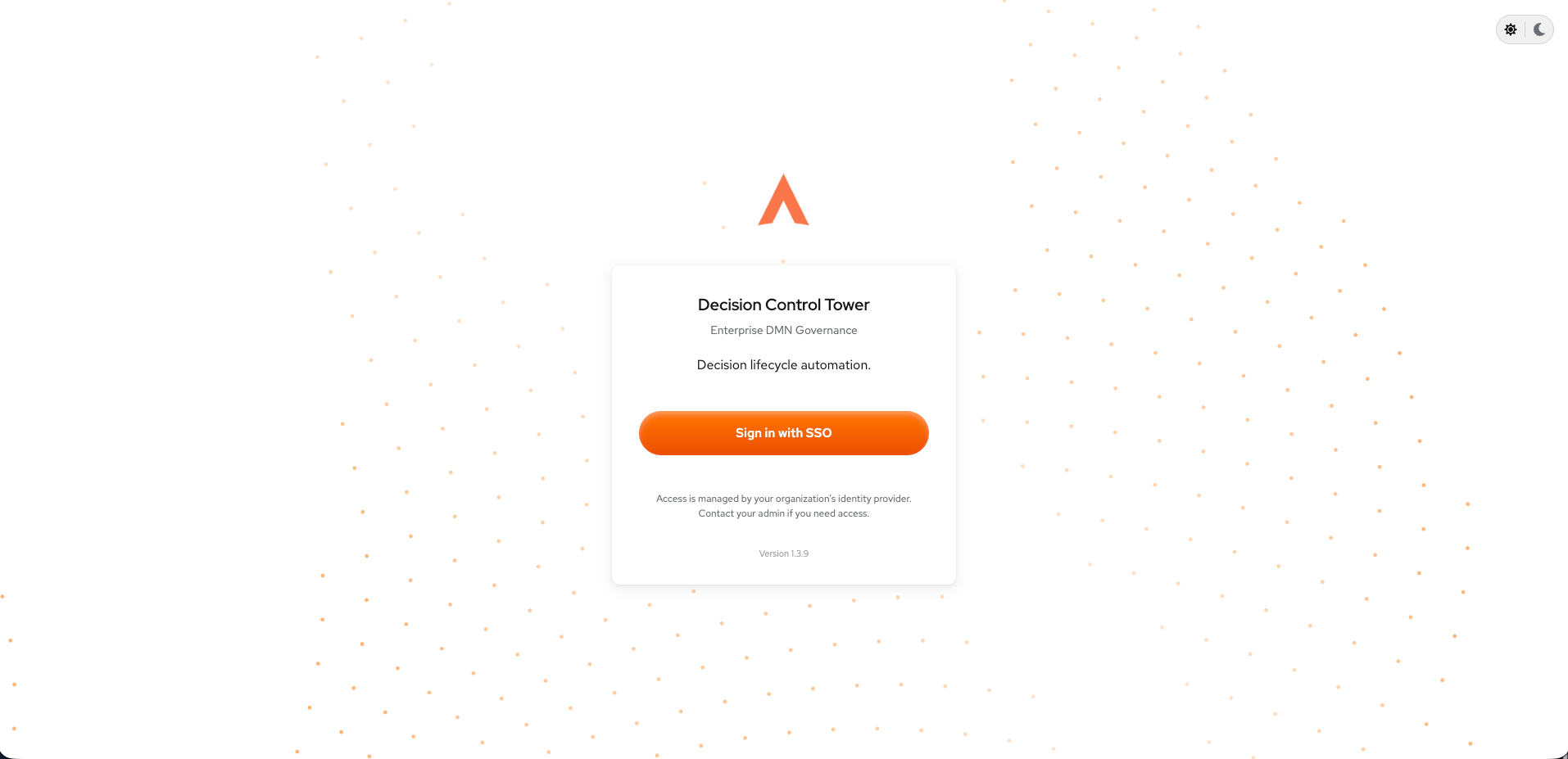
1. Open the Control Tower URL - you land on the Decision Control Tower login screen.
2. Click **Sign in with SSO**.
3. Complete authentication at your identity provider (the "select account" prompt).
4. Wait while the portal finalizes sign-in ("Authenticating, this may take 1 to 3 minutes").
**Verify:** You are redirected into the portal **Home** page and the top masthead appears.
## How to choose a service from the Home page
The Home page (`/`) is the portal's entry point after sign-in.
## How to sign in with SSO
Single sign-on entry for any Tower user when the deployment is wired to an identity provider.
**Prerequisites:**
* A valid corporate account on the configured identity provider (Microsoft Entra or Keycloak).
* SSO must be enabled for your deployment.
**Steps:**
1. Open the Control Tower URL - you land on the Decision Control Tower login screen.
2. Click **Sign in with SSO**.
3. Complete authentication at your identity provider (the "select account" prompt).
4. Wait while the portal finalizes sign-in ("Authenticating, this may take 1 to 3 minutes").
**Verify:** You are redirected into the portal **Home** page and the top masthead appears.
## How to choose a service from the Home page
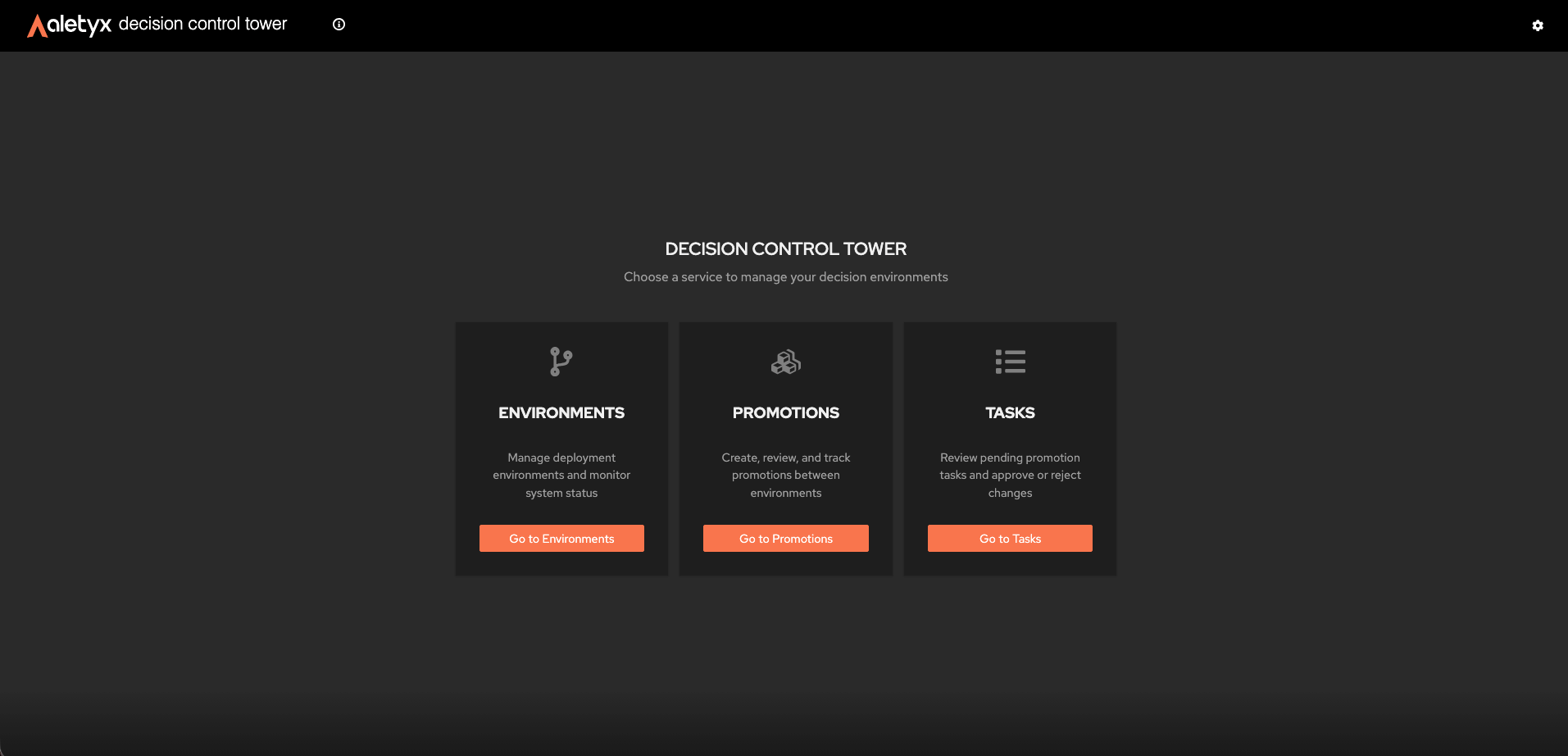
The Home page (`/`) is the portal's entry point after sign-in.
 **Steps:**
1. From Home, read the hero title and pick one of the three service cards: **Environments**, **Promotions** or **Tasks**.
2. Click a card to open that area.
**Verify:** The selected area opens and the sidebar appears (the sidebar is hidden on Home).
## How to switch between light and dark theme
A personal display preference, saved in your browser.
**Prerequisites:** None.
**Steps:**
1. In the top masthead, click the **settings** (cog) menu.
2. Choose **Light** or **Dark** theme.
**Verify:** The interface switches palette immediately; the choice persists on reload.
## How to view the version (About)
Show the build version and commit identifier - useful when filing support tickets or bug reports.
**Prerequisites:** None.
**Steps:**
1. In the top masthead, click on the info icon.
2. Read **Build Version** and **Commit SHA** in the Decision Control Tower dialog.
3. Close the dialog.
**Verify:** The dialog displays the current build identifiers.
## How to collapse or expand the sidebar
Free up space on any screen that has a sidebar.
**Prerequisites:** Not on the Home page (Home has no sidebar).
**Steps:**
1. Click the sidebar **collapse/expand** toggle.
**Verify:** Collapsed, the sidebar shows icon-only items with tooltips; the state persists across reloads.
**Steps:**
1. From Home, read the hero title and pick one of the three service cards: **Environments**, **Promotions** or **Tasks**.
2. Click a card to open that area.
**Verify:** The selected area opens and the sidebar appears (the sidebar is hidden on Home).
## How to switch between light and dark theme
A personal display preference, saved in your browser.
**Prerequisites:** None.
**Steps:**
1. In the top masthead, click the **settings** (cog) menu.
2. Choose **Light** or **Dark** theme.
**Verify:** The interface switches palette immediately; the choice persists on reload.
## How to view the version (About)
Show the build version and commit identifier - useful when filing support tickets or bug reports.
**Prerequisites:** None.
**Steps:**
1. In the top masthead, click on the info icon.
2. Read **Build Version** and **Commit SHA** in the Decision Control Tower dialog.
3. Close the dialog.
**Verify:** The dialog displays the current build identifiers.
## How to collapse or expand the sidebar
Free up space on any screen that has a sidebar.
**Prerequisites:** Not on the Home page (Home has no sidebar).
**Steps:**
1. Click the sidebar **collapse/expand** toggle.
**Verify:** Collapsed, the sidebar shows icon-only items with tooltips; the state persists across reloads.