> ## Documentation Index
> Fetch the complete documentation index at: https://aletyx.ai/docs/llms.txt
> Use this file to discover all available pages before exploring further.
# Promotions
> Create, track, open, and cancel promotion requests that move a model version from one environment to another through a governed workflow.
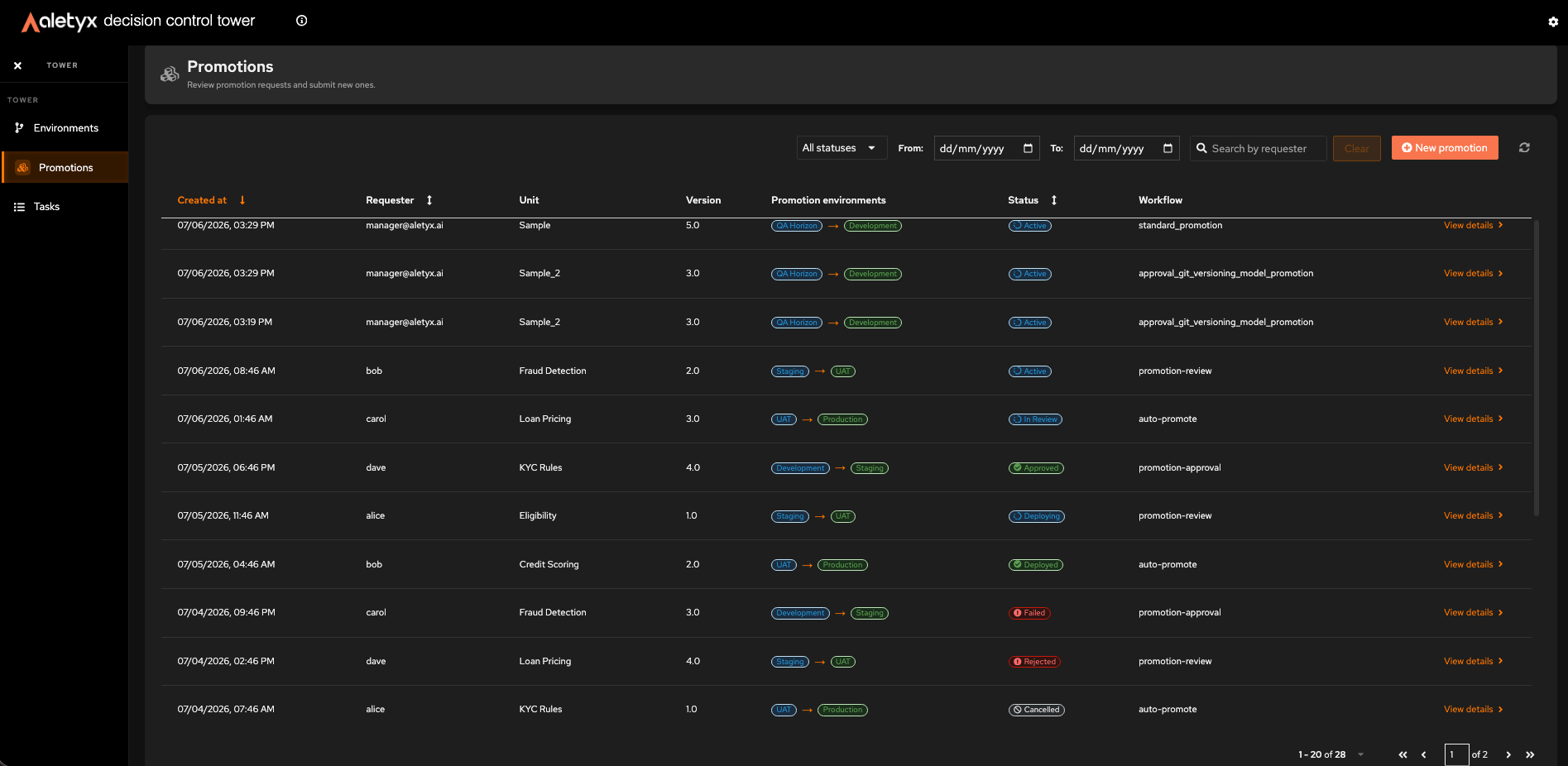
Promotions move a model version from one environment to another through a governed workflow. The **Promotions** area is a full flow: a list of every request, a form to create a new request, and a per-request detail page with the workflow and its timeline.
 All how-tos on this page are available to **any signed-in Tower user** unless noted.
## How to view promotion requests
Browse every promotion request and its current status.
**Steps:**
1. In the sidebar, click **Promotions** to open the list at `/promotions`.
2. Read the table: **Requester**, **Unit**, **Version**, **Promotion environments**, **Workflow**, **Status**.
3. (Optional) Narrow the list with the toolbar:
* **Status** dropdown (defaults to *All statuses*).
* **From:** / **To:** date range (the *To* date is inclusive through end of day).
* **Search by requester** (minimum 3 characters).
4. (Optional) Click a sortable column header to reorder; use the pager below the table.
**Verify:** Rows render with colored **status pills**; the list auto-refreshes about every 20 seconds. Click **Refresh** to update immediately.
**Open a request**
Click any row to open its [detail page](#how-to-open-a-promotion-requests-detail).
## How to create a promotion request
Submit a model version to be promoted from a source environment to a target environment.
All how-tos on this page are available to **any signed-in Tower user** unless noted.
## How to view promotion requests
Browse every promotion request and its current status.
**Steps:**
1. In the sidebar, click **Promotions** to open the list at `/promotions`.
2. Read the table: **Requester**, **Unit**, **Version**, **Promotion environments**, **Workflow**, **Status**.
3. (Optional) Narrow the list with the toolbar:
* **Status** dropdown (defaults to *All statuses*).
* **From:** / **To:** date range (the *To* date is inclusive through end of day).
* **Search by requester** (minimum 3 characters).
4. (Optional) Click a sortable column header to reorder; use the pager below the table.
**Verify:** Rows render with colored **status pills**; the list auto-refreshes about every 20 seconds. Click **Refresh** to update immediately.
**Open a request**
Click any row to open its [detail page](#how-to-open-a-promotion-requests-detail).
## How to create a promotion request
Submit a model version to be promoted from a source environment to a target environment.
 **Prerequisites:**
* At least one **online** source environment and a distinct target environment.
* The model unit and version you want to promote.
**Steps:**
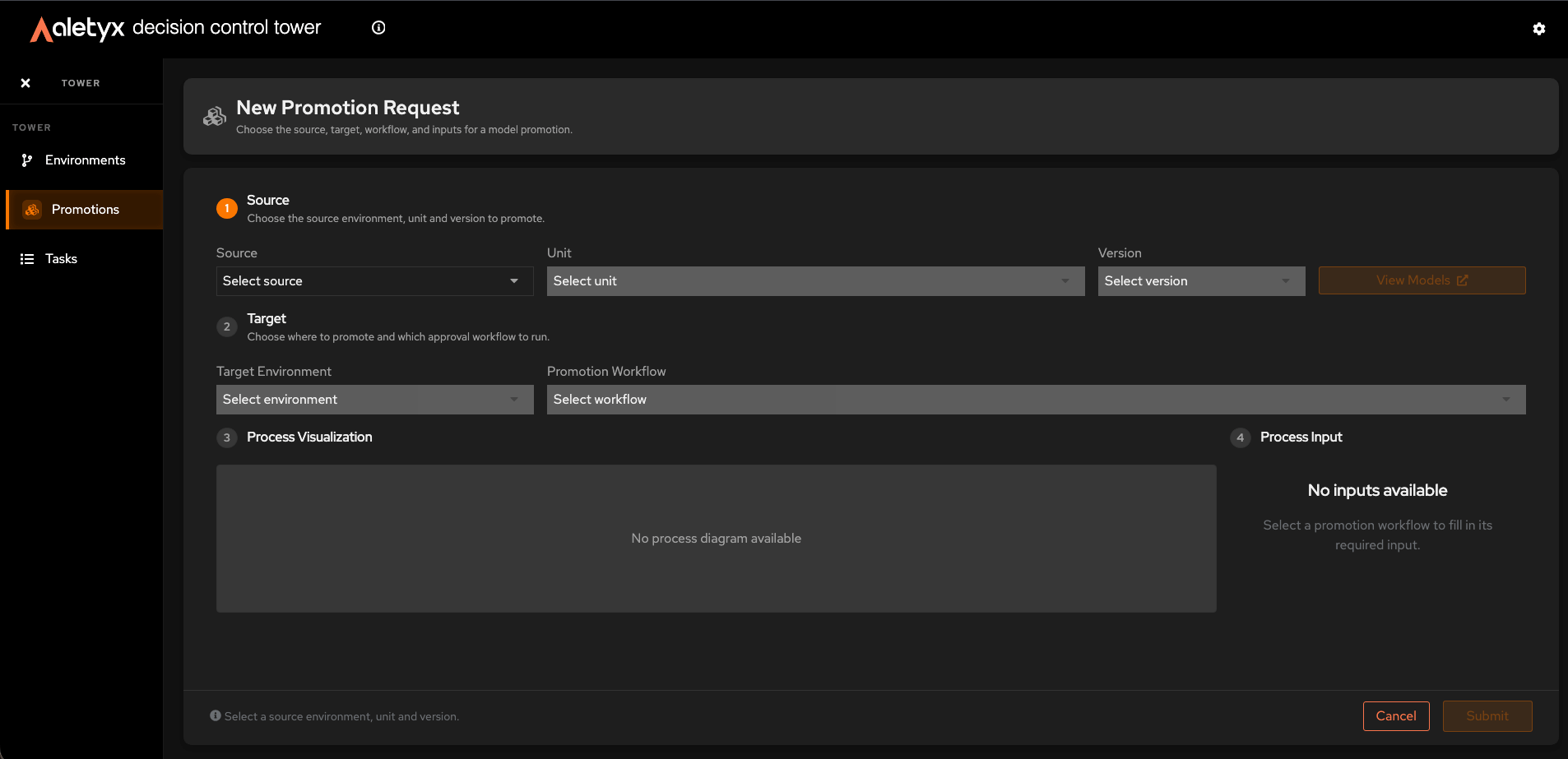
1. On the Promotions list, click **New promotion** to open the **New Promotion Request** form (`/promotions/new`).
2. **Source** - select **Source**, **Unit**, and **Version**. Your choices collapse into a **Selection Summary** you can reopen with **Edit**.
3. **Target** - select **Target Environment** and **Promotion Workflow** (must differ from the source).
4. Review **Process Visualization** (the workflow diagram) and fill **Process Input** - shown side by side. Complete any required field (for example, *justification*); a missing required value shows an inline error.
5. Click **Submit** (if it is disabled, a helper text explains why) - or **Cancel** to discard and return to the list.
**Verify:** A success message appears, you are taken to the new request's detail page, it shows up in the list, and the **Tasks** badge in the sidebar goes up.
## How to view source models before promoting
Open the source model in its editor to confirm you're promoting the right version.
**Prerequisites:** On the New Promotion Request form with **Source**, **Unit**, and **Version** selected.
**Steps:**
1. Click **View Models**.
**Verify:** The source environment's model editor opens in a new tab at the selected unit/version.
## How to open a promotion request's detail
Inspect a single request, its workflow, and its history.
**Prerequisites:**
* At least one **online** source environment and a distinct target environment.
* The model unit and version you want to promote.
**Steps:**
1. On the Promotions list, click **New promotion** to open the **New Promotion Request** form (`/promotions/new`).
2. **Source** - select **Source**, **Unit**, and **Version**. Your choices collapse into a **Selection Summary** you can reopen with **Edit**.
3. **Target** - select **Target Environment** and **Promotion Workflow** (must differ from the source).
4. Review **Process Visualization** (the workflow diagram) and fill **Process Input** - shown side by side. Complete any required field (for example, *justification*); a missing required value shows an inline error.
5. Click **Submit** (if it is disabled, a helper text explains why) - or **Cancel** to discard and return to the list.
**Verify:** A success message appears, you are taken to the new request's detail page, it shows up in the list, and the **Tasks** badge in the sidebar goes up.
## How to view source models before promoting
Open the source model in its editor to confirm you're promoting the right version.
**Prerequisites:** On the New Promotion Request form with **Source**, **Unit**, and **Version** selected.
**Steps:**
1. Click **View Models**.
**Verify:** The source environment's model editor opens in a new tab at the selected unit/version.
## How to open a promotion request's detail
Inspect a single request, its workflow, and its history.
 **Steps:**
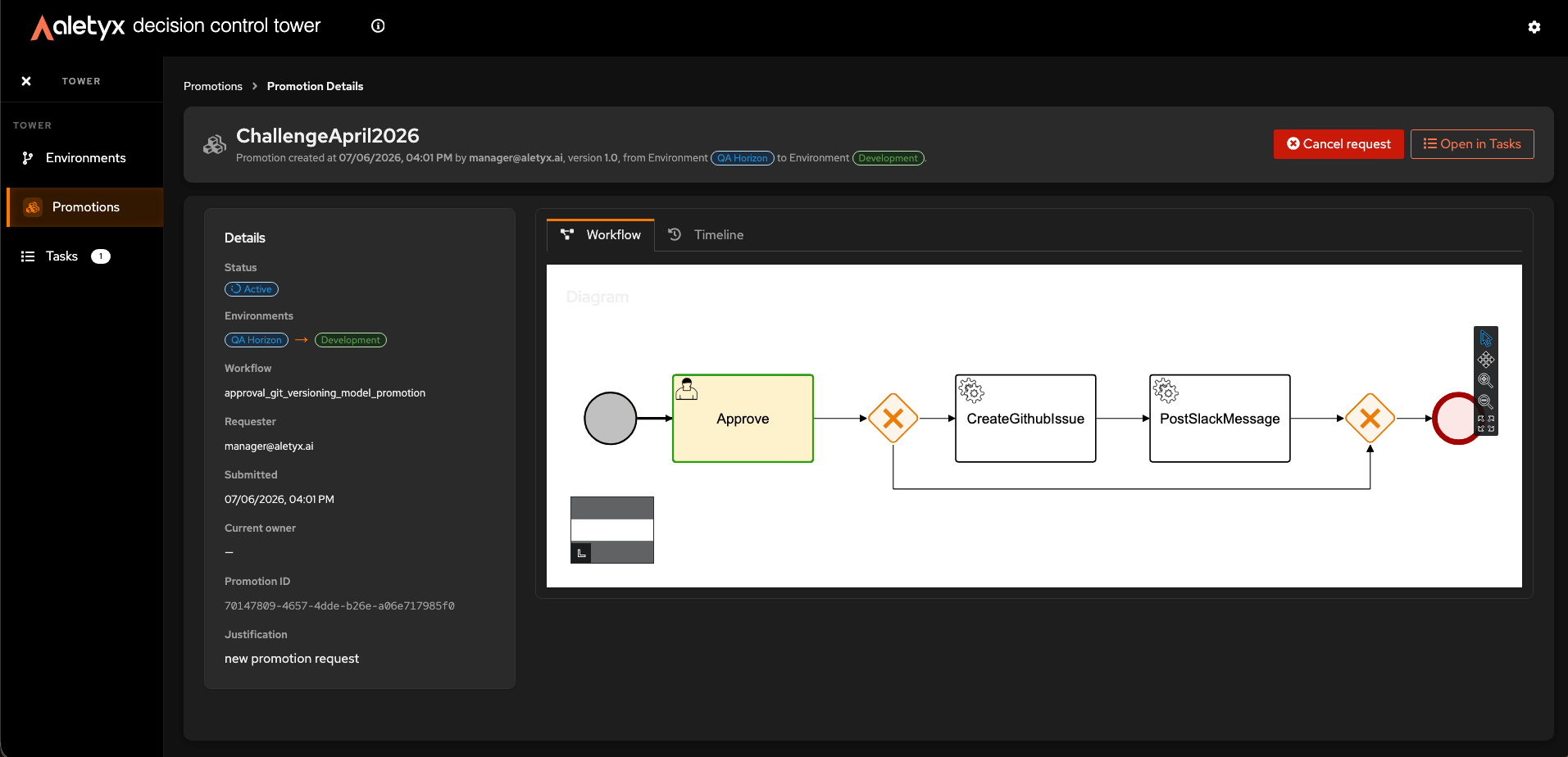
1. On the Promotions list, click a row (or open `/promotions/{id}`).
2. Read the **Details** card: **Status**, **Environments** (source → target), **Workflow**, **Requester**, **Submitted**, **Current owner**, **Promotion ID**, and **Justification**.
3. Switch tabs:
* **Workflow** - the BPMN diagram of the promotion workflow.
* **Timeline** - the per-task lifecycle; use **View full history** to open the full [promotion history](/docs/decision-control-tower/how-to/audit-trail).
4. (Optional) Click **Open in Tasks** to jump to the matching governance task.
**Verify:** The detail page shows the Details card with a status pill and both tabs.
## How to cancel a promotion request
Withdraw a request that hasn't finished yet.
**Prerequisites:** The request is in a cancellable state - **Pending**, **Active**, **In Review**, or **Approved**.
**Steps:**
1. Open the request (from the list row or its detail page).
2. Click **Cancel request**.
3. In the confirmation modal, click **Cancel request** to confirm (or **Keep request** to abort).
**Verify:** The request status becomes **Cancelled** and the action is no longer offered.
## Promotion statuses
Each request shows a colored status pill. The workflow uses the following states:
| Status | Meaning |
| --------------- | ------------------------------------------------------------ |
| **Pending** | Submitted, awaiting the workflow to activate |
| **Active** | Workflow is running |
| **In Review** | Waiting on a reviewer/approver |
| **Approved** | All required approvals granted |
| **Deploying** | Being deployed to the target environment |
| **Deployed** | Successfully deployed to the target |
| **Failed** | Deployment failed (see the promotion history for the reason) |
| **Rejected** | A reviewer denied the request |
| **Cancelled** | Withdrawn by the requester |
| **Rolled Back** | A previously deployed promotion was reverted |
**Steps:**
1. On the Promotions list, click a row (or open `/promotions/{id}`).
2. Read the **Details** card: **Status**, **Environments** (source → target), **Workflow**, **Requester**, **Submitted**, **Current owner**, **Promotion ID**, and **Justification**.
3. Switch tabs:
* **Workflow** - the BPMN diagram of the promotion workflow.
* **Timeline** - the per-task lifecycle; use **View full history** to open the full [promotion history](/docs/decision-control-tower/how-to/audit-trail).
4. (Optional) Click **Open in Tasks** to jump to the matching governance task.
**Verify:** The detail page shows the Details card with a status pill and both tabs.
## How to cancel a promotion request
Withdraw a request that hasn't finished yet.
**Prerequisites:** The request is in a cancellable state - **Pending**, **Active**, **In Review**, or **Approved**.
**Steps:**
1. Open the request (from the list row or its detail page).
2. Click **Cancel request**.
3. In the confirmation modal, click **Cancel request** to confirm (or **Keep request** to abort).
**Verify:** The request status becomes **Cancelled** and the action is no longer offered.
## Promotion statuses
Each request shows a colored status pill. The workflow uses the following states:
| Status | Meaning |
| --------------- | ------------------------------------------------------------ |
| **Pending** | Submitted, awaiting the workflow to activate |
| **Active** | Workflow is running |
| **In Review** | Waiting on a reviewer/approver |
| **Approved** | All required approvals granted |
| **Deploying** | Being deployed to the target environment |
| **Deployed** | Successfully deployed to the target |
| **Failed** | Deployment failed (see the promotion history for the reason) |
| **Rejected** | A reviewer denied the request |
| **Cancelled** | Withdrawn by the requester |
| **Rolled Back** | A previously deployed promotion was reverted |