> ## Documentation Index
> Fetch the complete documentation index at: https://aletyx.ai/docs/llms.txt
> Use this file to discover all available pages before exploring further.
# Governance Tasks
> The Tasks inbox is where promotion requests wait for human action - claim, approve, reject, request changes, resubmit, cancel, and annotate tasks.
The Tasks inbox is where promotion requests wait for human action. Reviewers **claim** a task to take ownership, then **approve**, **reject**, or **request changes**. Submitters whose requests were sent back can **resubmit** or **cancel** them.
 ## Access in this section
| Capability | What it allows |
| ------------------------------ | ------------------------------------------------------------------------------- |
| **Any signed-in Tower user** | Open the inbox, filter/sort, open a task drawer, read history |
| **Approval access for a step** | Claim, approve, reject, or request changes on tasks at that step |
| **Original requester** | Resubmit (with a new version) or cancel a request that was returned for changes |
**Four-eyes enforcement**
Acting on a task requires that the task is **claimed by you**, and the claim model prevents one person from completing both submission and approval. Segregation of duties is enforced server-side through claim and assignment.
**Where review actions appear**
**Approve**, **Reject**, and **Request Changes** appear on any review step that hasn't finished yet - any step whose name includes *review*, *approval*, or *check* - not only a step named exactly "Approve".
## How to view pending governance tasks
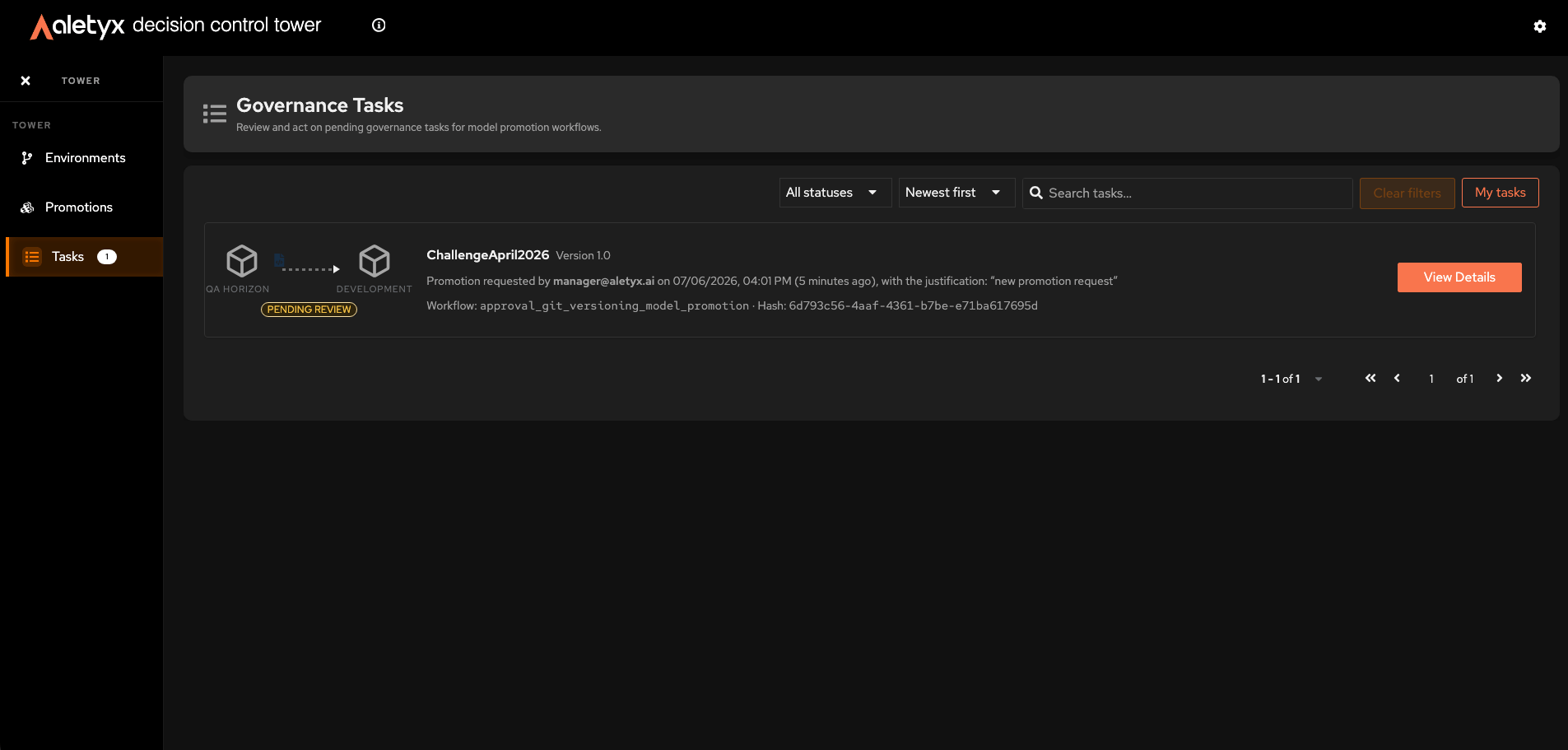
Open the approval inbox to see promotion requests awaiting action.
**Steps:**
1. In the sidebar, click **Tasks** (a badge shows the pending count).
2. Review the cards under **Governance Tasks** (shown inside the framed page header).
**Verify:** Task cards list model name, step, a **Workflow: `{process}`** line, and a status label (for example, *"Pending review"*, *"In progress"*, *"Changes requested"*). The card you select is highlighted with an accent border.
## How to find a task
Use the toolbar to narrow the inbox.
Open the status dropdown (defaults to *All statuses*) and choose **Pending review**, **In progress**, or **Changes requested**.
Open the sort dropdown and choose **Newest first** or **Oldest first**.
Type a model or step name into **Search tasks…**.
Click the **My tasks** toggle to swap between tasks you've claimed and the full pool.
**Verify:** Only matching cards remain.
**Reset everything**
Click **Clear filters** to drop the status, search, and *My tasks* toggle in one action.
## How to open a task's details
Inspect a request before acting on it.
**Steps:**
1. Click a task card, or its **View Details** button.
2. In the drawer, use the tabs:
* **Request** - model, environments, **Workflow**, and the process diagram; the requester's **Justification** appears in the *Requester* section.
* **Notes & Timeline** - chronological log plus your team's comments.
* **Changes Requested** - appears when the task is in a change-request state.
**Verify:** The drawer opens **below the top header** (which stays visible), showing request metadata, the process diagram, and history.
## How to claim a task
Reserve a task so you're the one reviewing it.
**Prerequisites:** Approval access for the task's current step; the task is unclaimed.
**Steps:**
1. Open the task details drawer.
2. Click **Claim Task**.
**Verify:** The button changes to **Unclaim Task**, the card shows *"Claimed by me"*, and the action controls become enabled.
## How to unclaim a task
Release a task back to the pool for someone else.
**Prerequisites:** You currently hold the claim.
**Steps:**
1. In the task drawer, click **Unclaim Task**.
**Verify:** The task returns to *"Pending review"* and the action controls are disabled again.
## How to approve a request
Approve a promotion so it proceeds through the workflow.
**Prerequisites:** Approval access for the **Approve** step; the task is claimed by you.
**Four-eyes**
You generally cannot approve a request you submitted yourself - segregation of duties is enforced through claim assignment.
**Steps:**
1. Open the task drawer (claim it first if needed).
2. Open **Select action** and choose **Approve**.
3. (Optional) Add a comment.
4. Click **Submit**.
**Verify:** The drawer closes, the task moves to *"Approved"*, and the **Tasks** badge count drops.
**What happens after the final approval**
Approving doesn't always mean the promotion is done - it just advances the workflow. If more steps remain, the next reviewer is notified. When the **last** required step is approved, the model is deployed to the target environment and the request status becomes **Deployed** (see the [promotion history](/docs/decision-control-tower/how-to/audit-trail)). If the deployment itself fails, the status becomes **Failed** and the promotion history shows the reason.
## How to reject a request
Deny a promotion request.
**Prerequisites:** Approval access for the **Approve** step; task claimed by you; a **comment is required**.
**Steps:**
1. In the drawer, choose **Reject** from **Select action**.
2. Enter a reason in **Comment (required)**.
3. Click **Submit**.
**Verify:** The task moves to *"Rejected"* and the drawer closes.
## How to request changes on a request
Send a request back to the submitter for revision instead of approving or rejecting.
**Prerequisites:** Approval access for the **Approve** step; task claimed by you; a **comment is required**.
**Steps:**
1. In the drawer, choose **Request Changes**.
2. Enter guidance in **Comment (required)**.
3. Click **Submit**.
**Verify:** The task transitions to *"Changes requested"* and is assigned back to the original requester.
## How to resubmit a change request with a new version
As the original requester, supply a corrected model version and send the request back for review.
**Prerequisites:** You are the original requester; the task is at the Change-Request step.
**Steps:**
1. Open the task drawer; choose **Resubmit** from **Select action**.
2. In **Resubmit version** ("Select version"), pick the corrected version.
3. (Optional) Add a comment.
4. Click **Submit** (enabled only once a version is chosen).
**Verify:** The request returns to the **Approve** step with the new version recorded.
## How to cancel a request
Withdraw your promotion request entirely.
**Prerequisites:** You are the original requester; the task is at the Change-Request step; a **comment is required**.
**Steps:**
1. In the drawer, choose **Cancel Request**.
2. Enter a reason in **Comment (required)**.
3. Click **Submit**.
**Verify:** The request closes in a *"Cancelled"* state and leaves the active inbox.
## How to add, edit, or delete a note on a task
Record a comment visible to reviewers and the requester. Notes you authored can be edited or deleted later.
**Prerequisites:** Task drawer open. For edit/delete, you must be the note's author.
**Notes disappear after a Request Changes**
Notes added via **Notes & Timeline** are cleared when someone performs a **Request Changes** on the task. To keep context from being lost, paste any relevant text (a copy of your note, a short summary) into the **Comment** field of the **Request Changes** action itself.
1. Go to the **Notes & Timeline** tab.
2. Click **Add a note**.
3. Type into **Write a note…**.
4. Click **Send note**.
1. On your note card, click **Edit note** (pencil).
2. Change the text and click **Save** (or **Cancel**).
1. On your note card, click **Delete note** (trash).
**Verify:** Adding shows the note with your name and timestamp; editing shows the updated text; deleting removes the note from the list.
## Access in this section
| Capability | What it allows |
| ------------------------------ | ------------------------------------------------------------------------------- |
| **Any signed-in Tower user** | Open the inbox, filter/sort, open a task drawer, read history |
| **Approval access for a step** | Claim, approve, reject, or request changes on tasks at that step |
| **Original requester** | Resubmit (with a new version) or cancel a request that was returned for changes |
**Four-eyes enforcement**
Acting on a task requires that the task is **claimed by you**, and the claim model prevents one person from completing both submission and approval. Segregation of duties is enforced server-side through claim and assignment.
**Where review actions appear**
**Approve**, **Reject**, and **Request Changes** appear on any review step that hasn't finished yet - any step whose name includes *review*, *approval*, or *check* - not only a step named exactly "Approve".
## How to view pending governance tasks
Open the approval inbox to see promotion requests awaiting action.
**Steps:**
1. In the sidebar, click **Tasks** (a badge shows the pending count).
2. Review the cards under **Governance Tasks** (shown inside the framed page header).
**Verify:** Task cards list model name, step, a **Workflow: `{process}`** line, and a status label (for example, *"Pending review"*, *"In progress"*, *"Changes requested"*). The card you select is highlighted with an accent border.
## How to find a task
Use the toolbar to narrow the inbox.
Open the status dropdown (defaults to *All statuses*) and choose **Pending review**, **In progress**, or **Changes requested**.
Open the sort dropdown and choose **Newest first** or **Oldest first**.
Type a model or step name into **Search tasks…**.
Click the **My tasks** toggle to swap between tasks you've claimed and the full pool.
**Verify:** Only matching cards remain.
**Reset everything**
Click **Clear filters** to drop the status, search, and *My tasks* toggle in one action.
## How to open a task's details
Inspect a request before acting on it.
**Steps:**
1. Click a task card, or its **View Details** button.
2. In the drawer, use the tabs:
* **Request** - model, environments, **Workflow**, and the process diagram; the requester's **Justification** appears in the *Requester* section.
* **Notes & Timeline** - chronological log plus your team's comments.
* **Changes Requested** - appears when the task is in a change-request state.
**Verify:** The drawer opens **below the top header** (which stays visible), showing request metadata, the process diagram, and history.
## How to claim a task
Reserve a task so you're the one reviewing it.
**Prerequisites:** Approval access for the task's current step; the task is unclaimed.
**Steps:**
1. Open the task details drawer.
2. Click **Claim Task**.
**Verify:** The button changes to **Unclaim Task**, the card shows *"Claimed by me"*, and the action controls become enabled.
## How to unclaim a task
Release a task back to the pool for someone else.
**Prerequisites:** You currently hold the claim.
**Steps:**
1. In the task drawer, click **Unclaim Task**.
**Verify:** The task returns to *"Pending review"* and the action controls are disabled again.
## How to approve a request
Approve a promotion so it proceeds through the workflow.
**Prerequisites:** Approval access for the **Approve** step; the task is claimed by you.
**Four-eyes**
You generally cannot approve a request you submitted yourself - segregation of duties is enforced through claim assignment.
**Steps:**
1. Open the task drawer (claim it first if needed).
2. Open **Select action** and choose **Approve**.
3. (Optional) Add a comment.
4. Click **Submit**.
**Verify:** The drawer closes, the task moves to *"Approved"*, and the **Tasks** badge count drops.
**What happens after the final approval**
Approving doesn't always mean the promotion is done - it just advances the workflow. If more steps remain, the next reviewer is notified. When the **last** required step is approved, the model is deployed to the target environment and the request status becomes **Deployed** (see the [promotion history](/docs/decision-control-tower/how-to/audit-trail)). If the deployment itself fails, the status becomes **Failed** and the promotion history shows the reason.
## How to reject a request
Deny a promotion request.
**Prerequisites:** Approval access for the **Approve** step; task claimed by you; a **comment is required**.
**Steps:**
1. In the drawer, choose **Reject** from **Select action**.
2. Enter a reason in **Comment (required)**.
3. Click **Submit**.
**Verify:** The task moves to *"Rejected"* and the drawer closes.
## How to request changes on a request
Send a request back to the submitter for revision instead of approving or rejecting.
**Prerequisites:** Approval access for the **Approve** step; task claimed by you; a **comment is required**.
**Steps:**
1. In the drawer, choose **Request Changes**.
2. Enter guidance in **Comment (required)**.
3. Click **Submit**.
**Verify:** The task transitions to *"Changes requested"* and is assigned back to the original requester.
## How to resubmit a change request with a new version
As the original requester, supply a corrected model version and send the request back for review.
**Prerequisites:** You are the original requester; the task is at the Change-Request step.
**Steps:**
1. Open the task drawer; choose **Resubmit** from **Select action**.
2. In **Resubmit version** ("Select version"), pick the corrected version.
3. (Optional) Add a comment.
4. Click **Submit** (enabled only once a version is chosen).
**Verify:** The request returns to the **Approve** step with the new version recorded.
## How to cancel a request
Withdraw your promotion request entirely.
**Prerequisites:** You are the original requester; the task is at the Change-Request step; a **comment is required**.
**Steps:**
1. In the drawer, choose **Cancel Request**.
2. Enter a reason in **Comment (required)**.
3. Click **Submit**.
**Verify:** The request closes in a *"Cancelled"* state and leaves the active inbox.
## How to add, edit, or delete a note on a task
Record a comment visible to reviewers and the requester. Notes you authored can be edited or deleted later.
**Prerequisites:** Task drawer open. For edit/delete, you must be the note's author.
**Notes disappear after a Request Changes**
Notes added via **Notes & Timeline** are cleared when someone performs a **Request Changes** on the task. To keep context from being lost, paste any relevant text (a copy of your note, a short summary) into the **Comment** field of the **Request Changes** action itself.
1. Go to the **Notes & Timeline** tab.
2. Click **Add a note**.
3. Type into **Write a note…**.
4. Click **Send note**.
1. On your note card, click **Edit note** (pencil).
2. Change the text and click **Save** (or **Cancel**).
1. On your note card, click **Delete note** (trash).
**Verify:** Adding shows the note with your name and timestamp; editing shows the updated text; deleting removes the note from the list.