> ## Documentation Index
> Fetch the complete documentation index at: https://aletyx.ai/docs/llms.txt
> Use this file to discover all available pages before exploring further.
# Environments
> Browse, filter, tag, and launch the Decision Control environments you have access to from the Environments page.
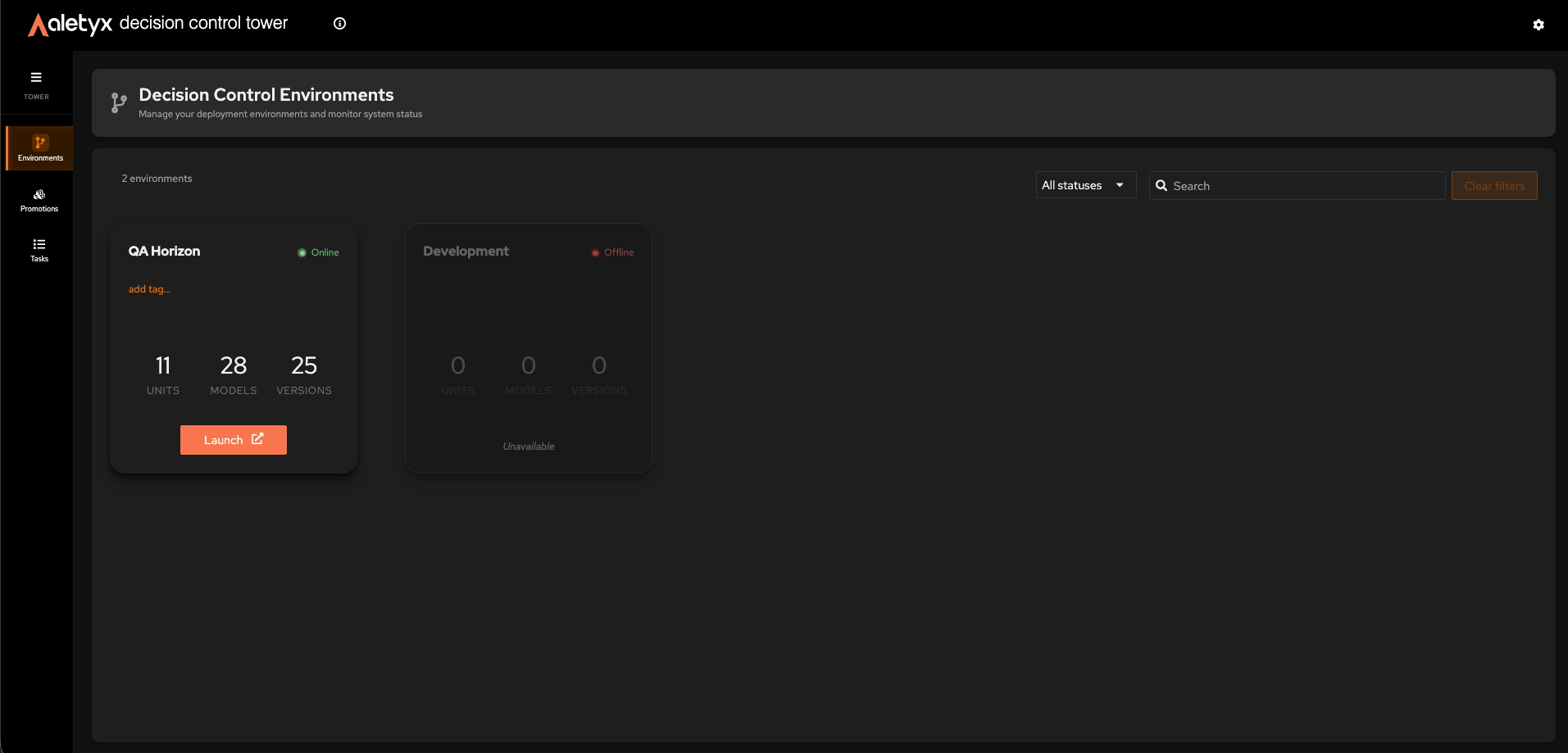
The Environments page lists every Decision Control environment you have access to with live counts (Units / Models / Versions), a status badge, and tag-based filters. It lives at `/environments` - reach it from the **Environments** card on the [Home page](/docs/decision-control-tower/how-to/sign-in-and-global) or the **Environments** item in the sidebar.
 All how-tos on this page are available to **any signed-in Tower user** unless noted. Counts refresh automatically about every two minutes.
## How to browse environments
See all Decision Control environments and their health at a glance.
**Steps:**
1. Open **Environments** (from the Home page card or the sidebar) - the page header shows a branch icon and title **Decision Control Environments** above the environment cards.
2. Read each card's status badge (**online** / **offline**) and **Units** / **Models** / **Versions** stats.
**Verify:** Cards render with live counts; the toolbar shows "`{N} environments`".
## How to find an environment
Narrow the grid with the toolbar filters and search.
1. Open the **status** dropdown (defaults to *All statuses*).
2. Choose **Online** or **Offline**.
1. Open the tag multi-select in the toolbar.
2. (Optional) Type in **Search tags…** to find a tag.
3. Select one or more tags; use **Clear all** to reset.
1. Type into the toolbar **Search** field.
**Verify:** The grid shows only matching cards and the count reads "`{filtered} of {total}`". A count badge on the tag picker shows how many tags are active.
**Reset everything**
Click **Clear filters** in the toolbar to drop status, tag, and name filters in one go.
## How to add a tag to an environment
Label an environment for organization and filtering.
**Prerequisites:** The environment is **online**; fewer than 6 tags already applied.
**Steps:**
1. On the environment card, click **add tag…**.
2. Type a name in the inline **tag name…** field.
3. Press Enter to confirm (or Esc to cancel).
**Verify:** A colored tag label appears on the card (and becomes available in the tag filter).
## How to remove a tag from an environment
Detach a previously applied tag.
**Prerequisites:** The environment is **online**.
**Steps:**
1. On the card, locate the tag label.
2. Click its **×** ("Remove tag `{name}`").
**Verify:** The tag label disappears from the card.
## How to launch an environment's Decision Control workbench
Jump from governance into the Decision Control authoring/management app for that environment.
**Prerequisites:** The environment is **online**. (Offline cards show "Unavailable" instead.)
**Steps:**
1. On the environment card, click **Launch** (external-link icon).
**Verify:** The environment's Decision Control app opens in a new browser tab. The workbench itself is documented in [Decision Control → How-To Guides](/docs/decision-control/how-to/overview).
All how-tos on this page are available to **any signed-in Tower user** unless noted. Counts refresh automatically about every two minutes.
## How to browse environments
See all Decision Control environments and their health at a glance.
**Steps:**
1. Open **Environments** (from the Home page card or the sidebar) - the page header shows a branch icon and title **Decision Control Environments** above the environment cards.
2. Read each card's status badge (**online** / **offline**) and **Units** / **Models** / **Versions** stats.
**Verify:** Cards render with live counts; the toolbar shows "`{N} environments`".
## How to find an environment
Narrow the grid with the toolbar filters and search.
1. Open the **status** dropdown (defaults to *All statuses*).
2. Choose **Online** or **Offline**.
1. Open the tag multi-select in the toolbar.
2. (Optional) Type in **Search tags…** to find a tag.
3. Select one or more tags; use **Clear all** to reset.
1. Type into the toolbar **Search** field.
**Verify:** The grid shows only matching cards and the count reads "`{filtered} of {total}`". A count badge on the tag picker shows how many tags are active.
**Reset everything**
Click **Clear filters** in the toolbar to drop status, tag, and name filters in one go.
## How to add a tag to an environment
Label an environment for organization and filtering.
**Prerequisites:** The environment is **online**; fewer than 6 tags already applied.
**Steps:**
1. On the environment card, click **add tag…**.
2. Type a name in the inline **tag name…** field.
3. Press Enter to confirm (or Esc to cancel).
**Verify:** A colored tag label appears on the card (and becomes available in the tag filter).
## How to remove a tag from an environment
Detach a previously applied tag.
**Prerequisites:** The environment is **online**.
**Steps:**
1. On the card, locate the tag label.
2. Click its **×** ("Remove tag `{name}`").
**Verify:** The tag label disappears from the card.
## How to launch an environment's Decision Control workbench
Jump from governance into the Decision Control authoring/management app for that environment.
**Prerequisites:** The environment is **online**. (Offline cards show "Unavailable" instead.)
**Steps:**
1. On the environment card, click **Launch** (external-link icon).
**Verify:** The environment's Decision Control app opens in a new browser tab. The workbench itself is documented in [Decision Control → How-To Guides](/docs/decision-control/how-to/overview).